Test dynamic scaling solution
Overview
ℹ️ Information: Dynamic scaling automatically adjusts your application’s capacity based on real-time metrics collected by Amazon CloudWatch. When properly configured, your Auto Scaling Group (ASG) will launch or terminate instances in response to changing workload demands, ensuring optimal performance and cost efficiency.
Understanding Dynamic Scaling Metrics
Dynamic scaling can be triggered by various metrics, including:
- CPU utilization percentage
- Network traffic volume
- Application Load Balancer request count per target
- Custom metrics specific to your application
💡 Pro tip: The choice of scaling metric should align with your application’s performance bottlenecks. For web applications, request count per target often provides the most responsive scaling behavior.
Configuring Dynamic Scaling
Now, let’s configure dynamic scaling:
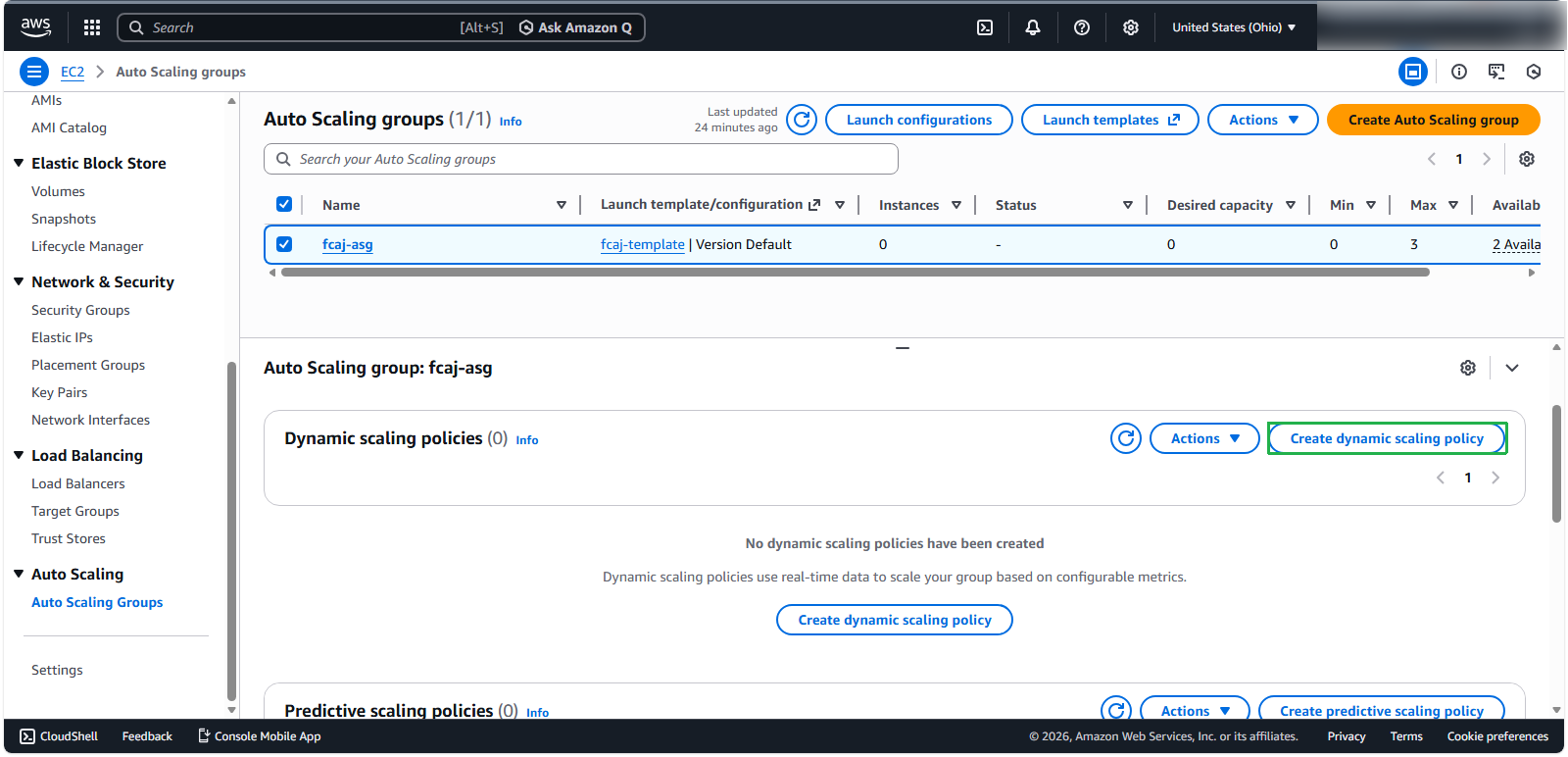
- Navigate to the Automatic scaling tab of your ASG
- Click Create dynamic scaling policy
- Configure the policy with these parameters:
- Policy type: Target tracking scaling
- Scaling policy name:
Request Over 500 per target - Metric type: Application Load Balancer request count per target
- Target group: FCAJ-Management-TG
- Target value: 500 (requests)
- Instance warmup: 60 seconds
- Click Create to implement the policy
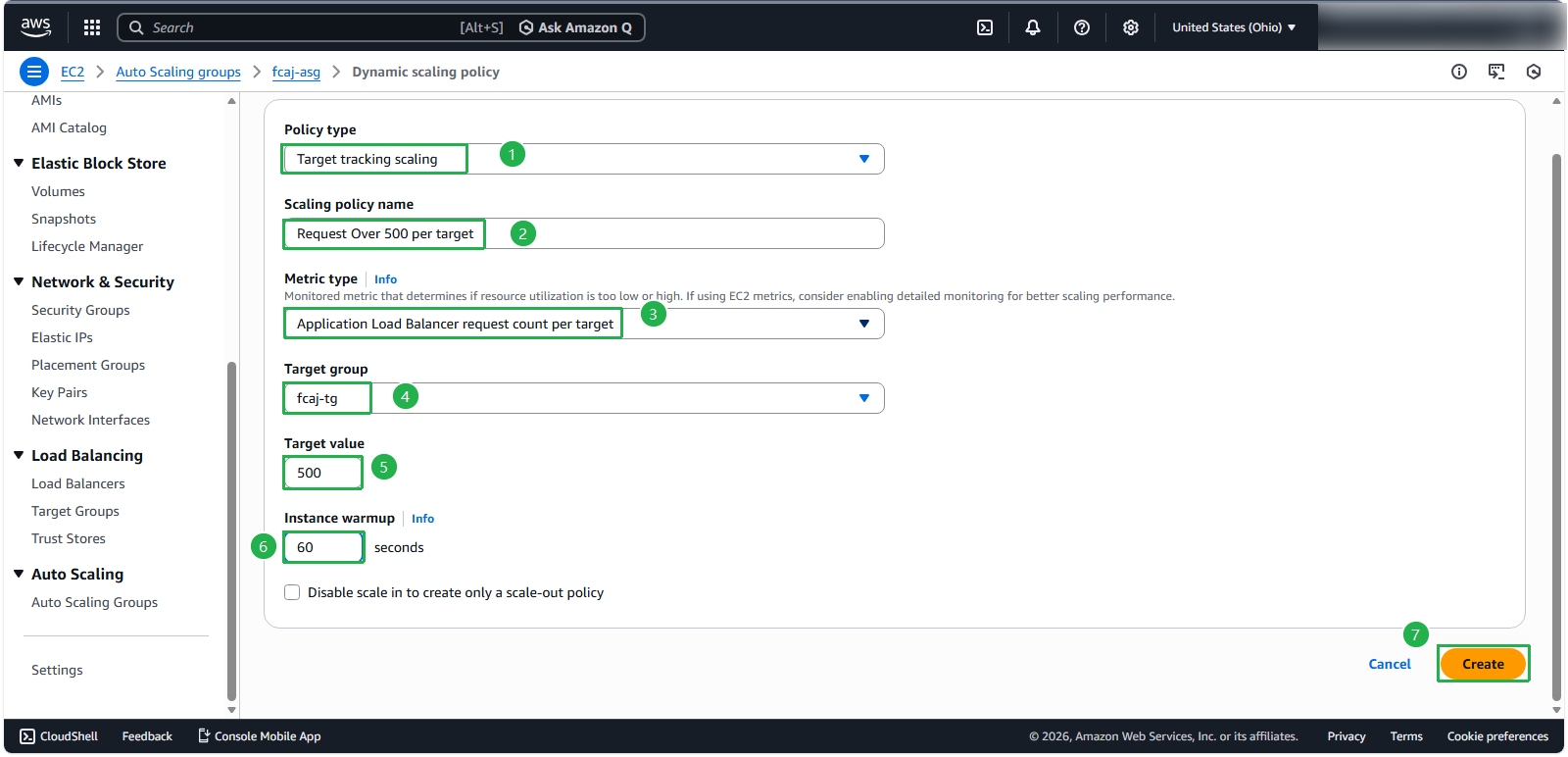
ℹ️ Information: The Instance warmup parameter defines how long a newly launched instance should be excluded from aggregated metrics. This allows the instance to initialize fully before it’s considered in scaling decisions. For production workloads, consider setting this value higher (120-300 seconds) depending on your application’s initialization requirements.
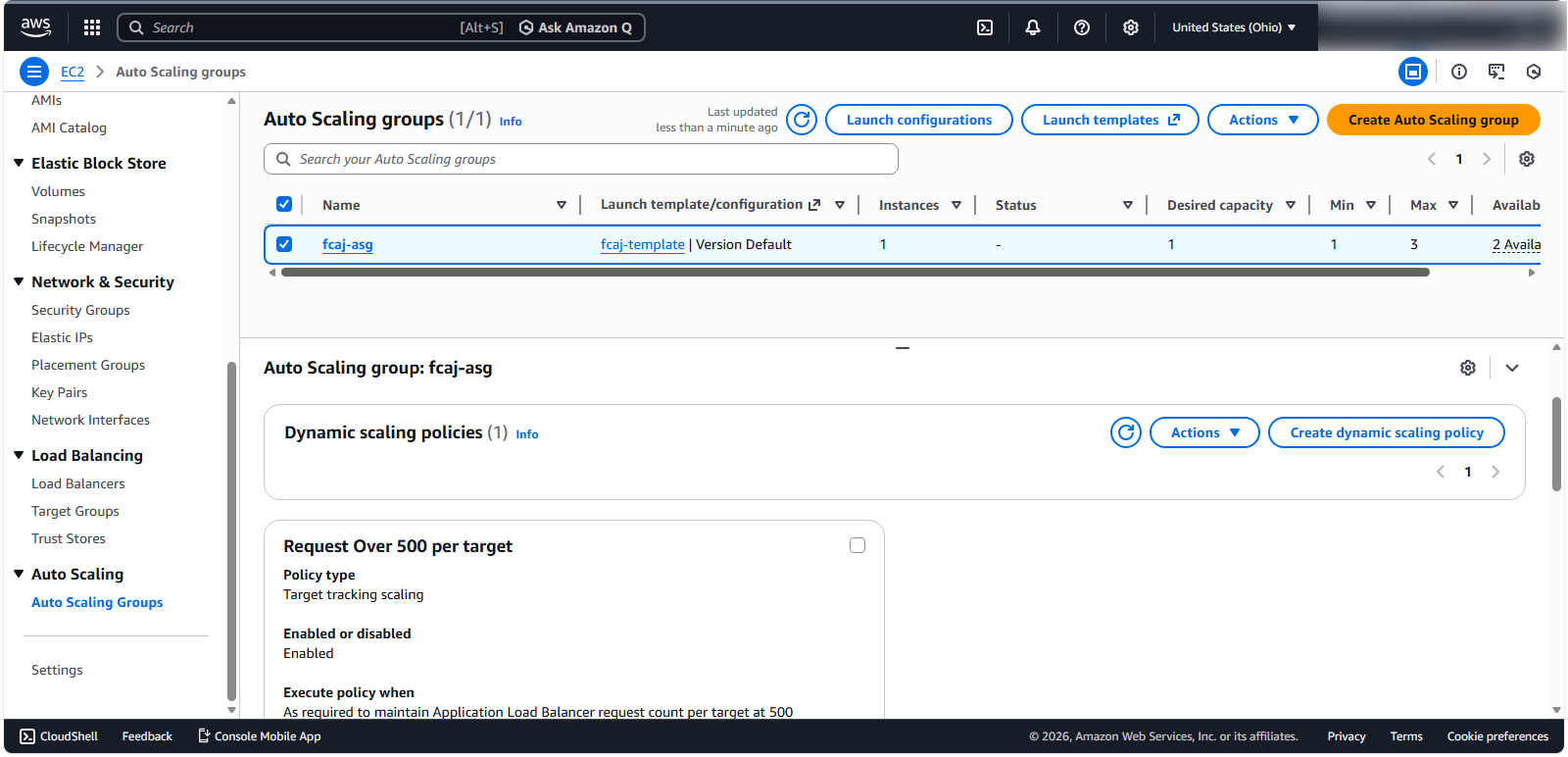
After successful creation, you’ll see your dynamic scaling policy in the list:
Testing Dynamic Scaling
To evaluate the effectiveness of dynamic scaling:
- Start your load testing program with the same configuration used in previous tests
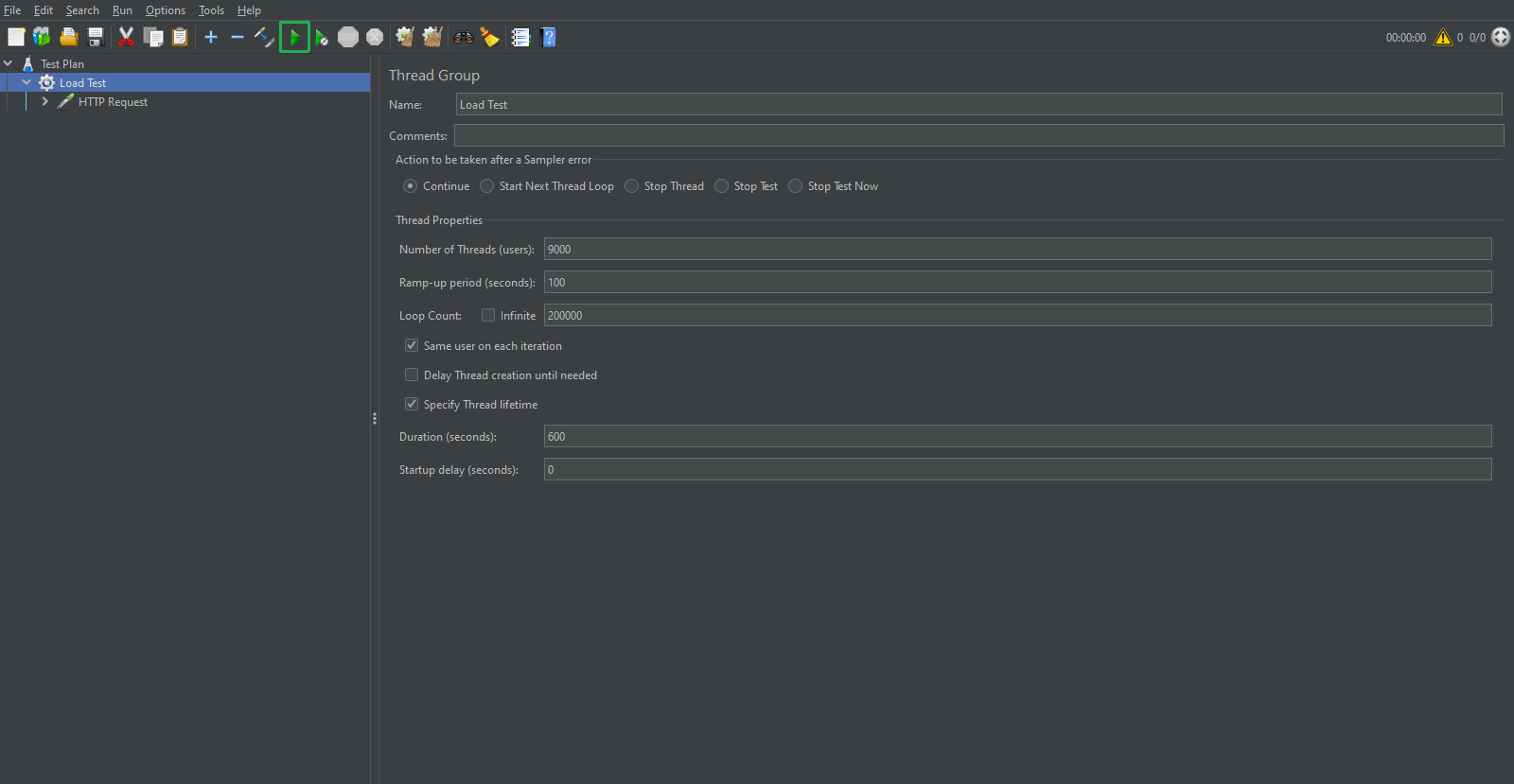
- Return to the Activity tab of your ASG to monitor scaling actions
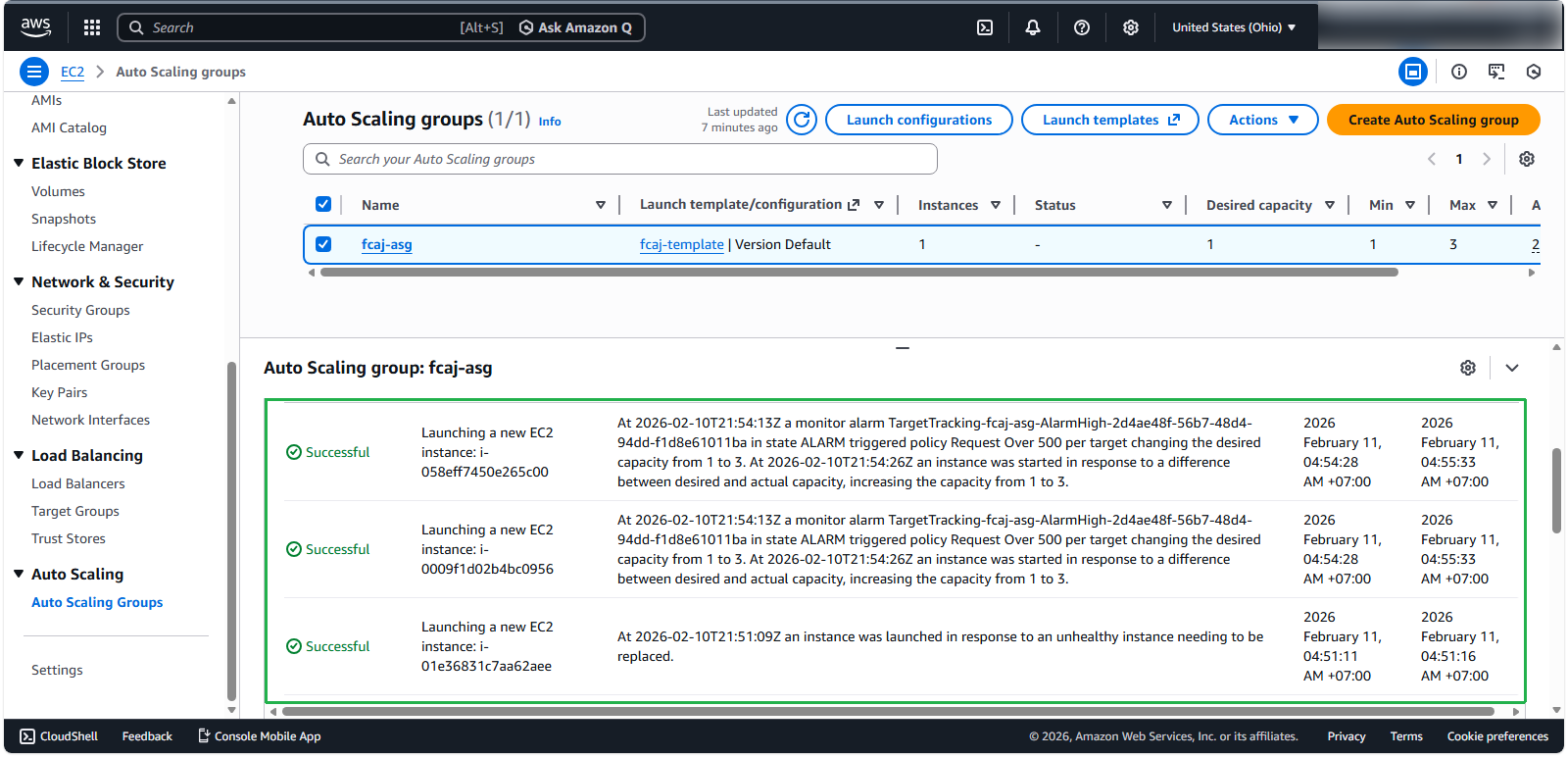
- Monitor the EC2 Console to observe the request metrics for your instances ⚠️ Warning: CloudWatch metrics may take several minutes to update. Be patient and observe the trend lines as they begin to stabilize or increase.
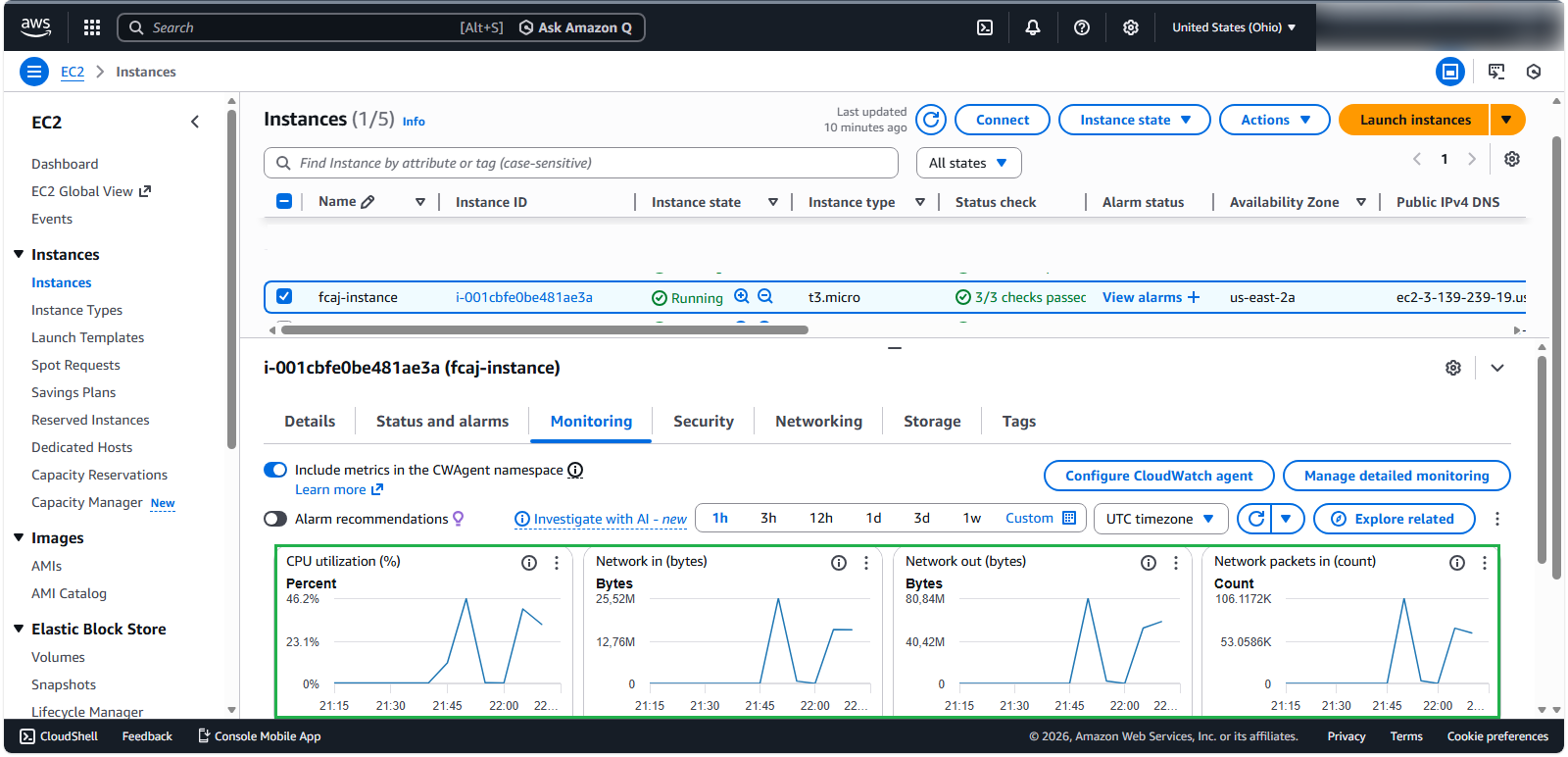
ℹ️ Information: In this example, the ASG has determined that three instances are needed to handle the current request volume, scaling up to the maximum desired capacity we configured.
- In the EC2 Console, select all instances to compare their performance metrics
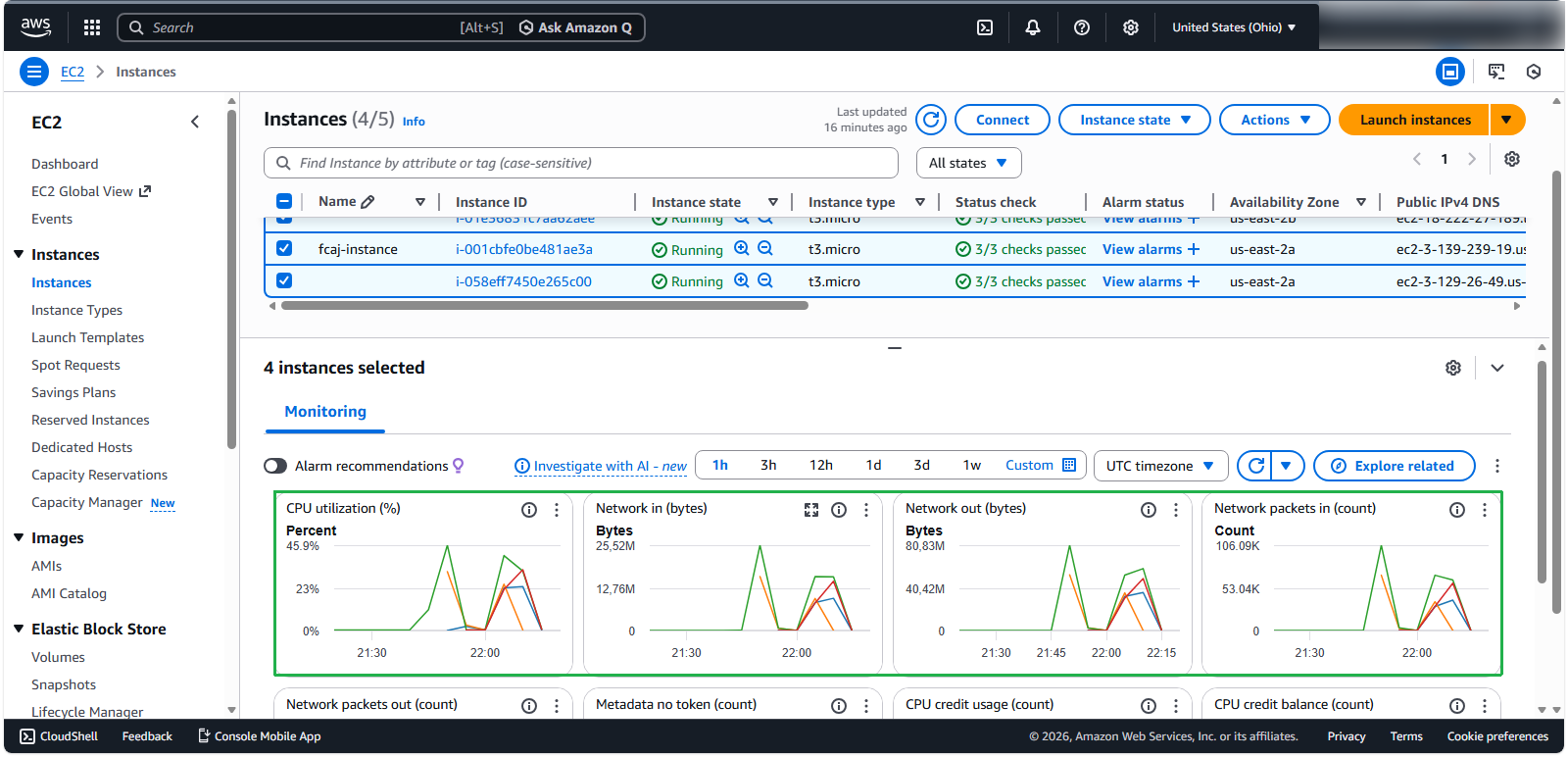
**💡 Pro tip:**Notice how the green line (representing your original instance) gradually decreases as new instances (represented by other colors) begin handling portions of the traffic. This demonstrates the load balancer distributing requests across all available instances.
Stop the load testing program to observe scale-in behavior
Monitor the ASG Activity tab as unnecessary instances are terminated
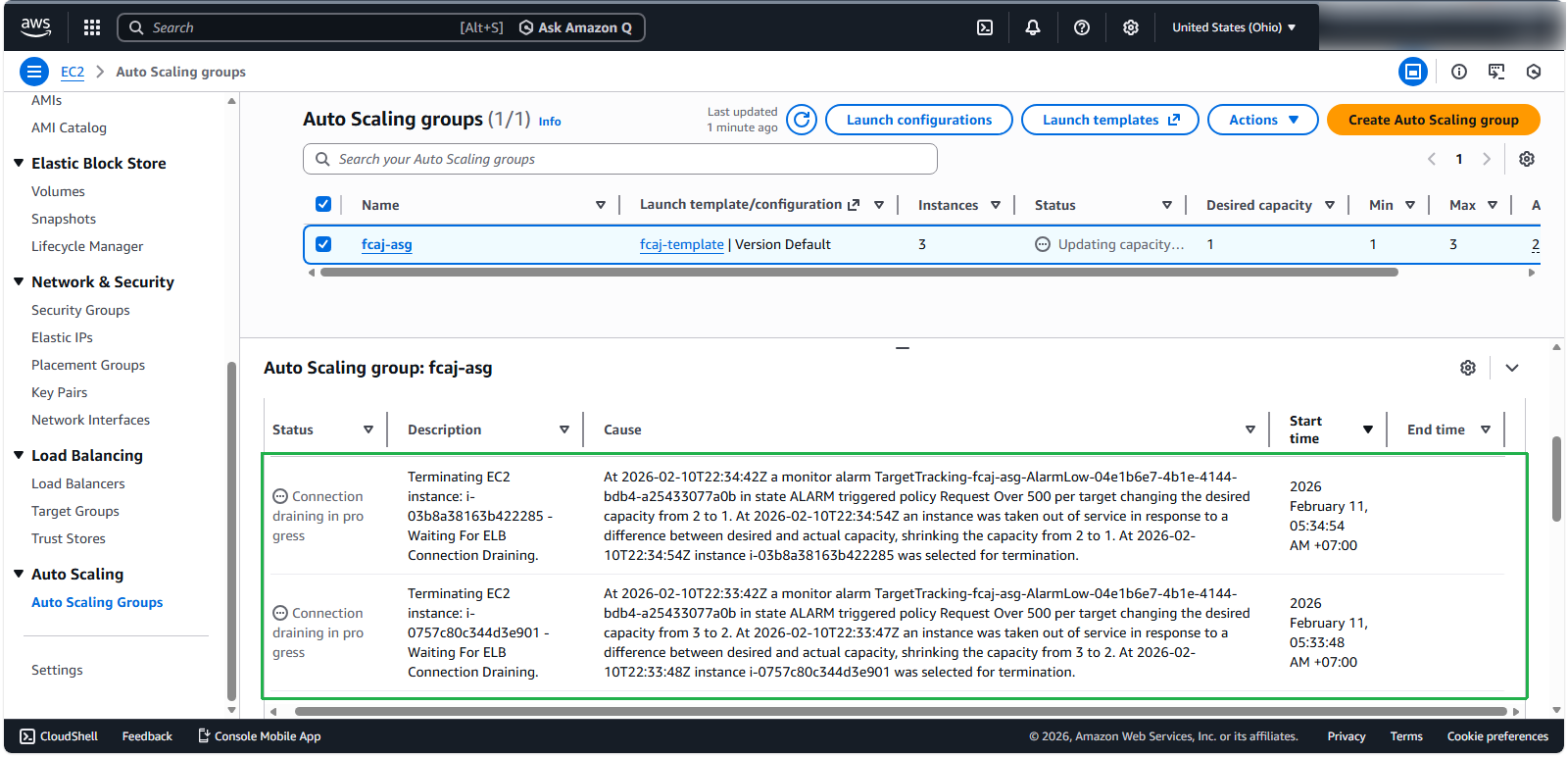
⚠️ Warning: Scale-in actions typically have a cooldown period to prevent rapid scaling oscillations. This means termination of excess instances may take several minutes after load decreases.
Key Insights and Best Practices
ℹ️ Information: Dynamic scaling responds to real-time metrics, making it ideal for workloads with unpredictable traffic patterns. However, there are important considerations:
- Metric Selection: Choose metrics that directly correlate with user experience and system performance
- Target Values: Set appropriate target values based on performance testing and application requirements
- Warmup Periods: Configure realistic warmup times that allow your application to fully initialize
- Scale-In Protection: Consider enabling instance scale-in protection for critical workloads
- Monitoring: Regularly review scaling activities to optimize your configuration
🔒 Security Note: When implementing dynamic scaling, ensure your security groups, IAM roles, and network configurations are properly set to maintain security posture during scaling events.
Conclusion
Dynamic scaling provides an effective way to automatically adjust capacity based on real-time demand. While it offers significant advantages over manual or scheduled scaling for unpredictable workloads, it does have inherent limitations:
- There’s an unavoidable delay between metric collection, evaluation, and scaling action
- Rapid traffic spikes may temporarily impact performance before scaling completes
- Determining optimal target values requires testing and refinement
For workloads with more predictable patterns or those requiring faster response to changing conditions, consider implementing predictive scaling, which we’ll explore in the next section.