Test manual scaling solution
Overview
ℹ️ Information: Manual Scaling is performed by explicitly adjusting the Desired capacity parameter of your Auto Scaling Group. After modifying this value and confirming the update, the ASG will automatically launch or terminate EC2 instances to match your specified capacity.
Test Environment Setup
Once your Auto Scaling Group is created, the service automatically launches an EC2 instance according to your configuration. To verify this deployment:
- Navigate to the EC2 Console
- Select Load Balancer
- Choose the Resource map - new tab
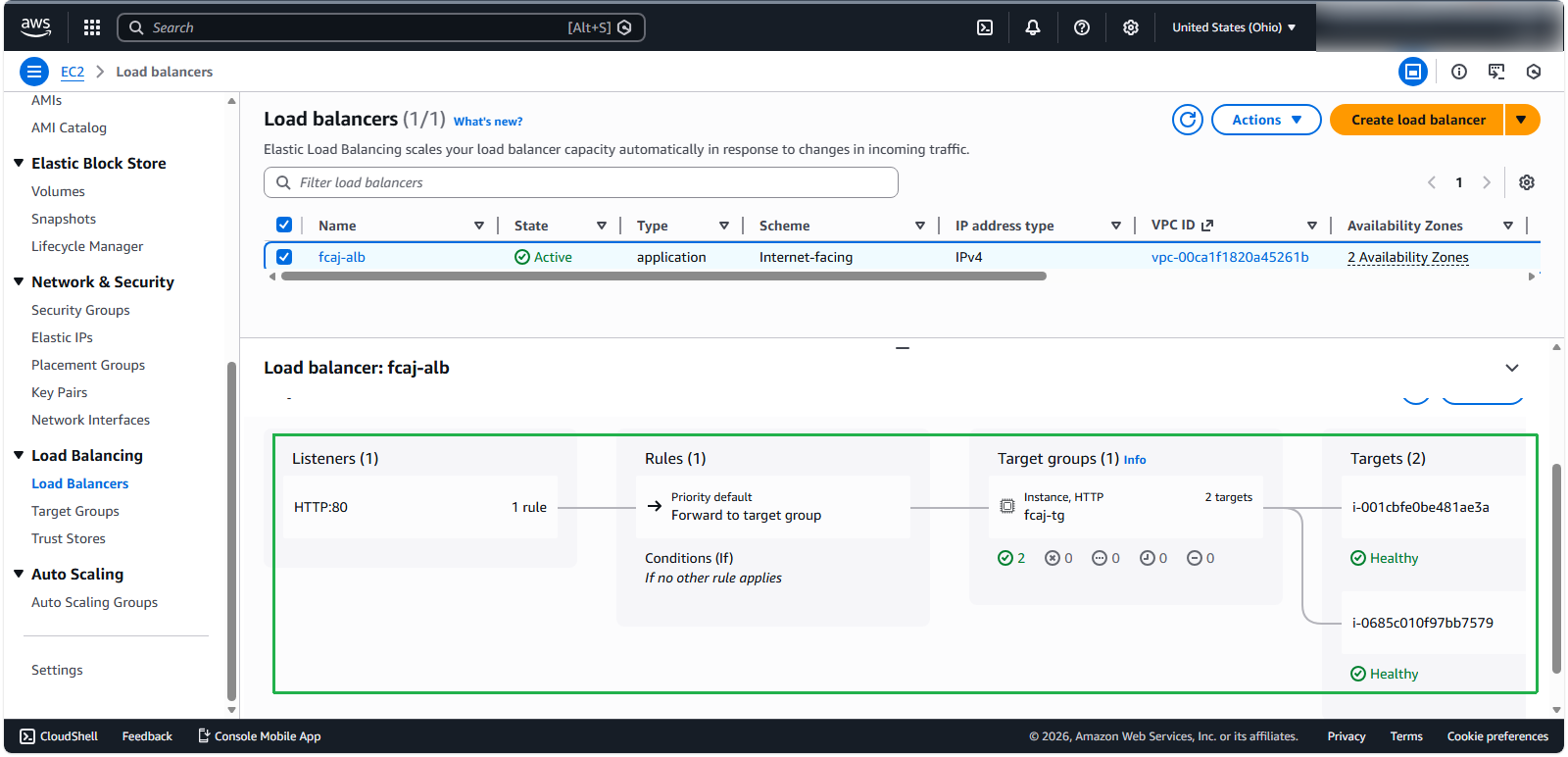
ℹ️ Information: You should observe the Target Group linked to two targets - your original EC2 instance and the new instance created by the Auto Scaling Group.
Configuring the Load Test
Now we’ll configure the load testing application downloaded earlier:
- Open the application, right click to Test Plan > Add > Threads (Users) > Thread Group
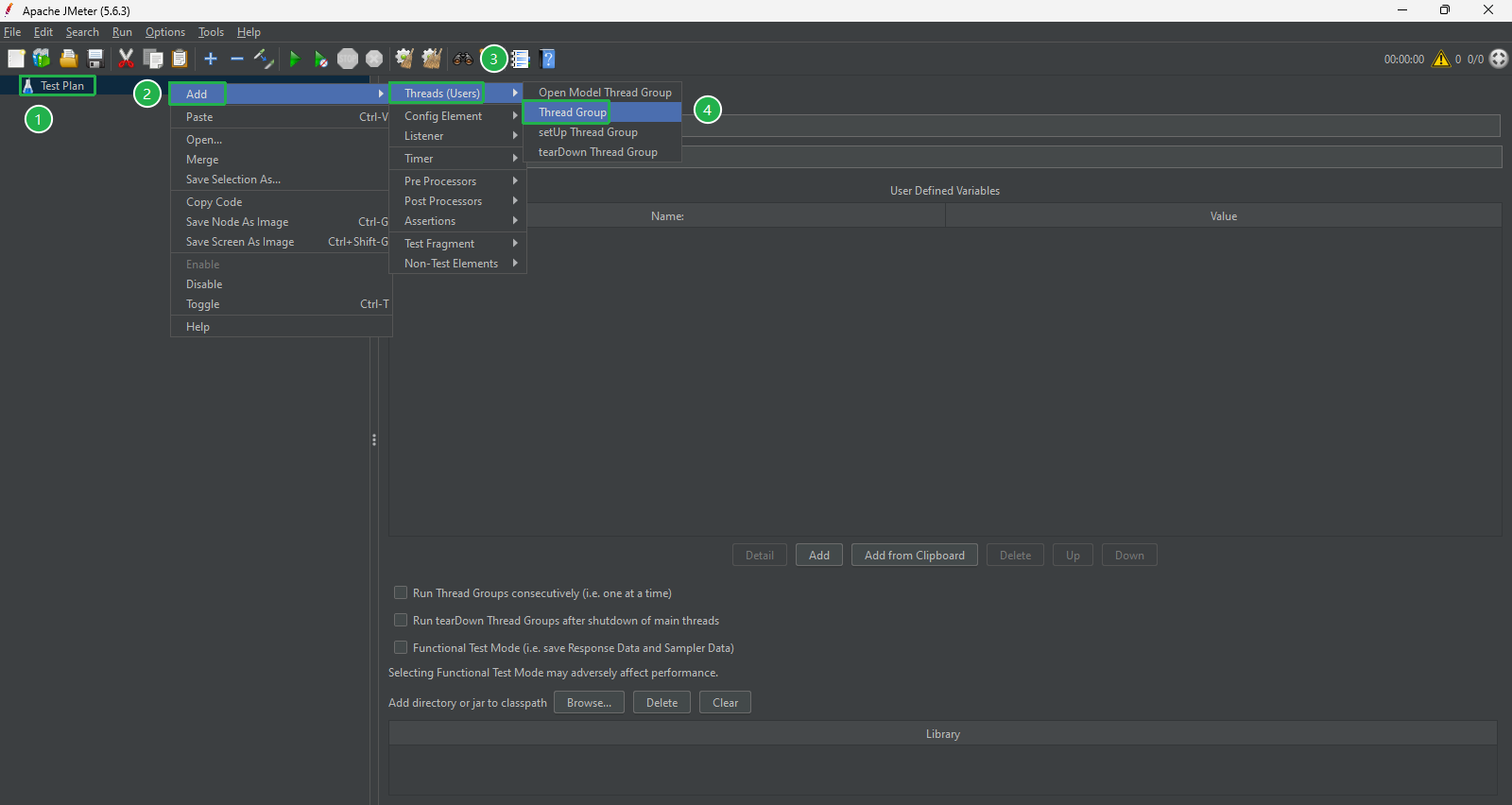
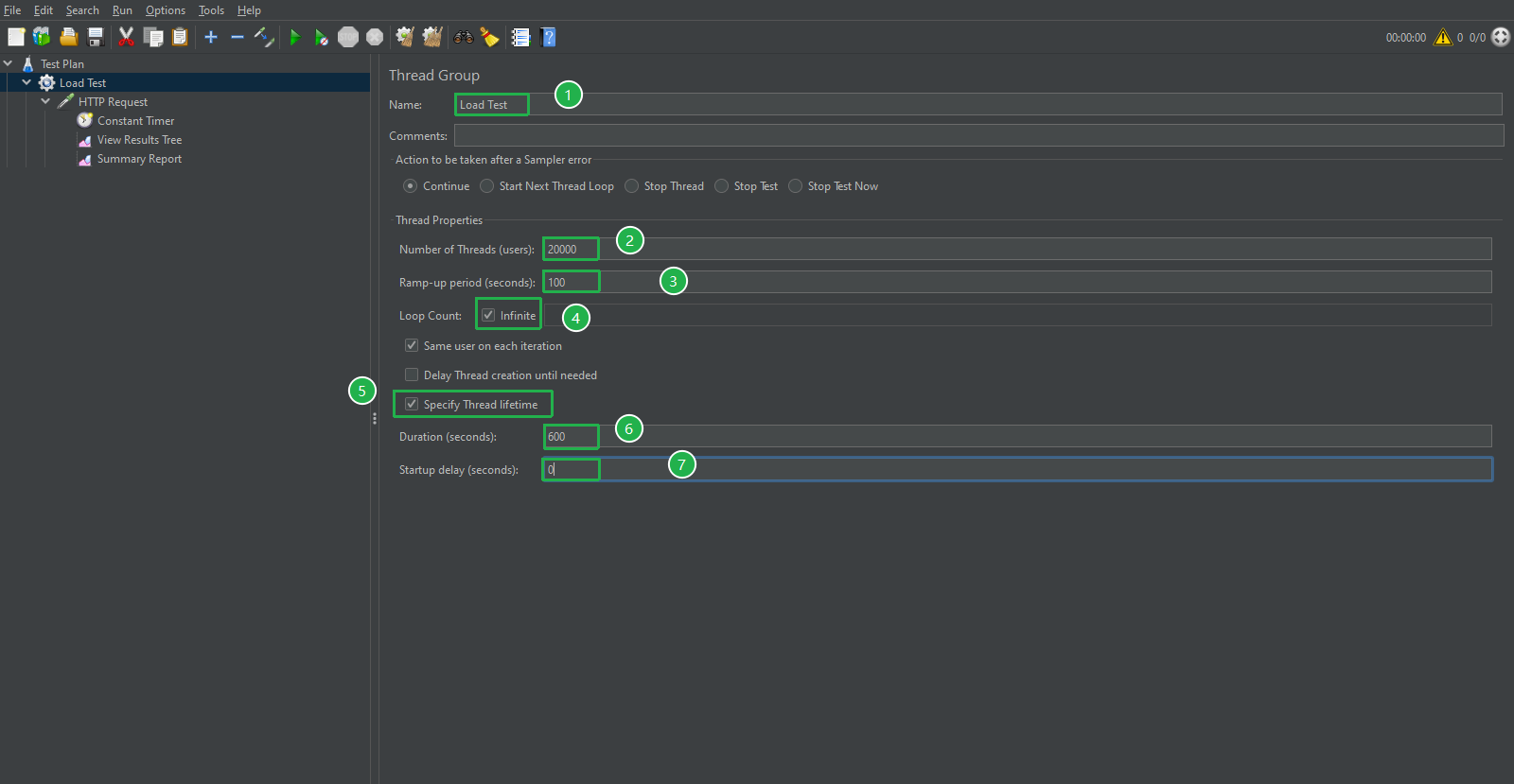
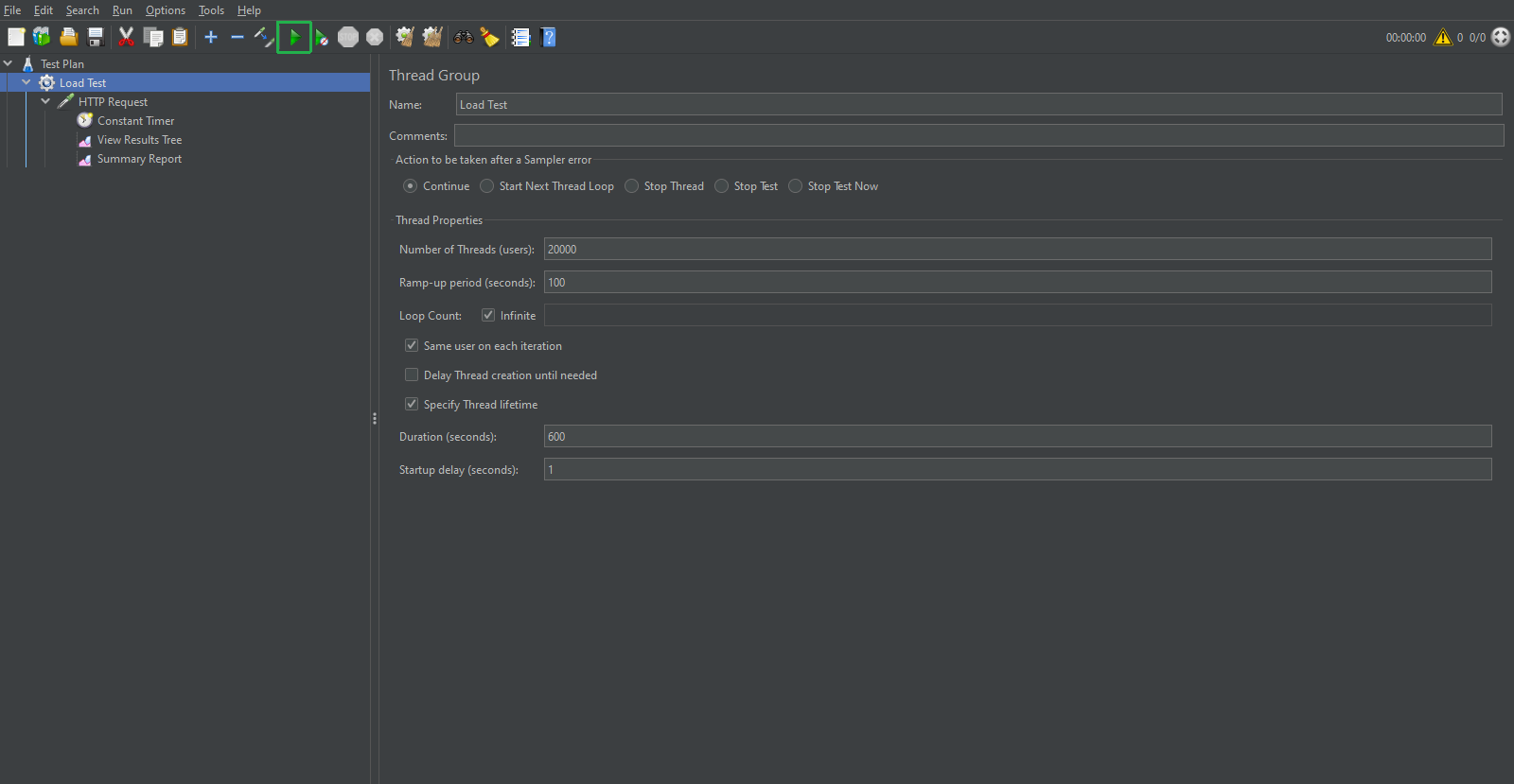
- Configure the following settings:
- Name:
Load Test - Number of Threads (users):
20000 - Ramp-up period (seconds):
100 - Loop count: Infinite
- Duration (seconds):
600seconds - Click Specify Thread lifetime
- Startup delays:
0second
- Name:
- We right click to Load Test > Add > Sample > HTTP Request
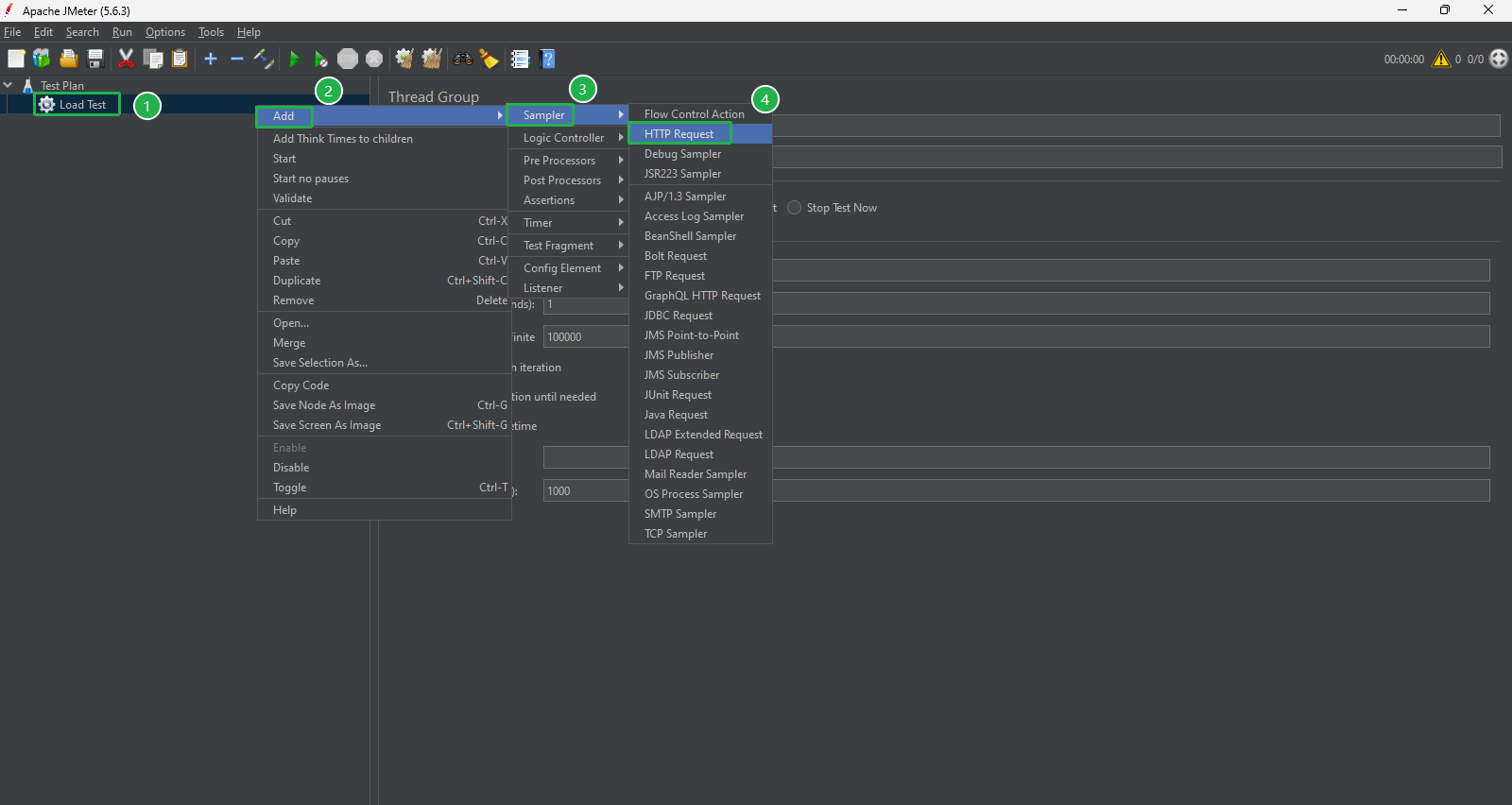
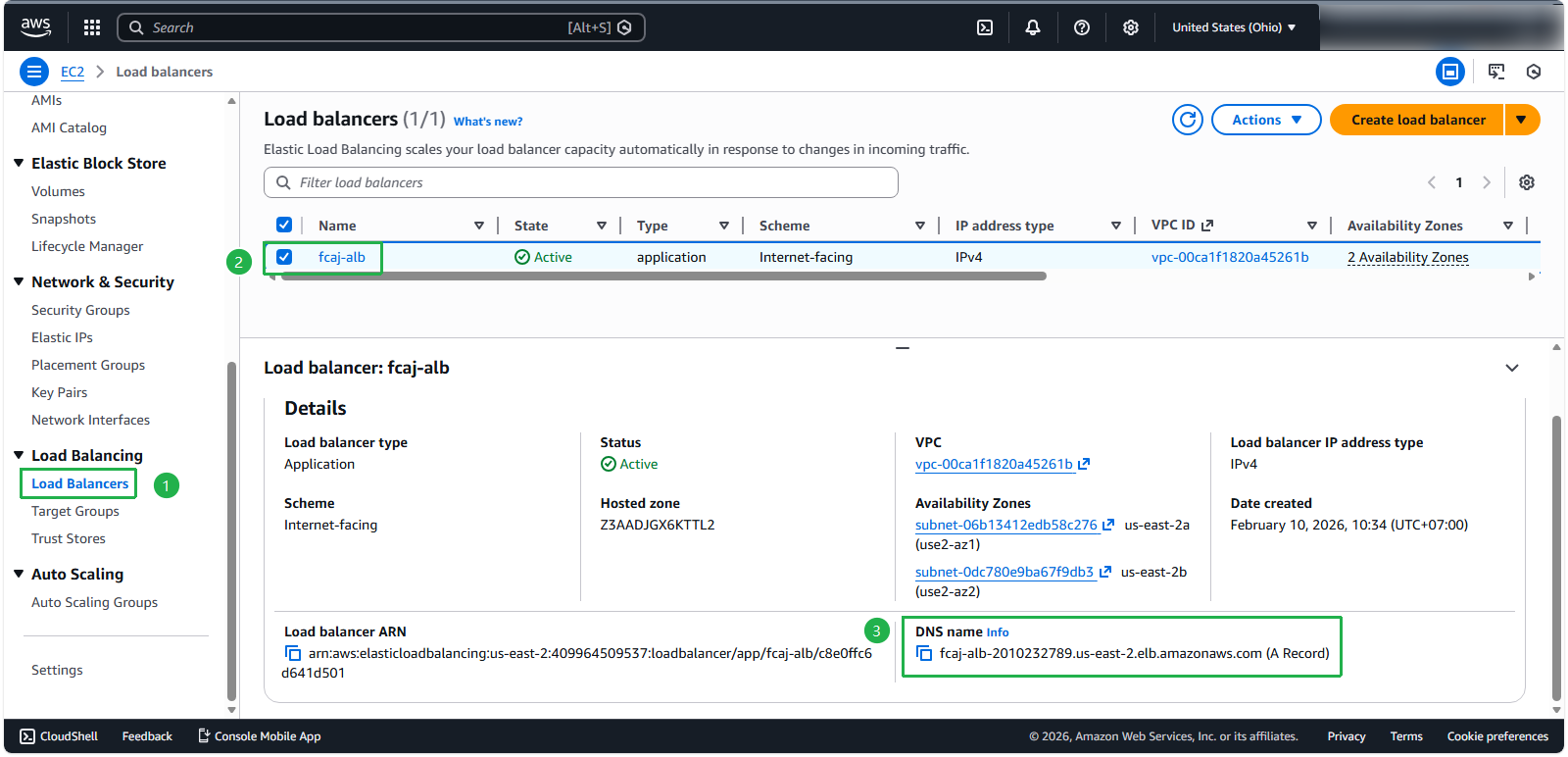
Return to fcaj-alb the copy DNS Name
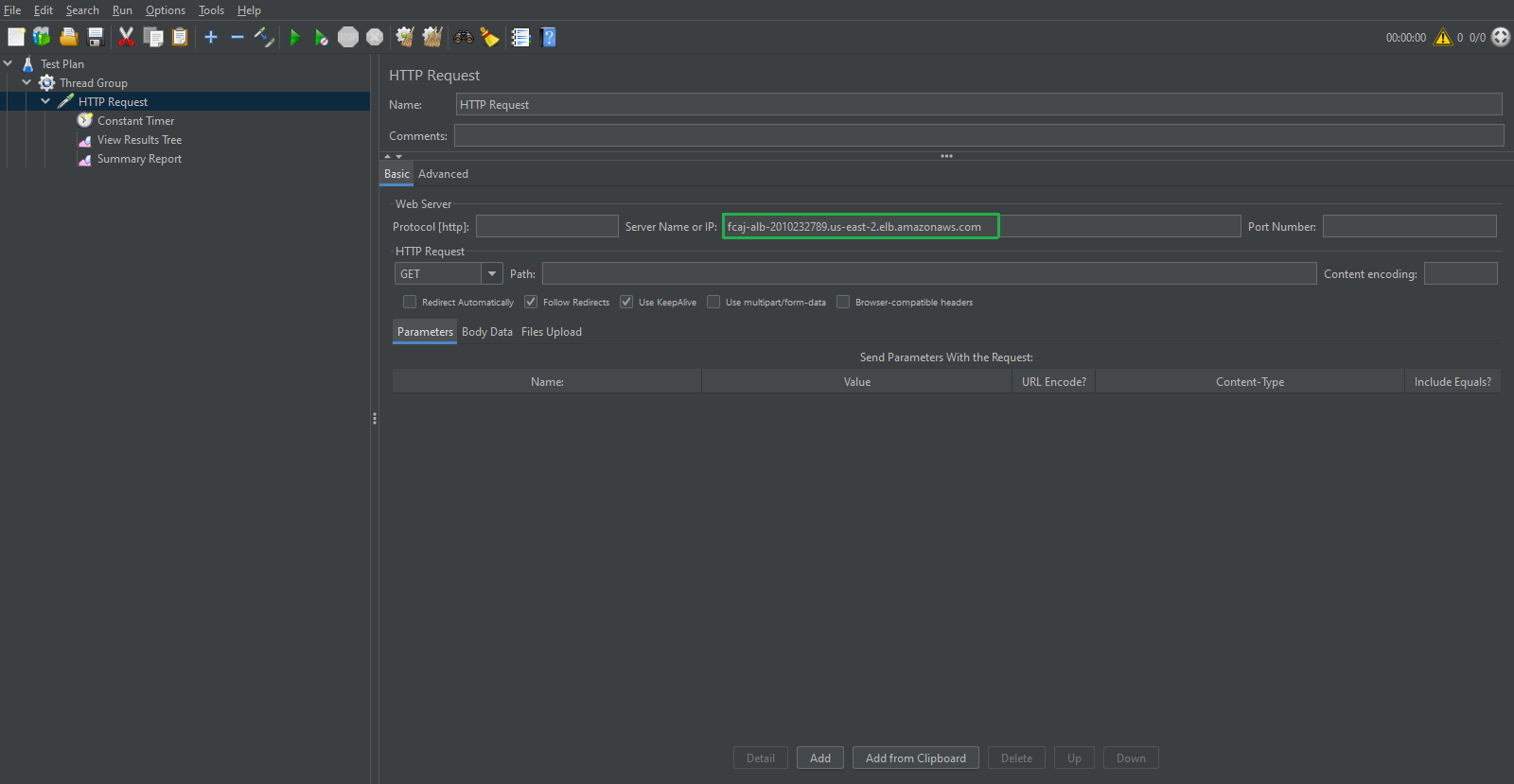
Type DNS Name you copied, paste into Server name or IP
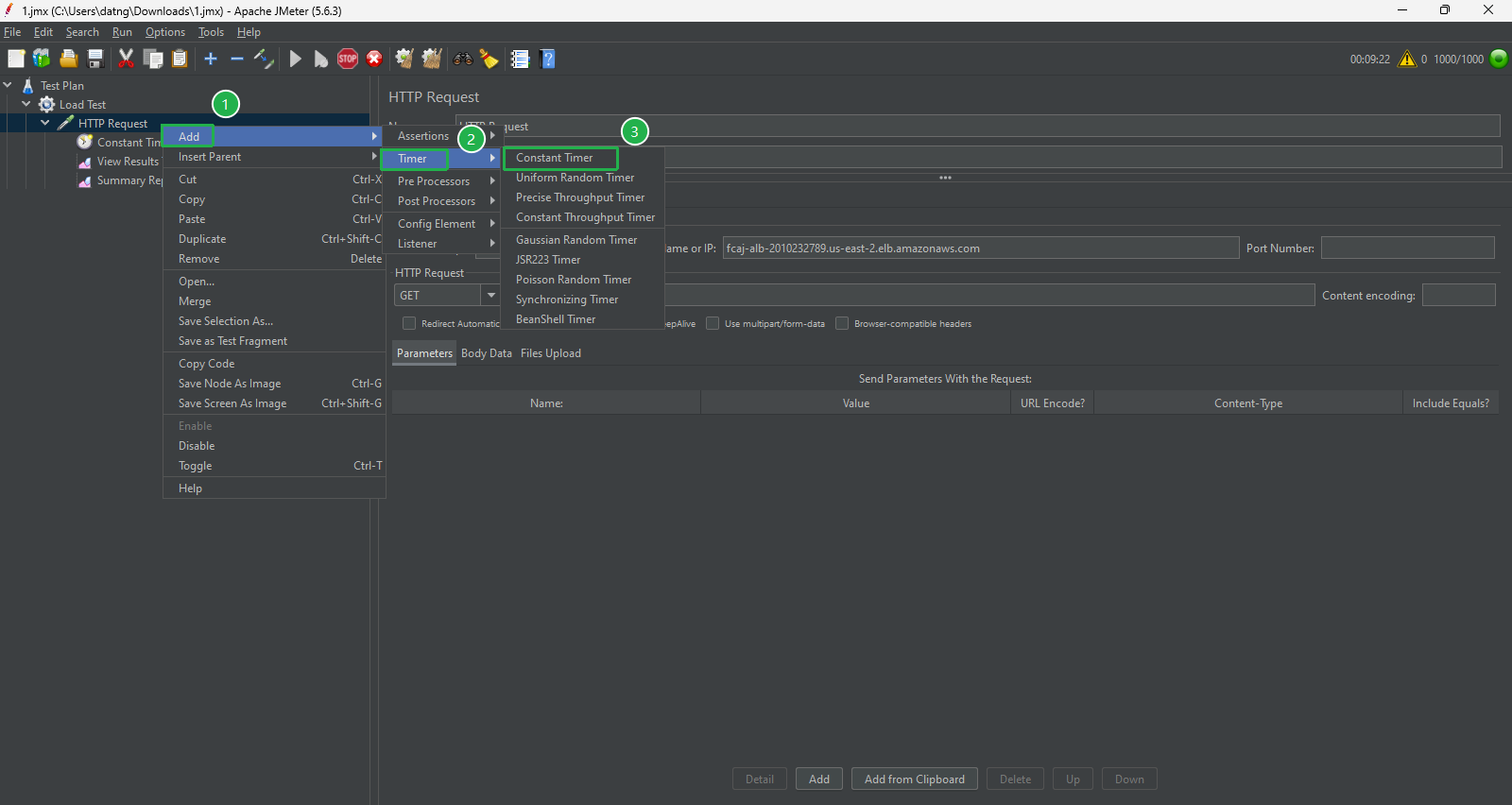
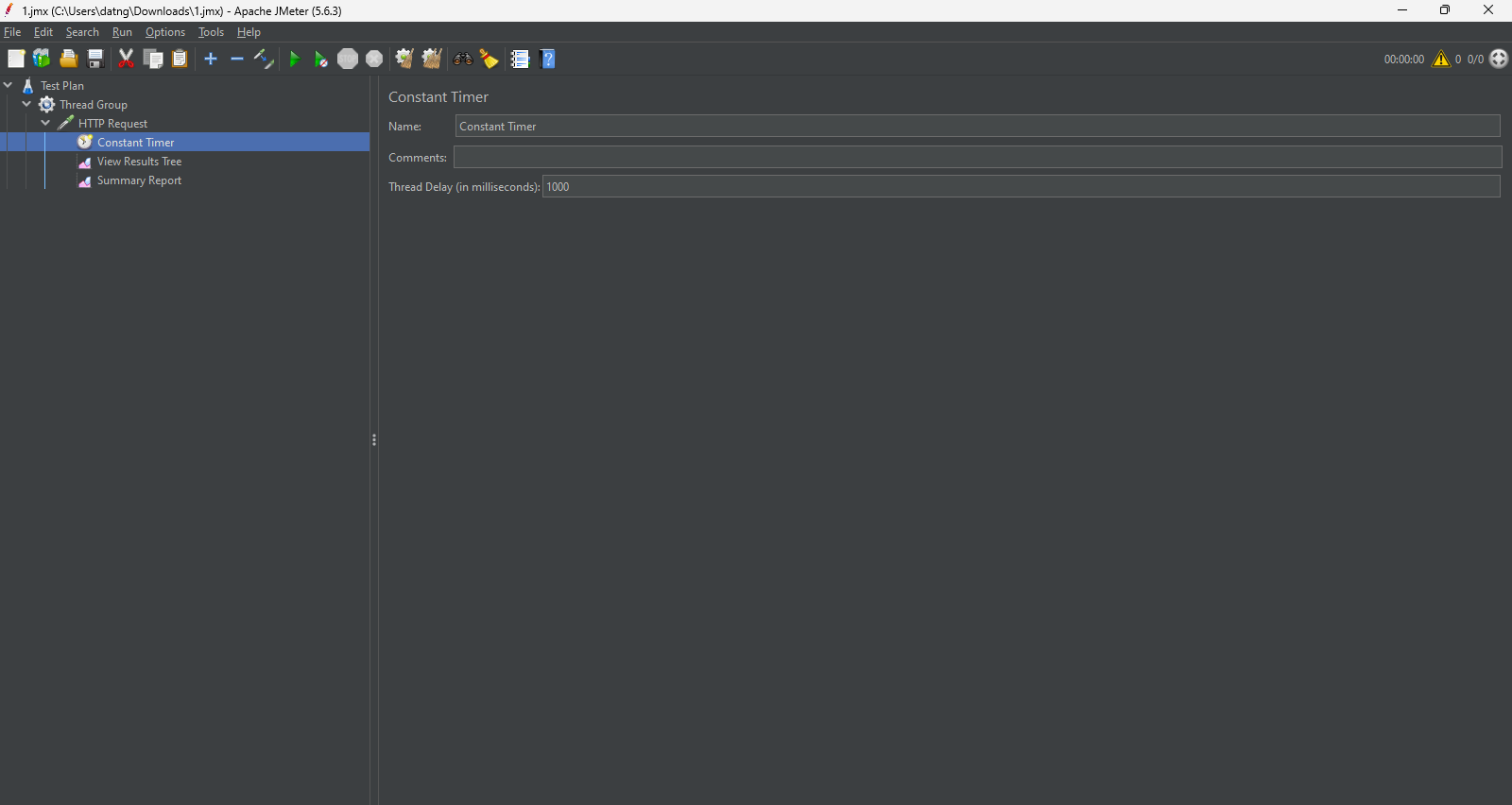
We set the frequency for each request:
- Right click to Load Test > Add > Timer > Constant Timer
- Thread Delay: 1000 ms
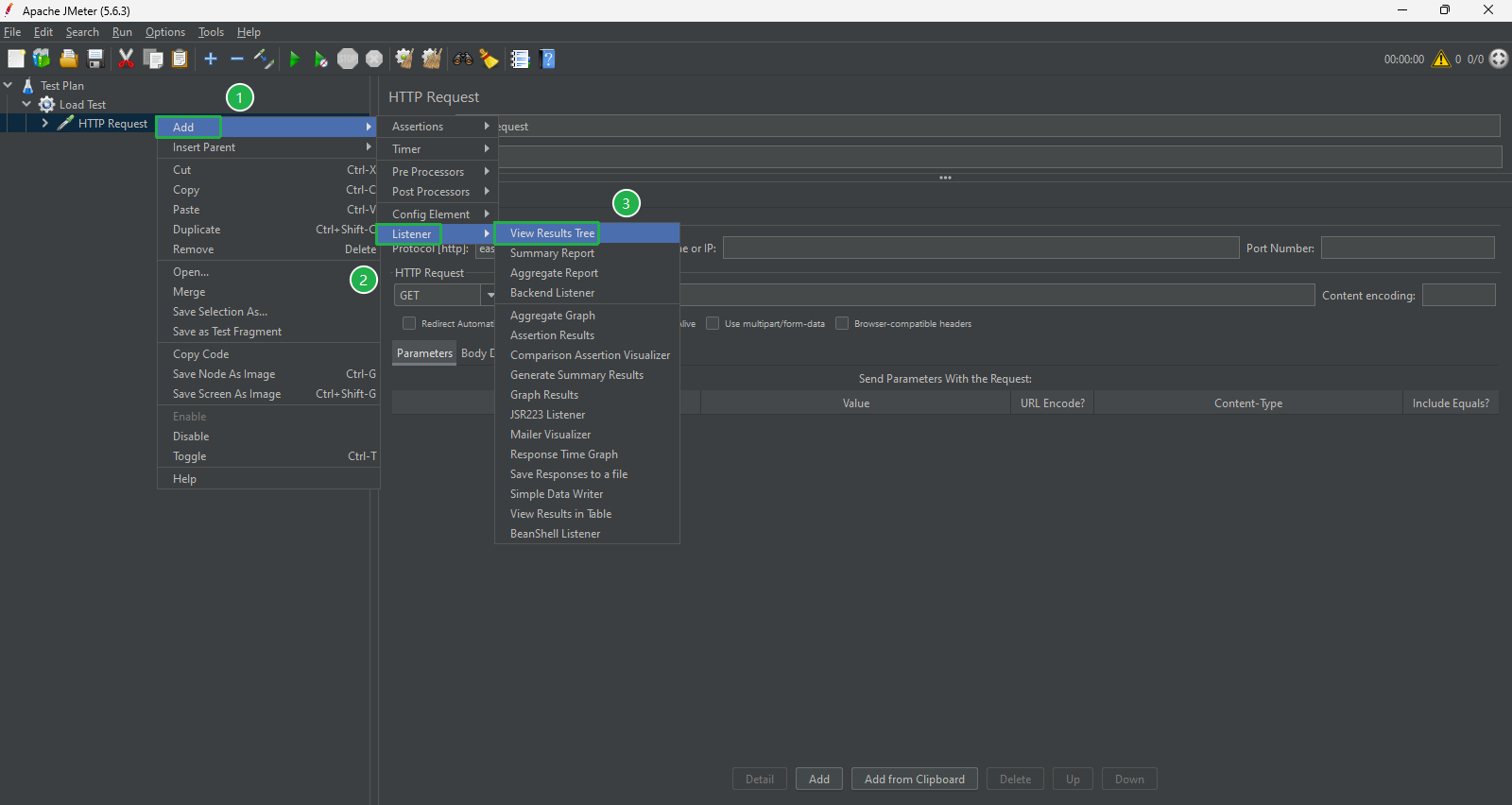
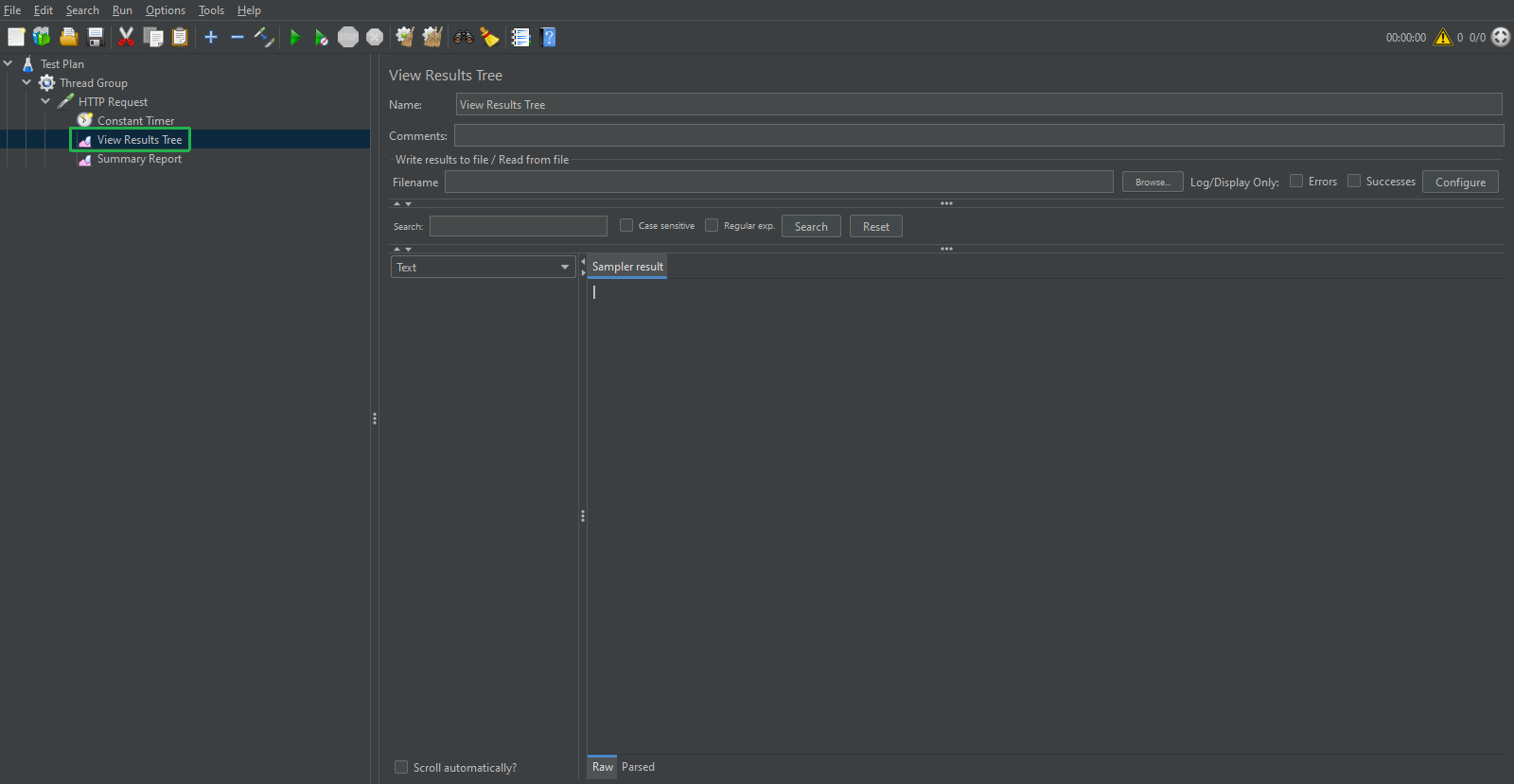
View details of each successful or failed request: Right click to Load Test > Add > Listener > View Result Trees.
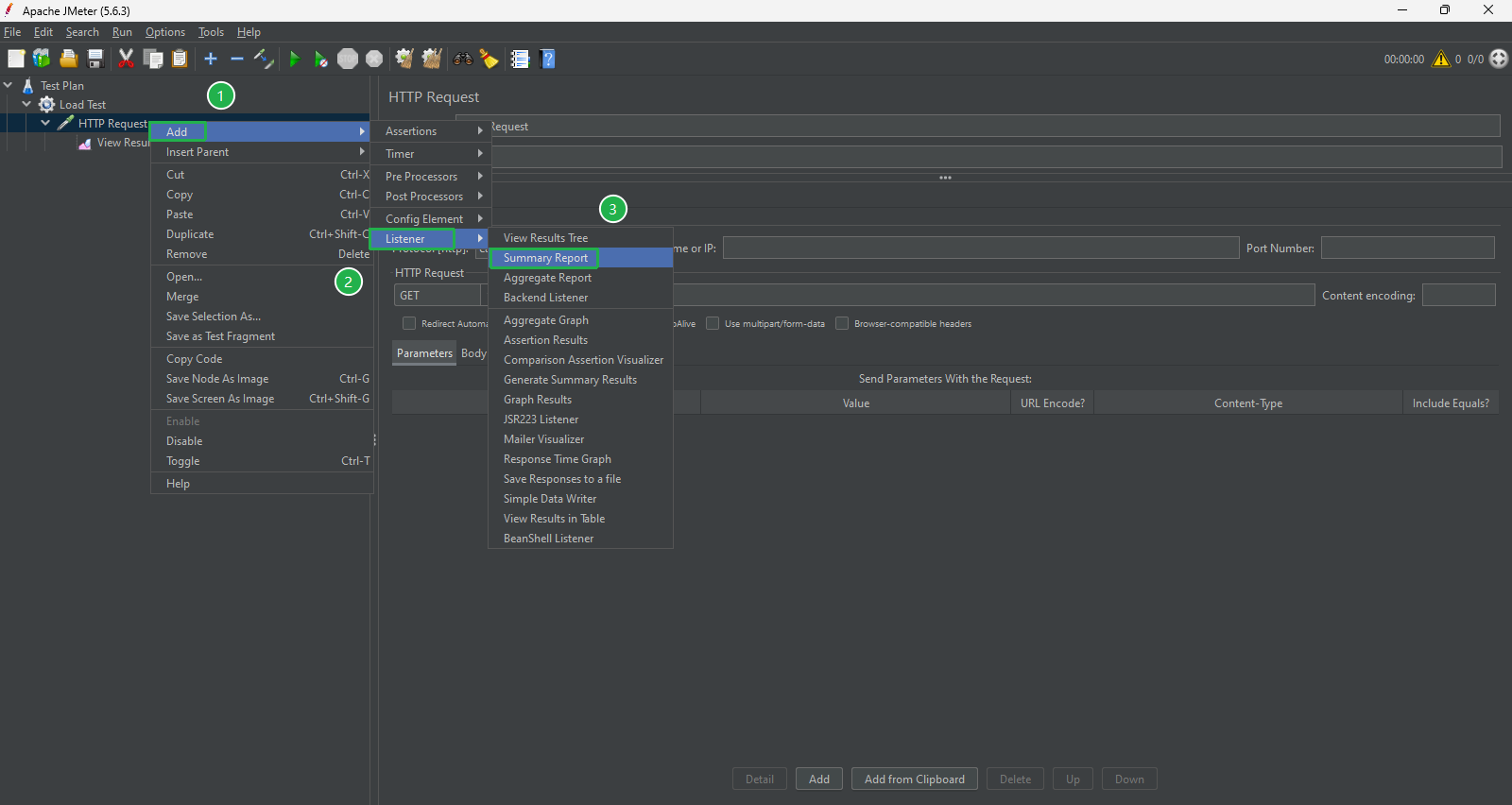
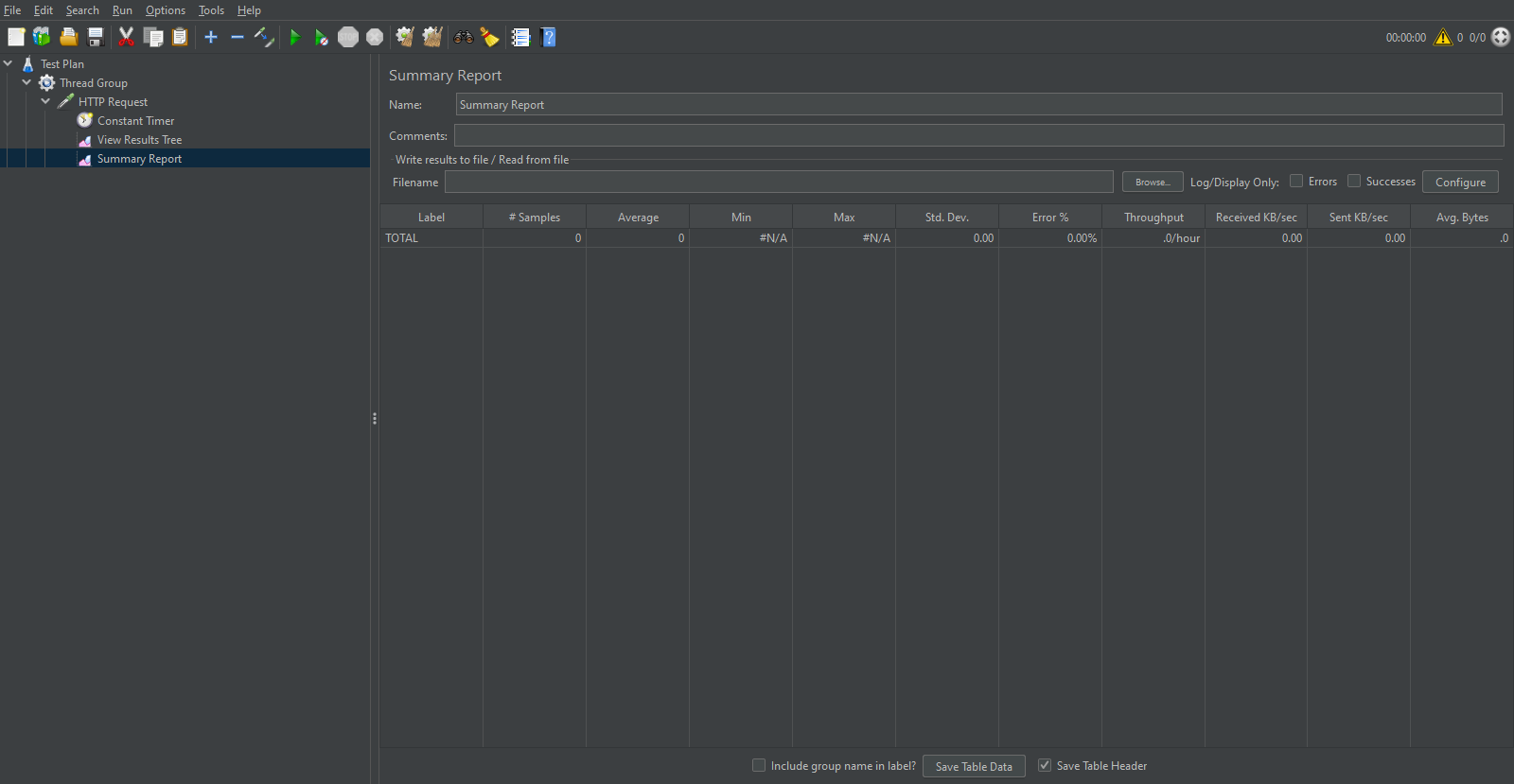
Summary of speed and error rate: Right click to HTTP Request > Add > Listener > Summary Reports
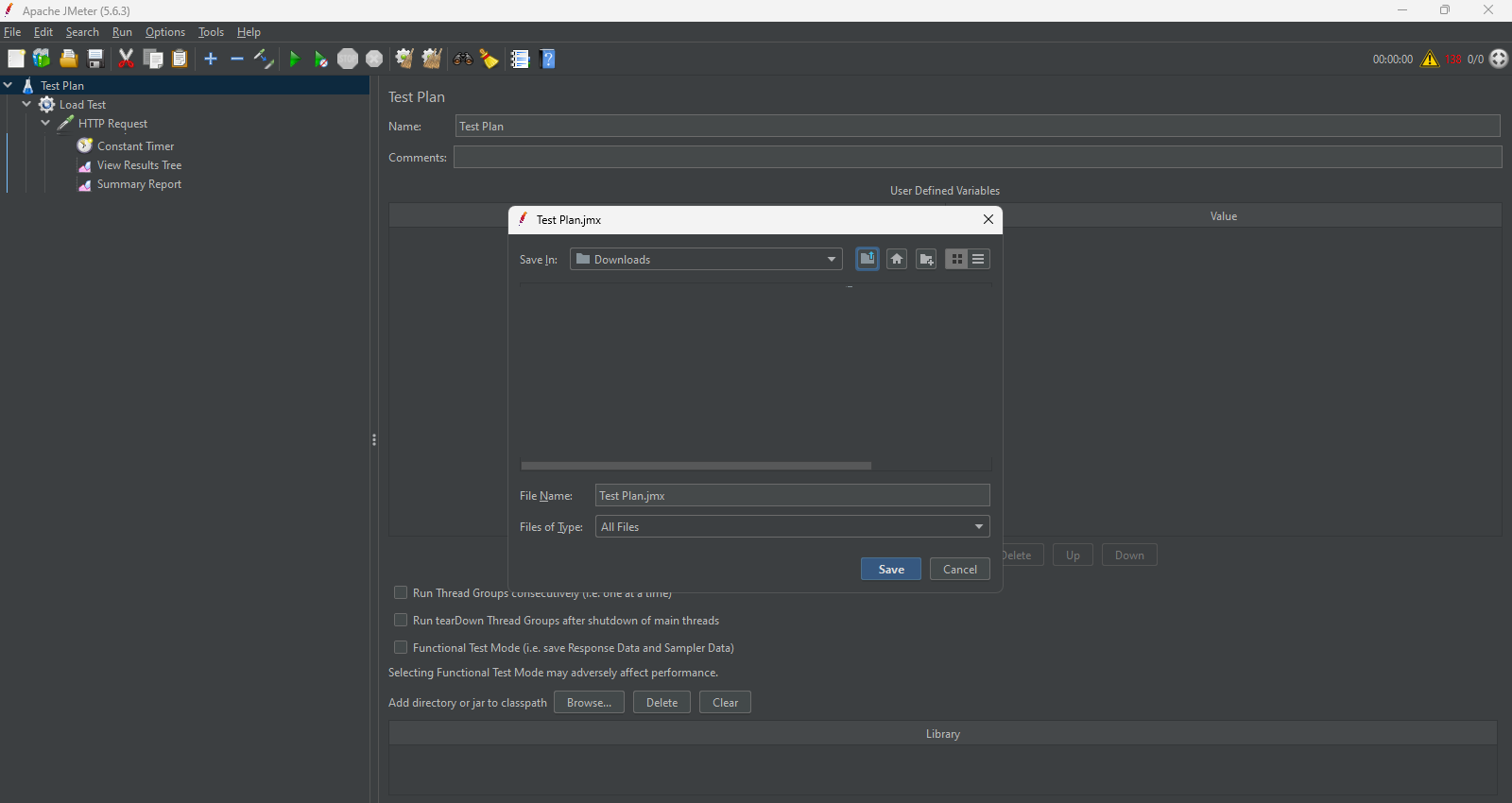
Finally, press Ctr + S key to save file before we starting test
In the tool bar, press Start button
Monitoring Instance Performance
While the test is running, return to the AWS Management Console:
- In the EC2 Console, select both EC2 instances in the target group
- Click on the Monitoring tab to observe performance metrics
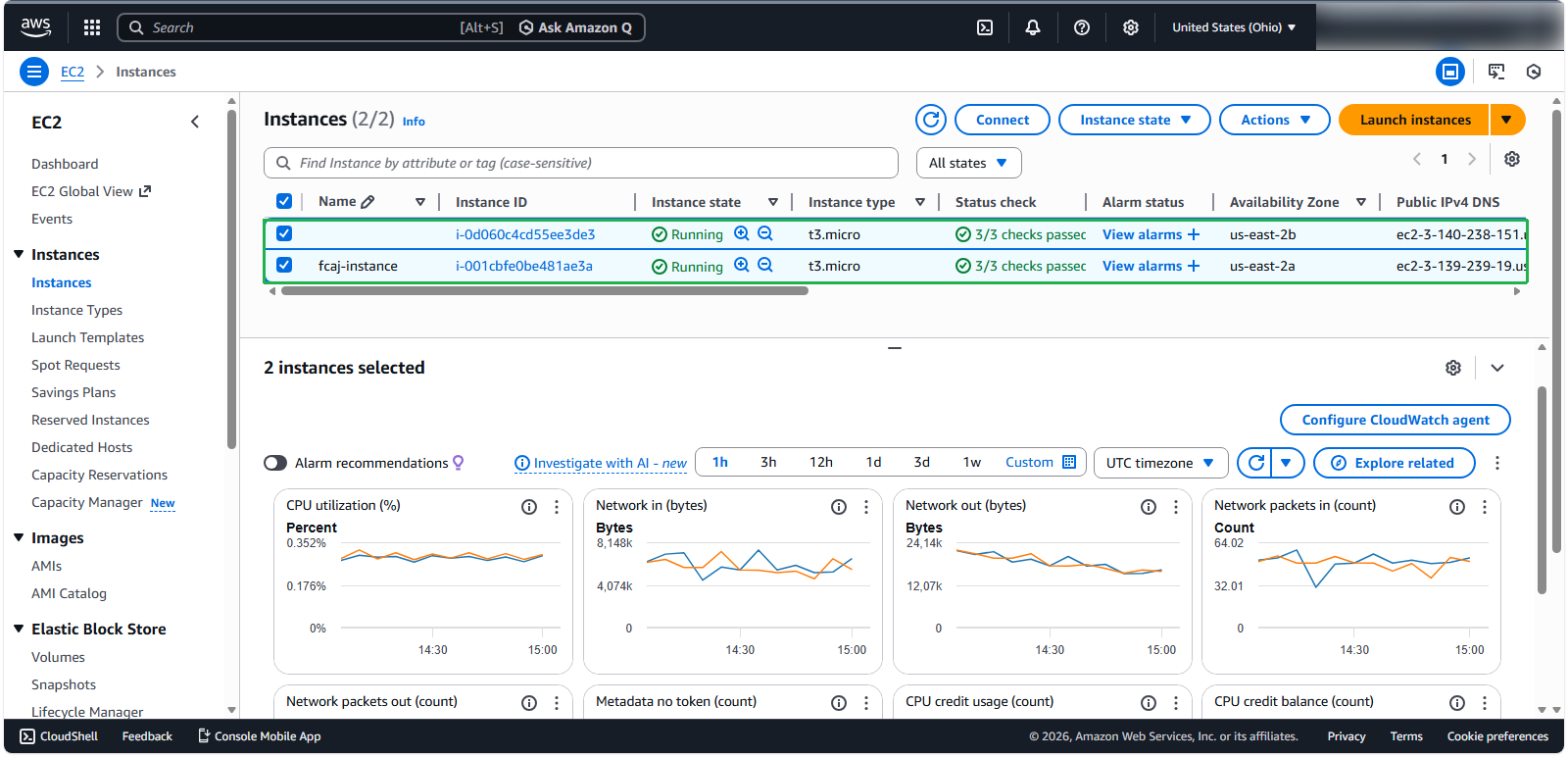
💡 Pro tip: Focus on these five key metrics to understand your application’s performance under load:
- CPU Utilization (%): Shows processor usage
- Network in (bytes): Measures incoming traffic
- Network out (bytes): Measures outgoing traffic
- Network packets in (count): Shows incoming packet count
- Network packets out (count): Shows outgoing packet count
ℹ️ Information: The charts display one line per selected instance. Selecting multiple instances allows you to compare their performance simultaneously, helping you understand how the Load Balancer distributes traffic.
Manually Scaling Down the ASG
To simulate cost optimization during off-peak hours:
- Navigate to your Auto Scaling Group details page
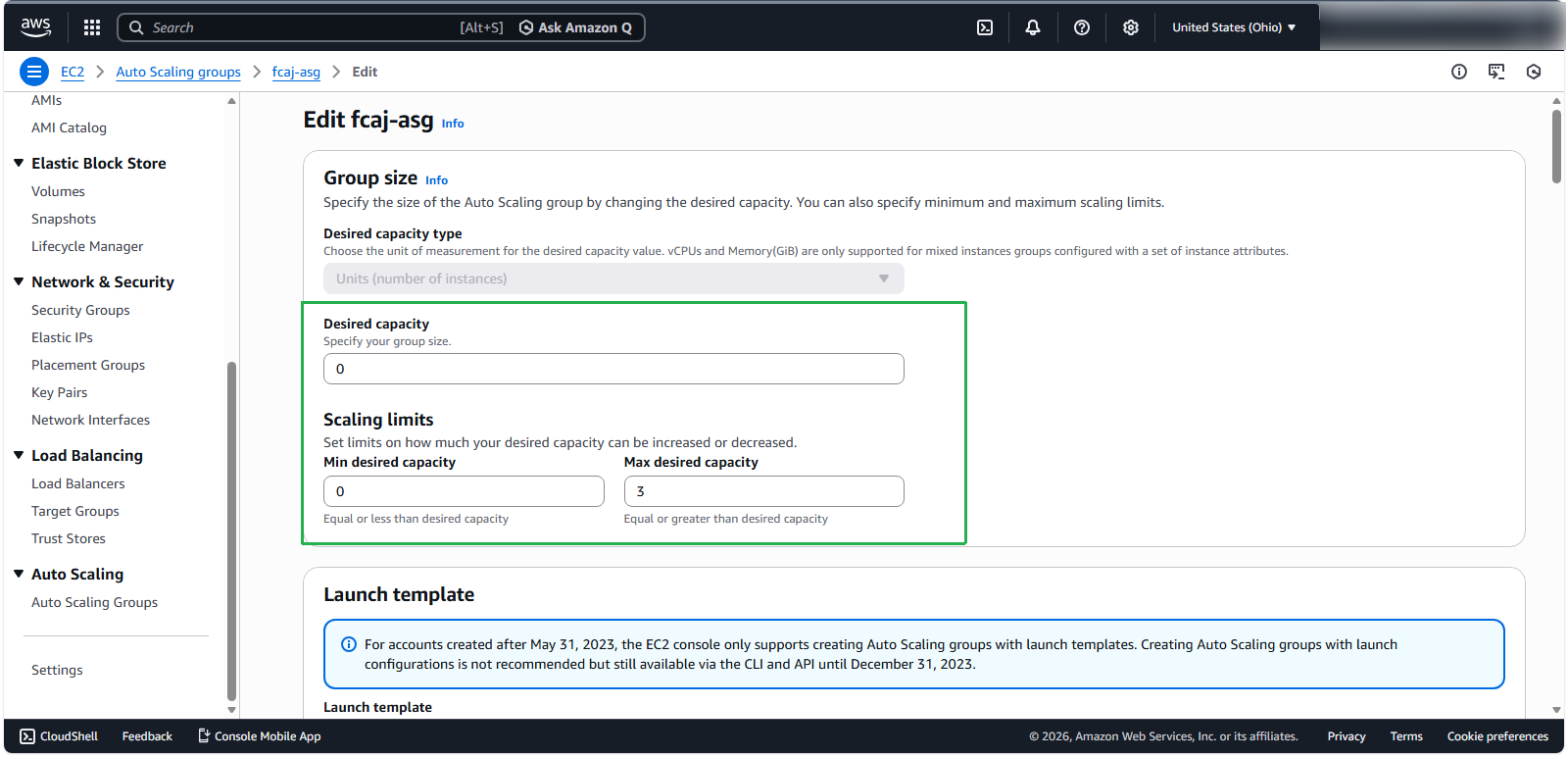
- Note the current setting: Desired capacity = 1
- Click Edit to modify the capacity
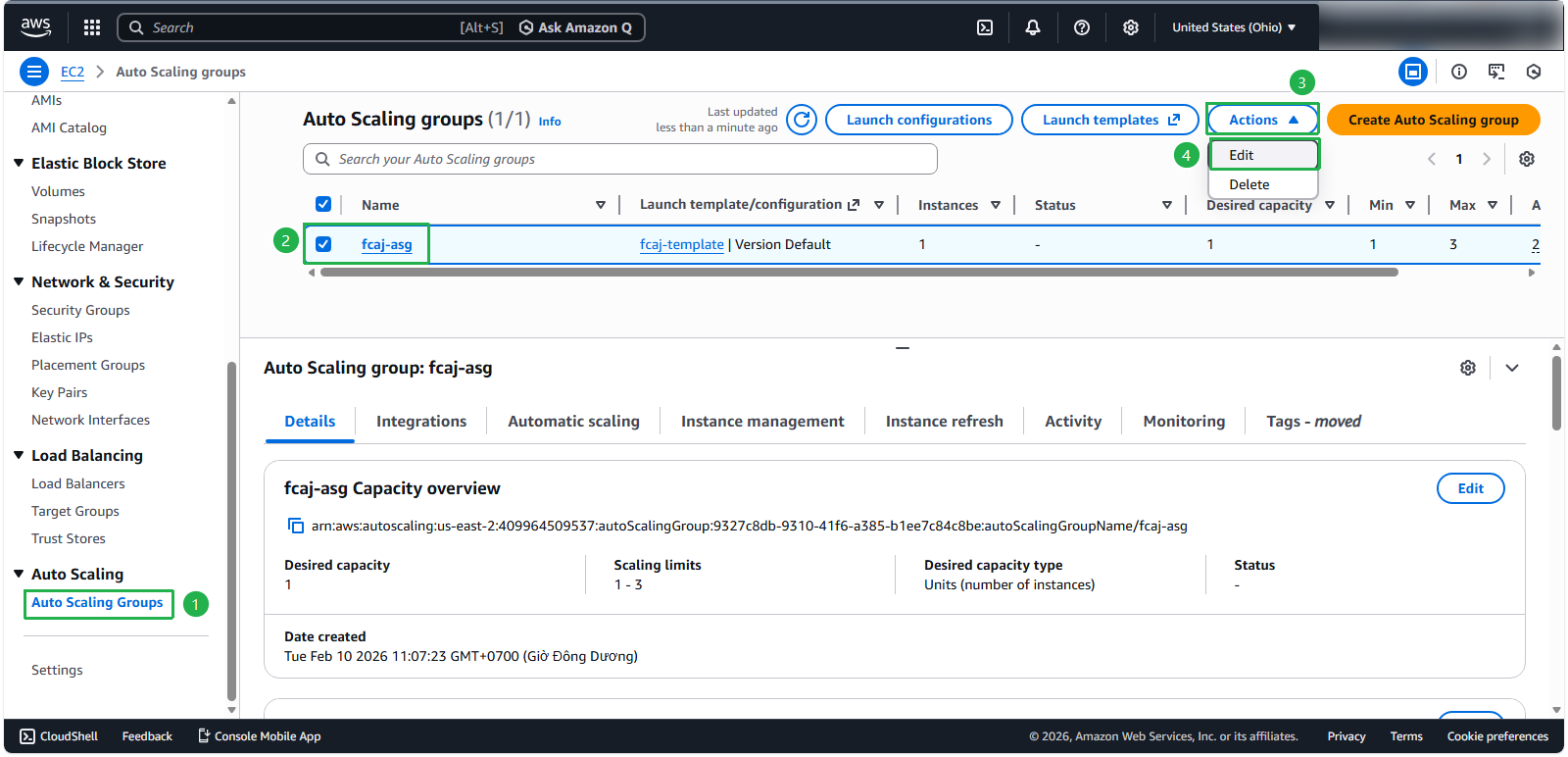
- In the Group size dialog, set both Desired capacity and Min desired capacity to 0
- Click Update to apply the changes
- Navigate to the Activity tab to monitor the scaling action
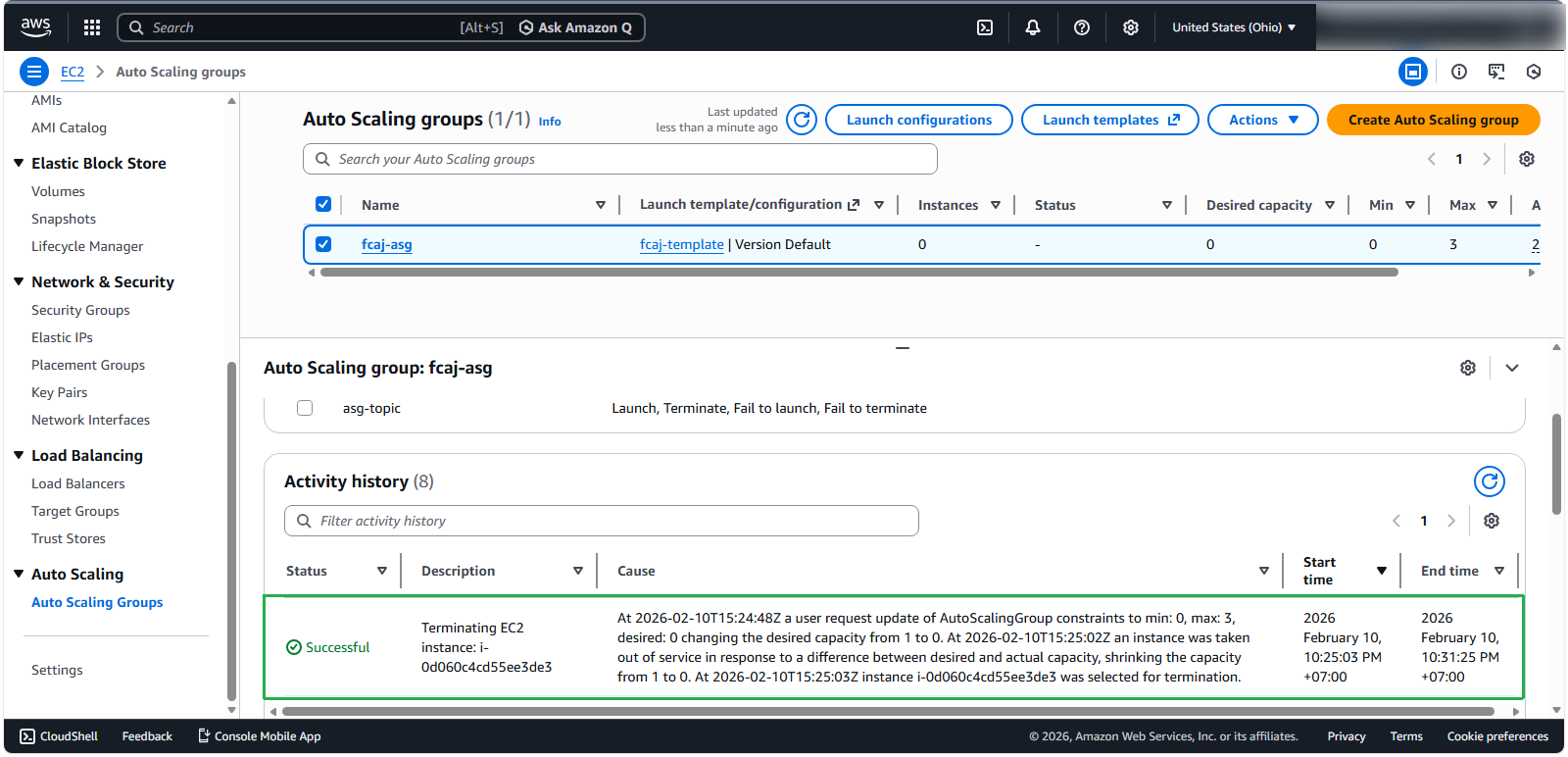
⚠️ Warning: While the instance is being terminated, you should pause your load testing application to avoid potential errors.
ℹ️ Information: The ASG will automatically terminate an instance based on your updated configuration. After a few minutes, returning to the Load Balancer’s Resource map will show only one remaining target.
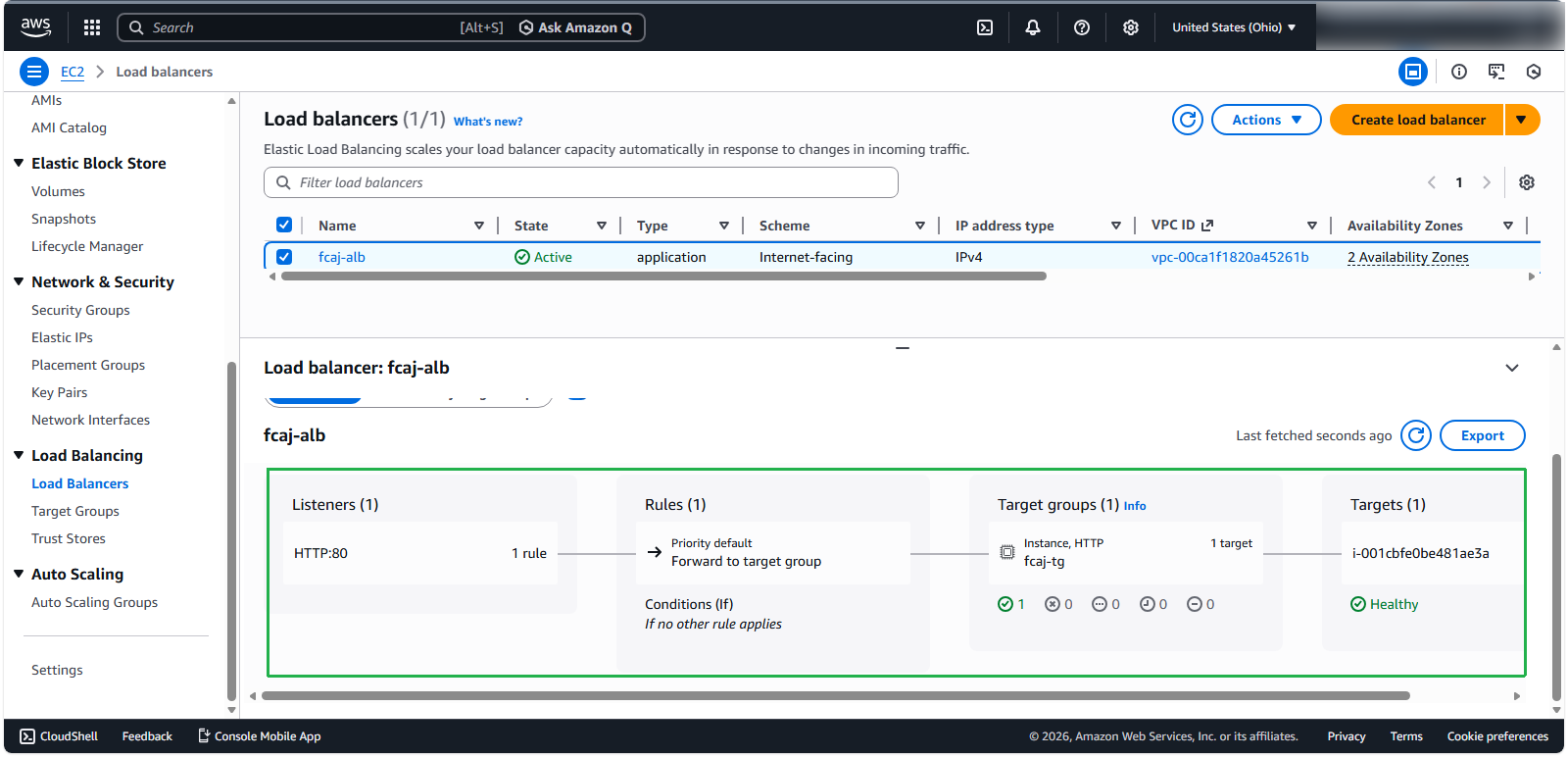
💡 Pro tip: Remember to restart your load testing program after the scaling operation completes to continue your testing.
Observing Notification and Performance Impact
After scaling down, you’ll receive an email notification from Amazon SNS:
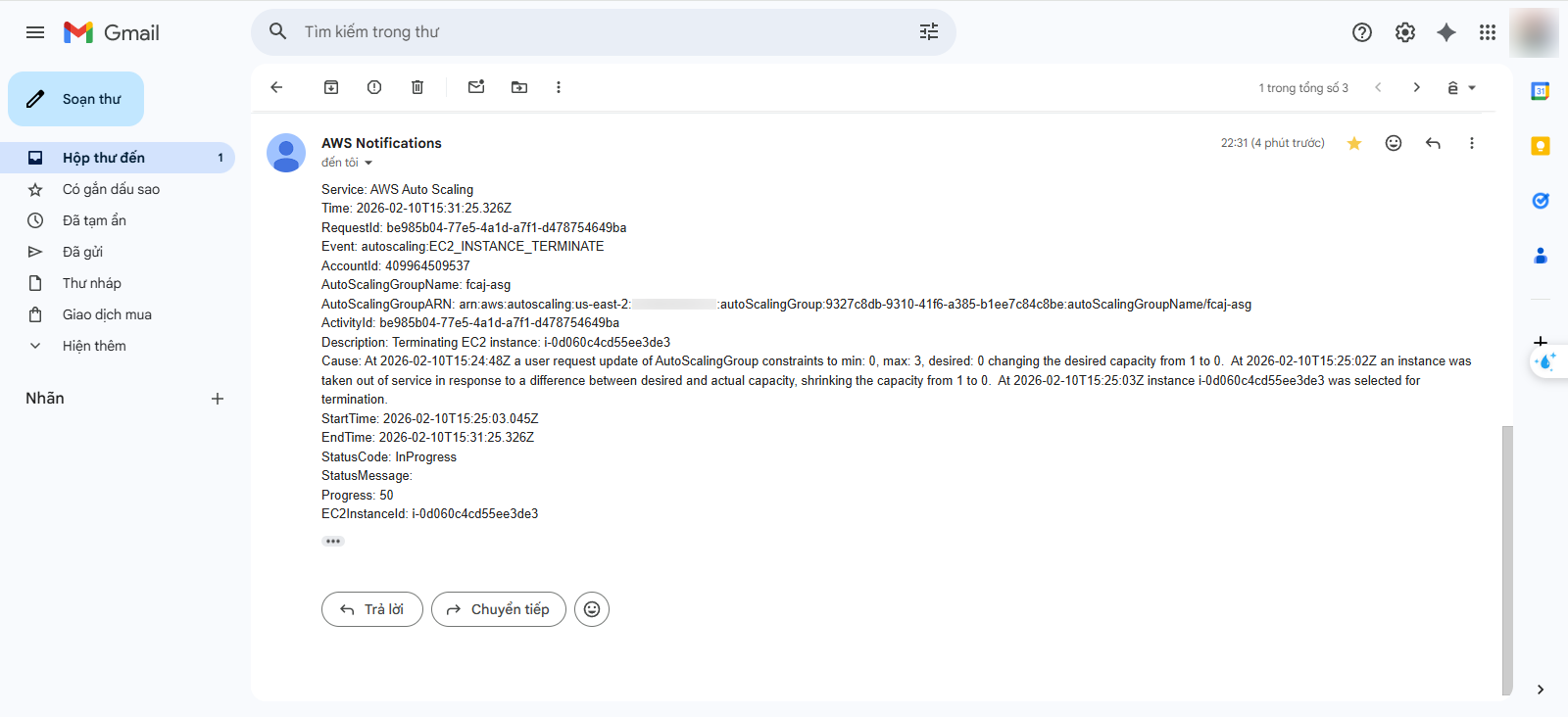
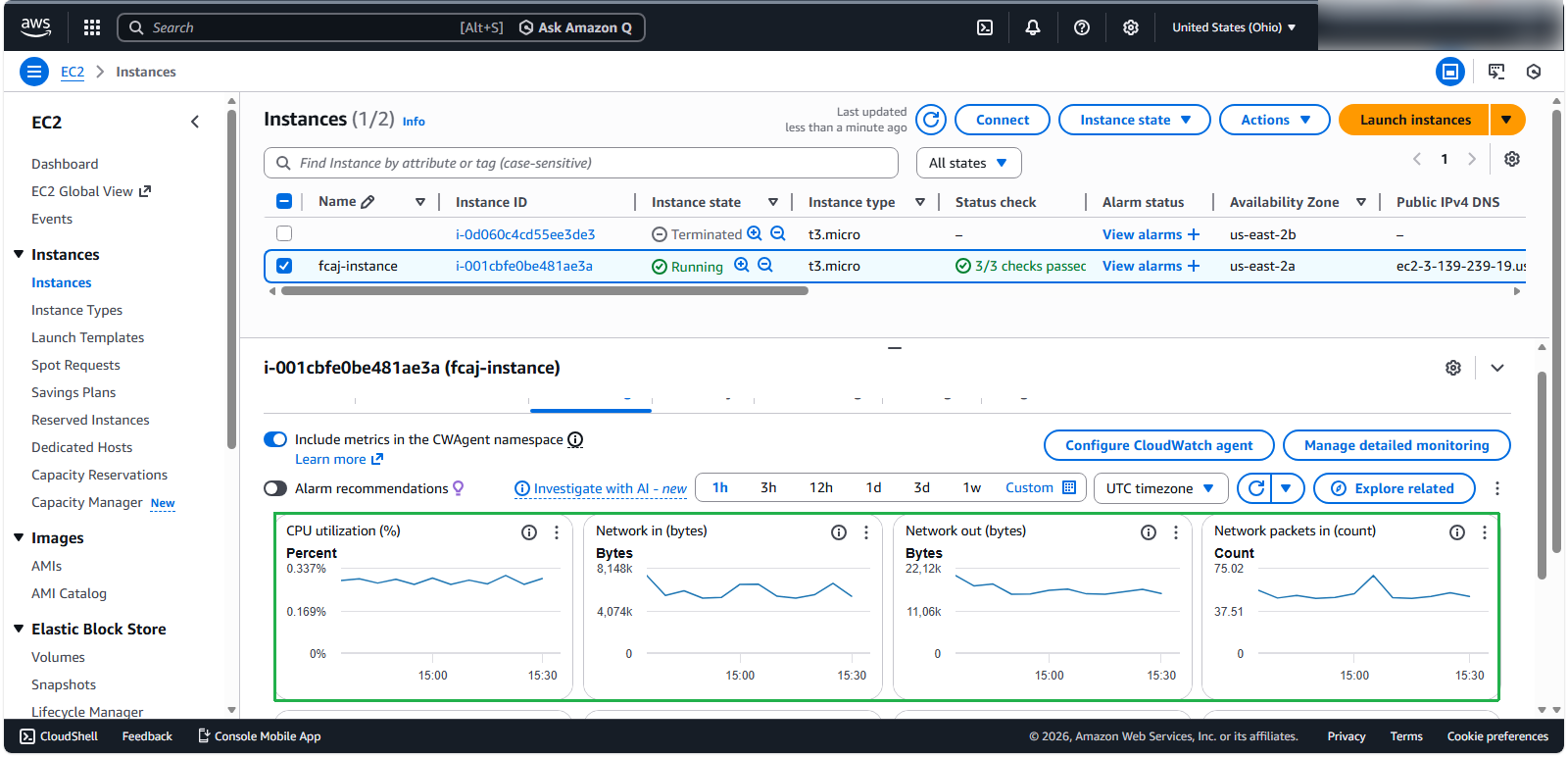
Return to the EC2 Console to observe the impact on your remaining instance:
Conclusion
⚠️ Warning: This demonstration uses simple GET requests, but real-world applications typically involve more complex operations that consume significantly more CPU resources and may experience more dramatic performance impacts during scaling events.
🔒 Security Note: While manual scaling provides direct control over your infrastructure costs, it requires human intervention and monitoring, which can lead to delayed responses during unexpected traffic spikes. Consider implementing automated scaling policies for production workloads to maintain both performance and security.