Launch a Database Instance with RDS
Creating a DB Subnet Group
ℹ️ Information: A DB subnet group is a collection of subnets that you designate for your RDS database instances within a VPC. This configuration ensures high availability by allowing Amazon RDS to deploy instances across multiple Availability Zones.
- Access the AWS Management Console. In the search bar, find and select Aurora and RDS
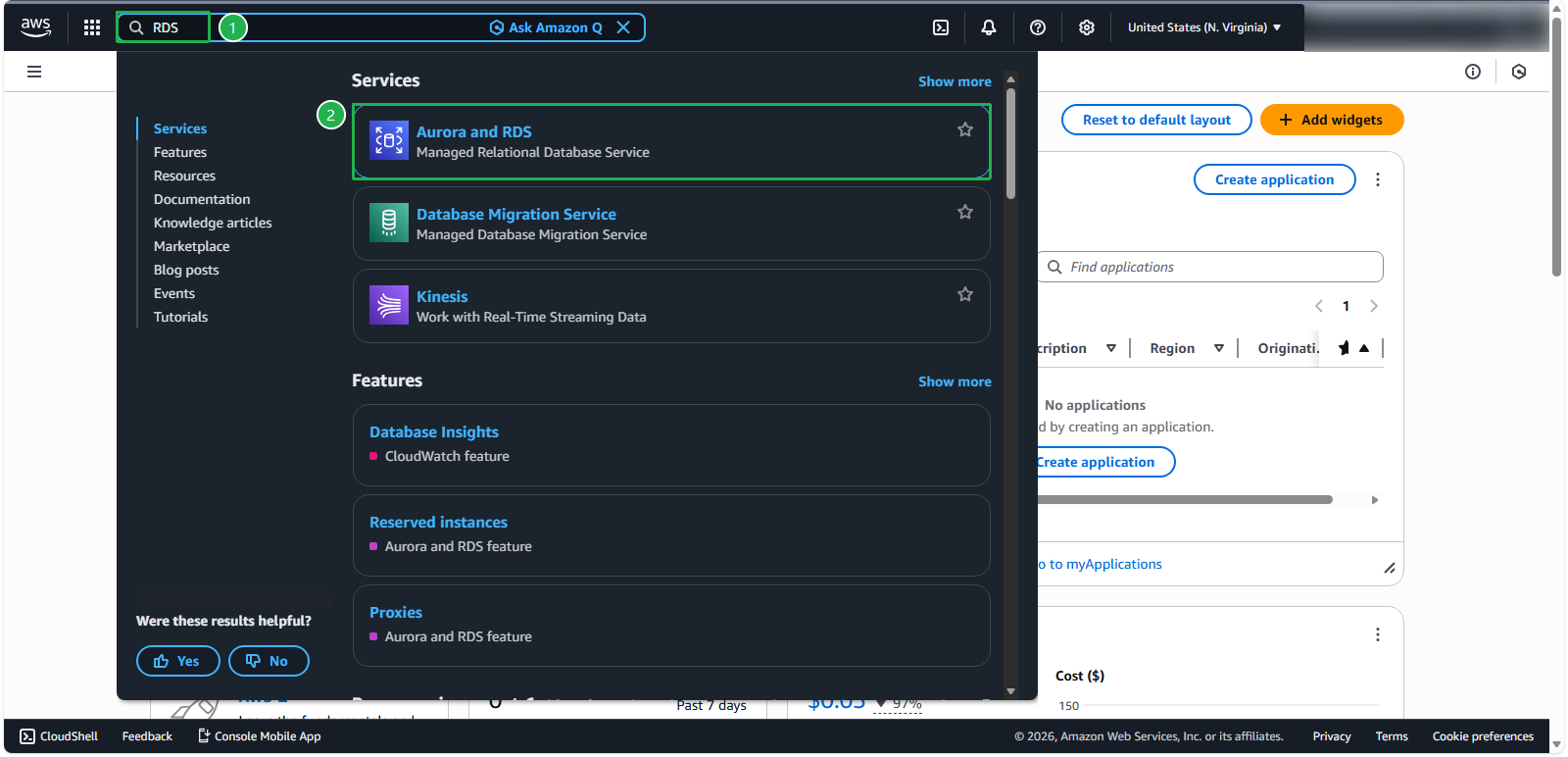
In the Aurora and RDS console:
- Select Subnet groups from the left navigation panel
- Click Create DB subnet group
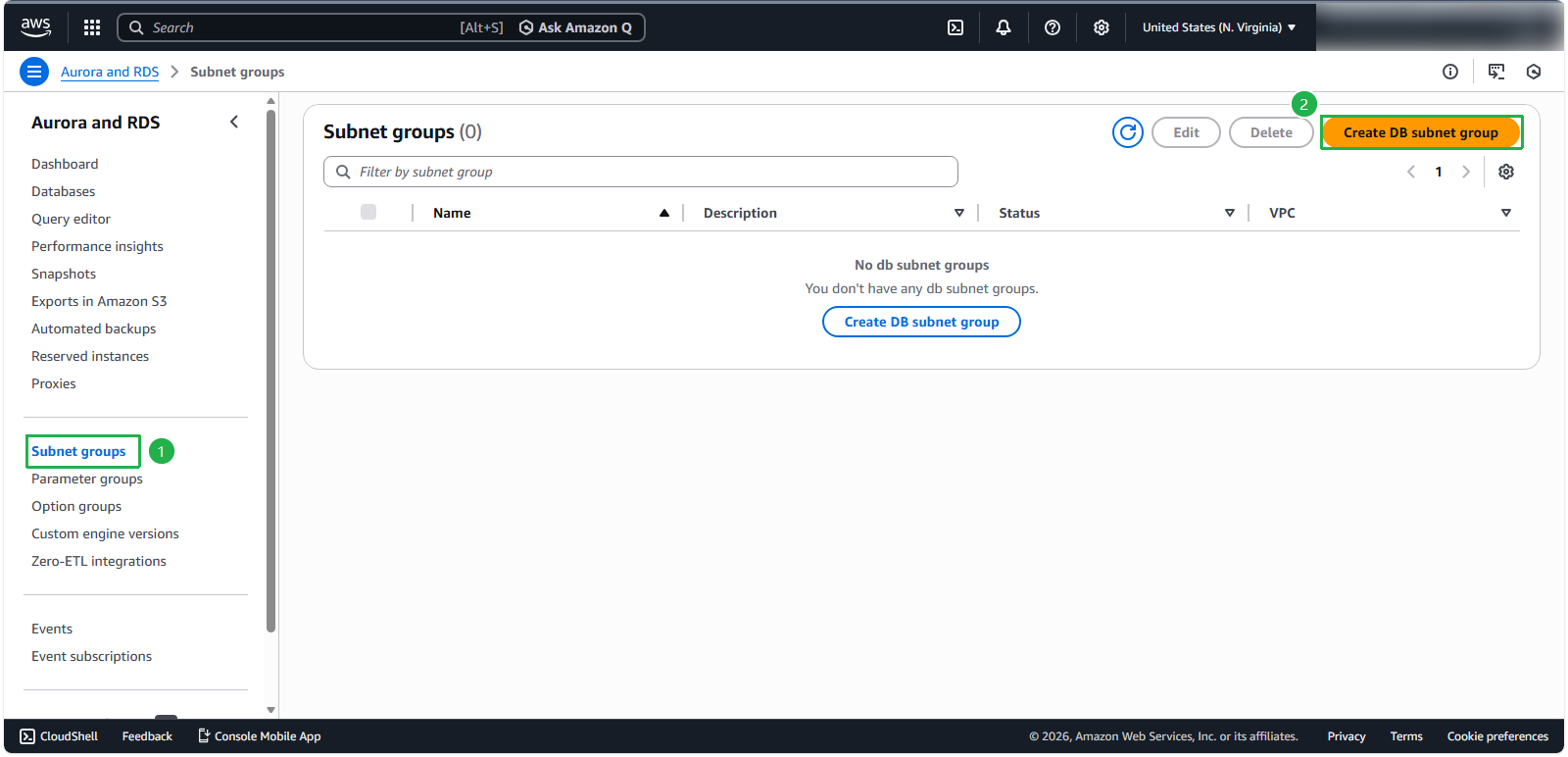
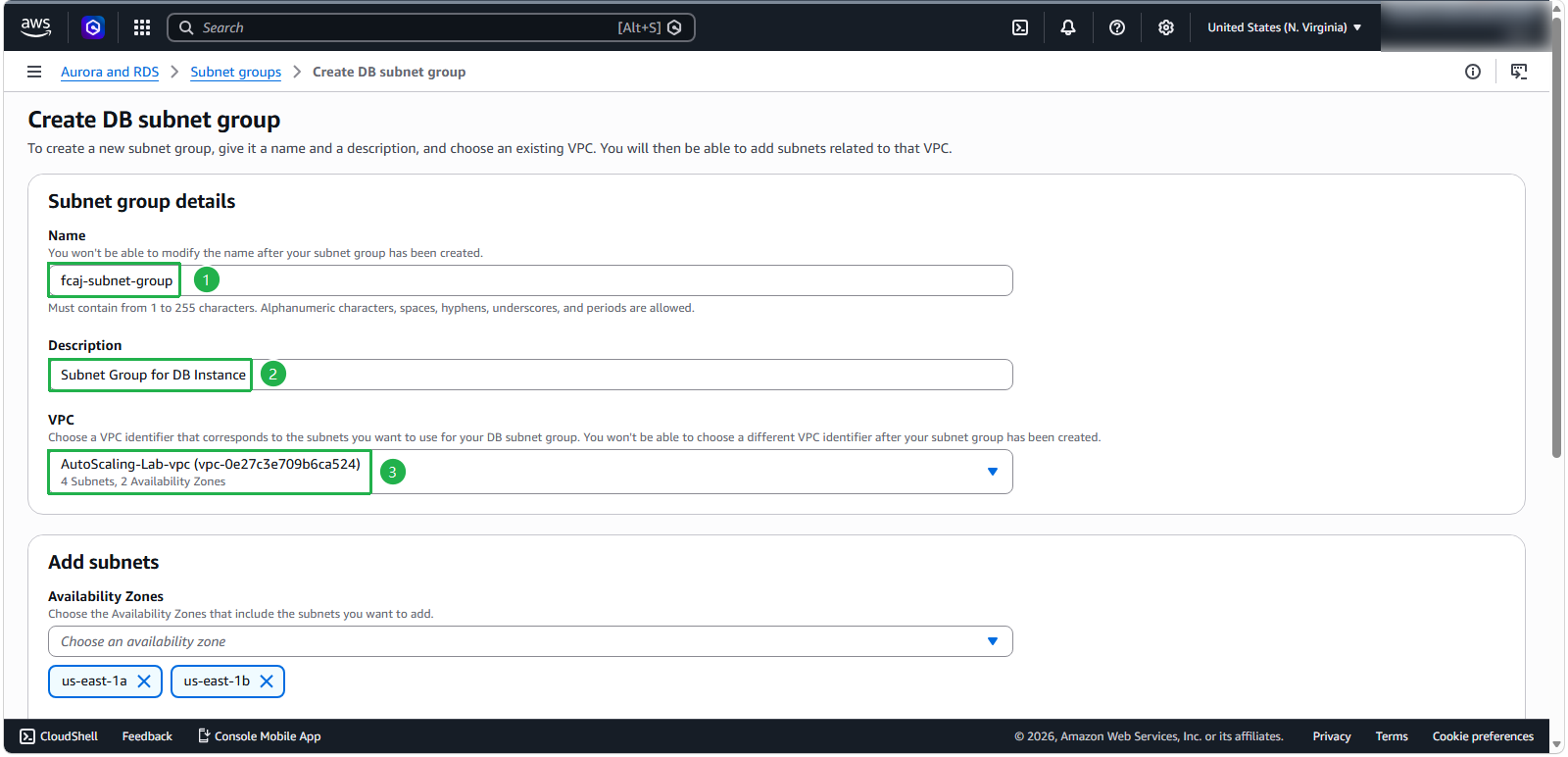
Configure the DB subnet group details:
- For Name, enter
fcaj-subnet-group - For Description, enter
Subnet Group for DB Instance - Select the VPC you created earlier (AutoScaling-Lab)
- For Name, enter
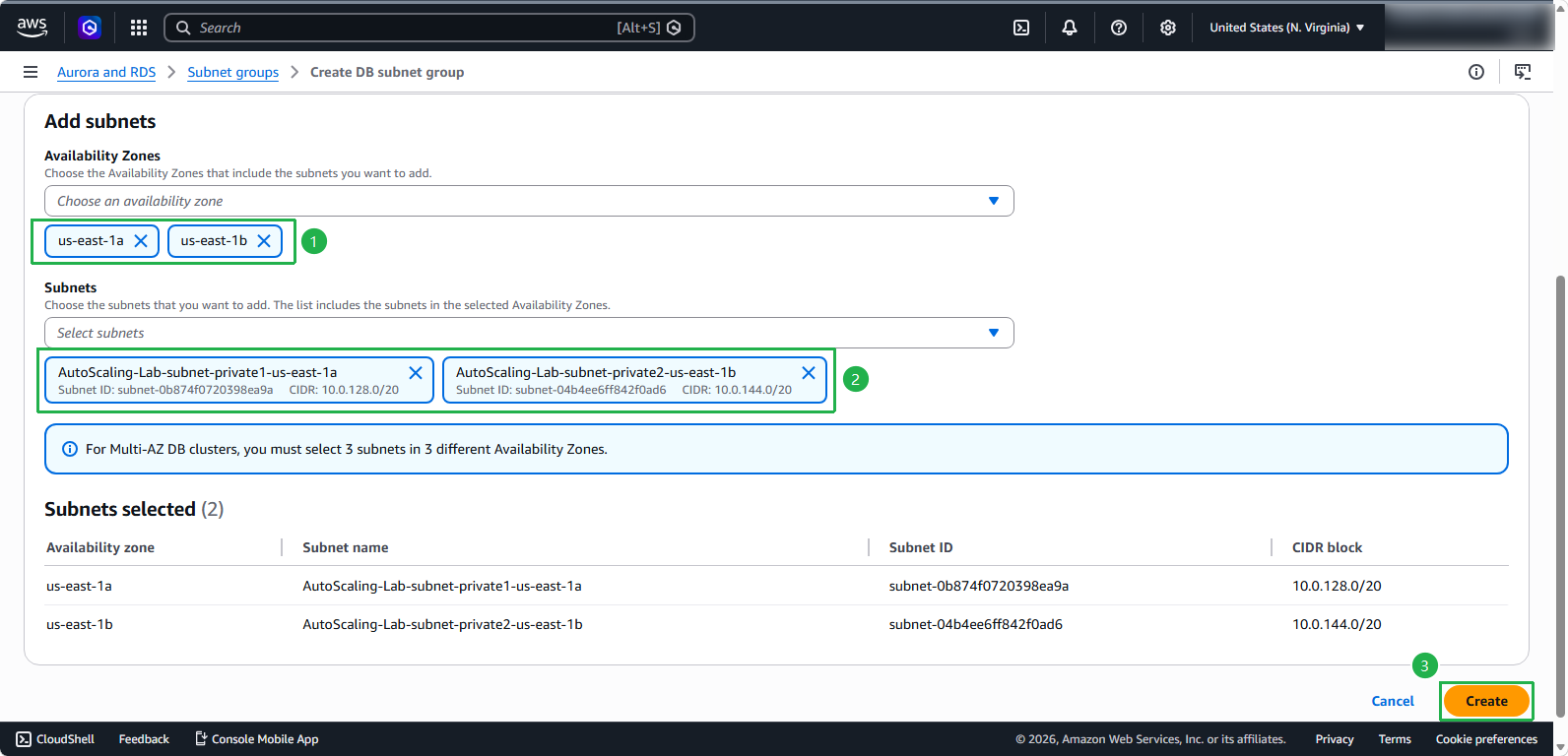
- Configure the subnet selection:
- Select 2 Availability Zones for redundancy
- Choose 2 private subnets for enhanced security
- Click Create
🔒 Security Note: Always place your database instances in private subnets to prevent direct internet access, reducing your attack surface.
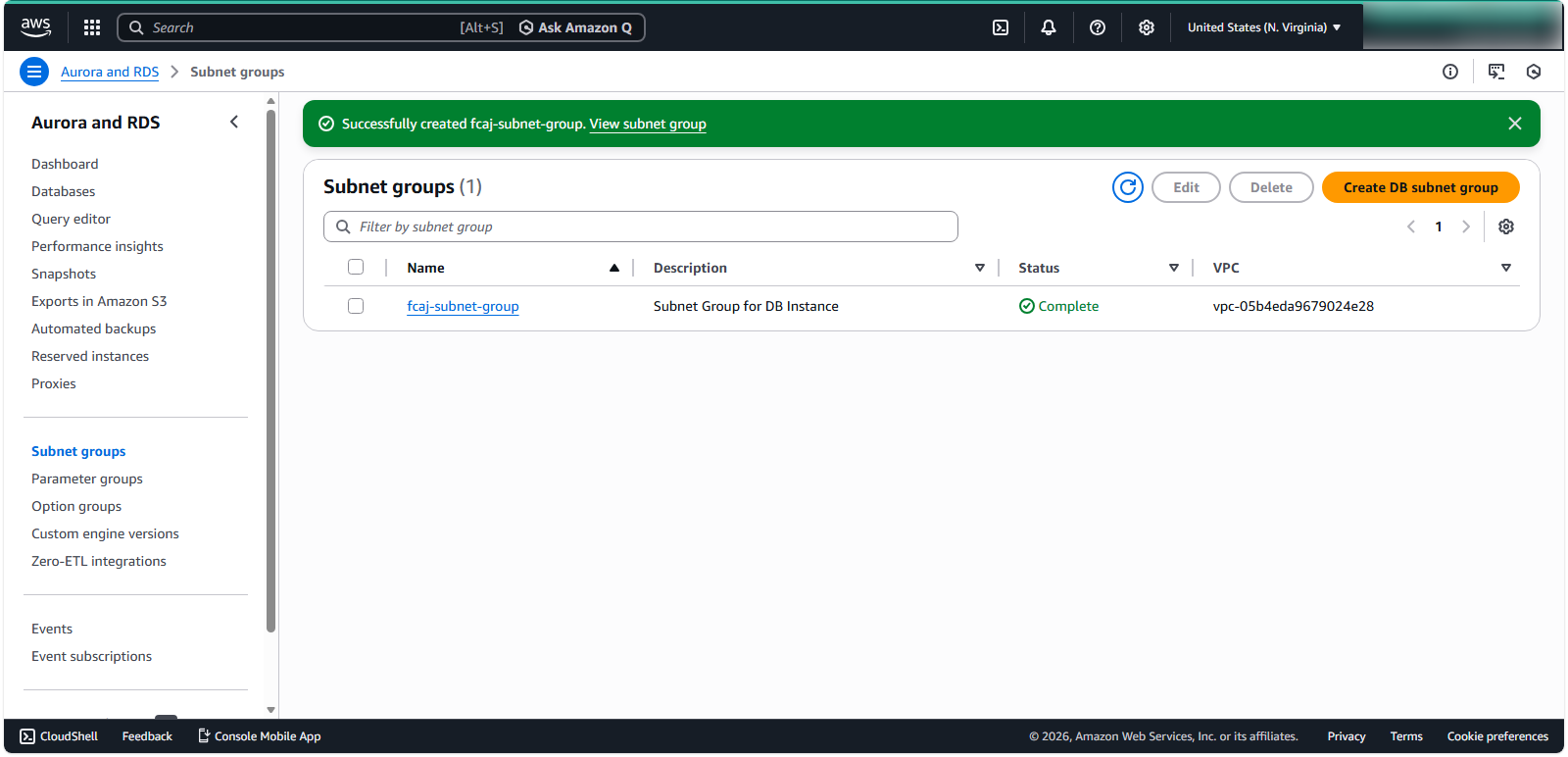
- Verify the DB subnet group has been created successfully with multiple AZs:
Launching an Amazon RDS Database Instance
ℹ️ Information: Amazon RDS makes it easy to set up, operate, and scale a relational database in the cloud. It provides cost-efficient and resizable capacity while automating time-consuming administration tasks.
- Navigate to the RDS console:
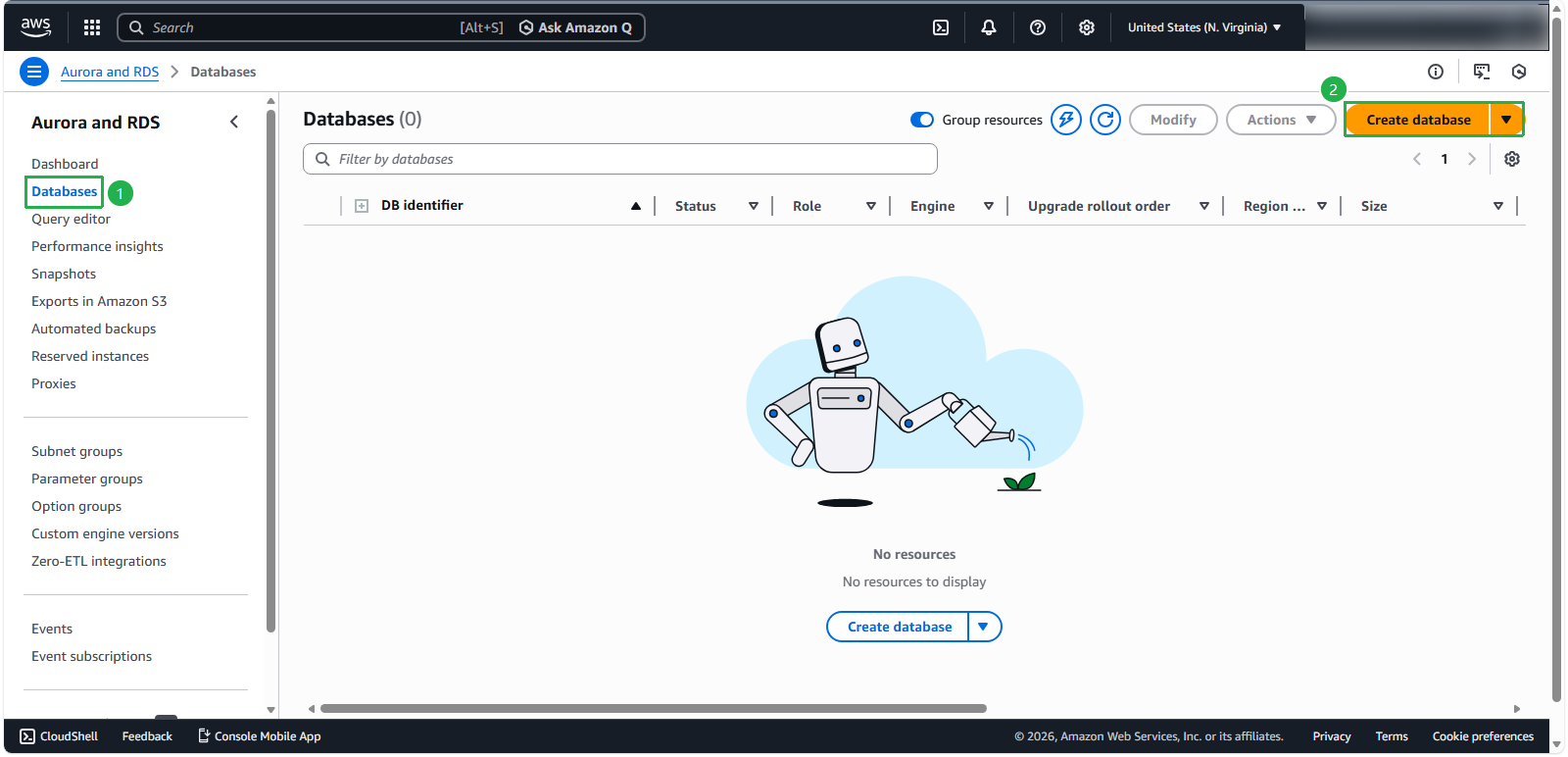
- Select Databases from the left navigation panel
- Click Create database
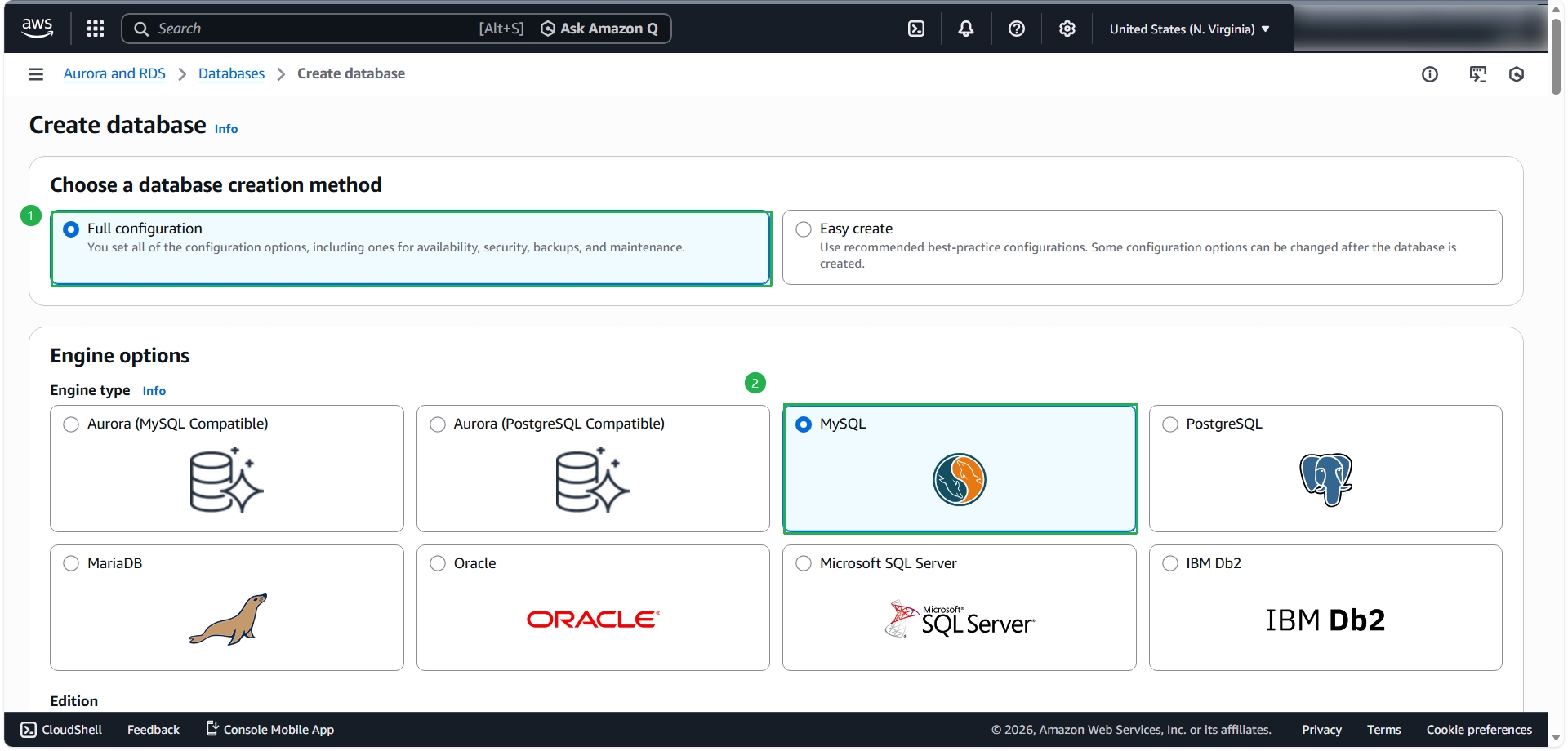
Select the database creation method:
- Select Full configuration
- Click MySQL
For Template: choose Production
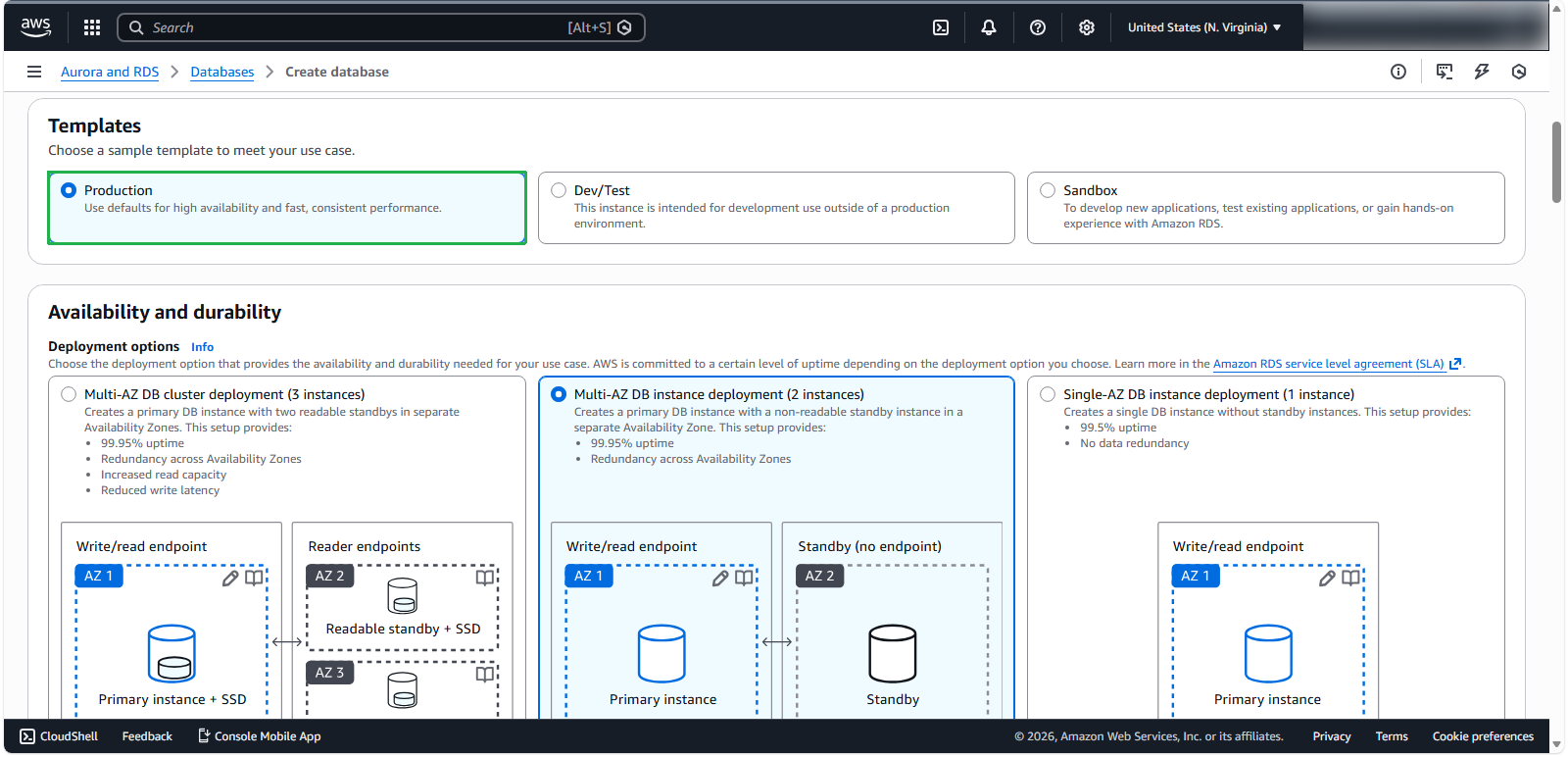
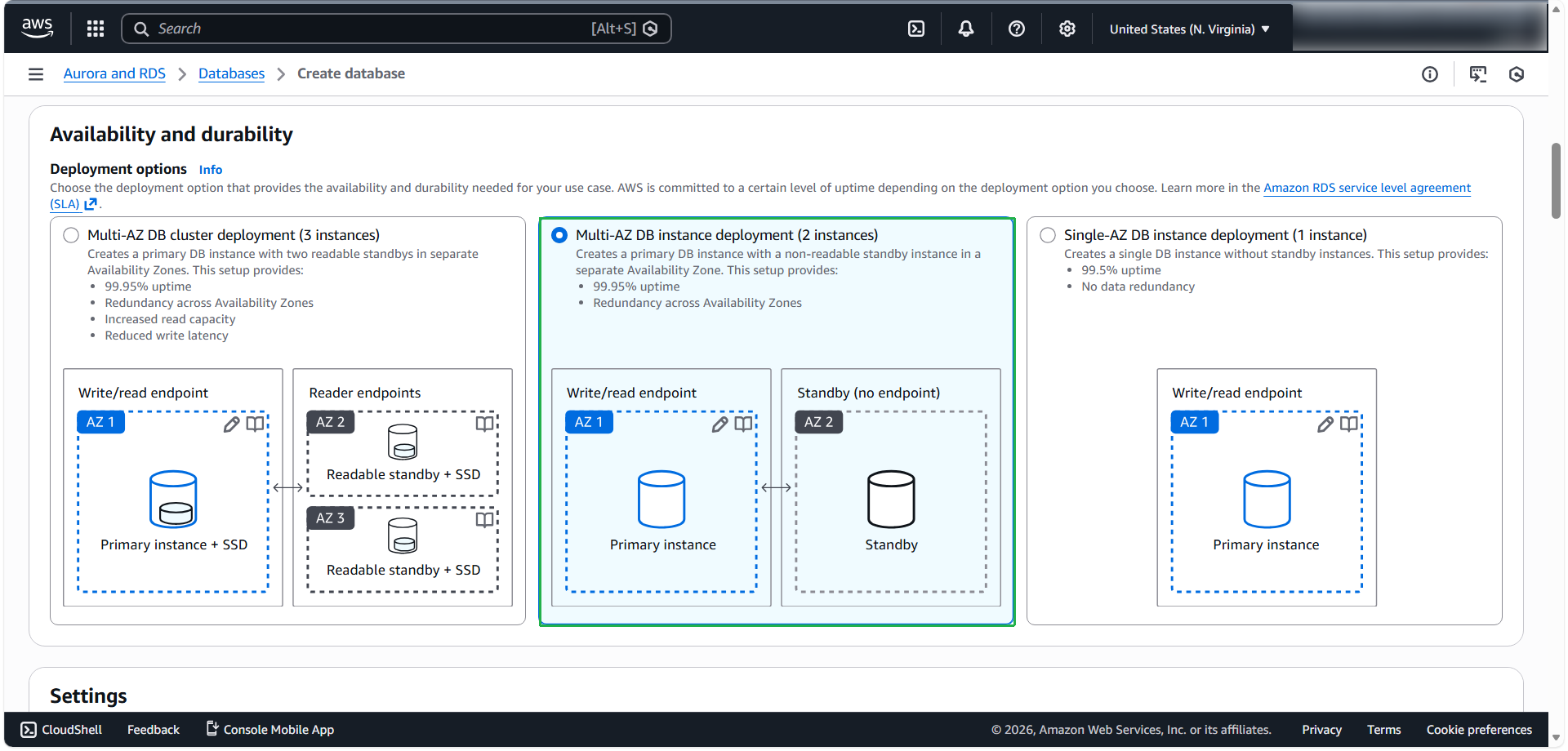
For Availability and durability: choose Multi-AZ DB instance deployment (2 instances)
💡 Pro tip: This option is primarily used for High Availability and Disaster Recovery. It provisions a standby instance in a different Availability Zone (AZ). Data written to the primary instance is synchronously replicated to the standby instance. In the event of an primary instance failure, Amazon RDS automatically fails over to the standby instance, ensuring minimal downtime and no data loss
Configure instance details:
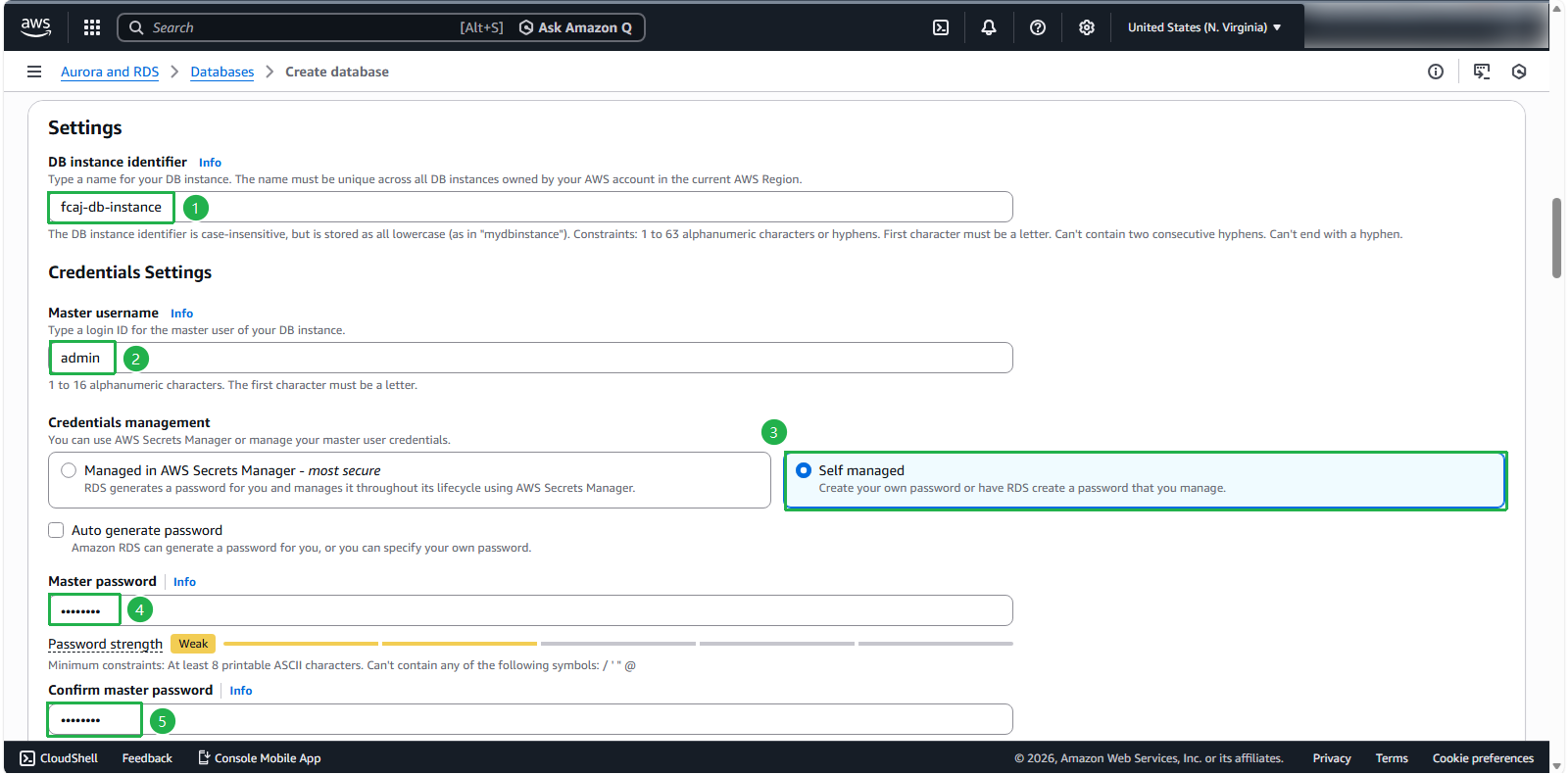
- For DB instance identifier, enter
fcaj-db-instance - For Master username, enter
admin - Select Self managed for credential management
- For Master password, enter a strong password (for this lab:
Aa12345#) - Confirm the password
- For DB instance identifier, enter
Configure instance specifications:
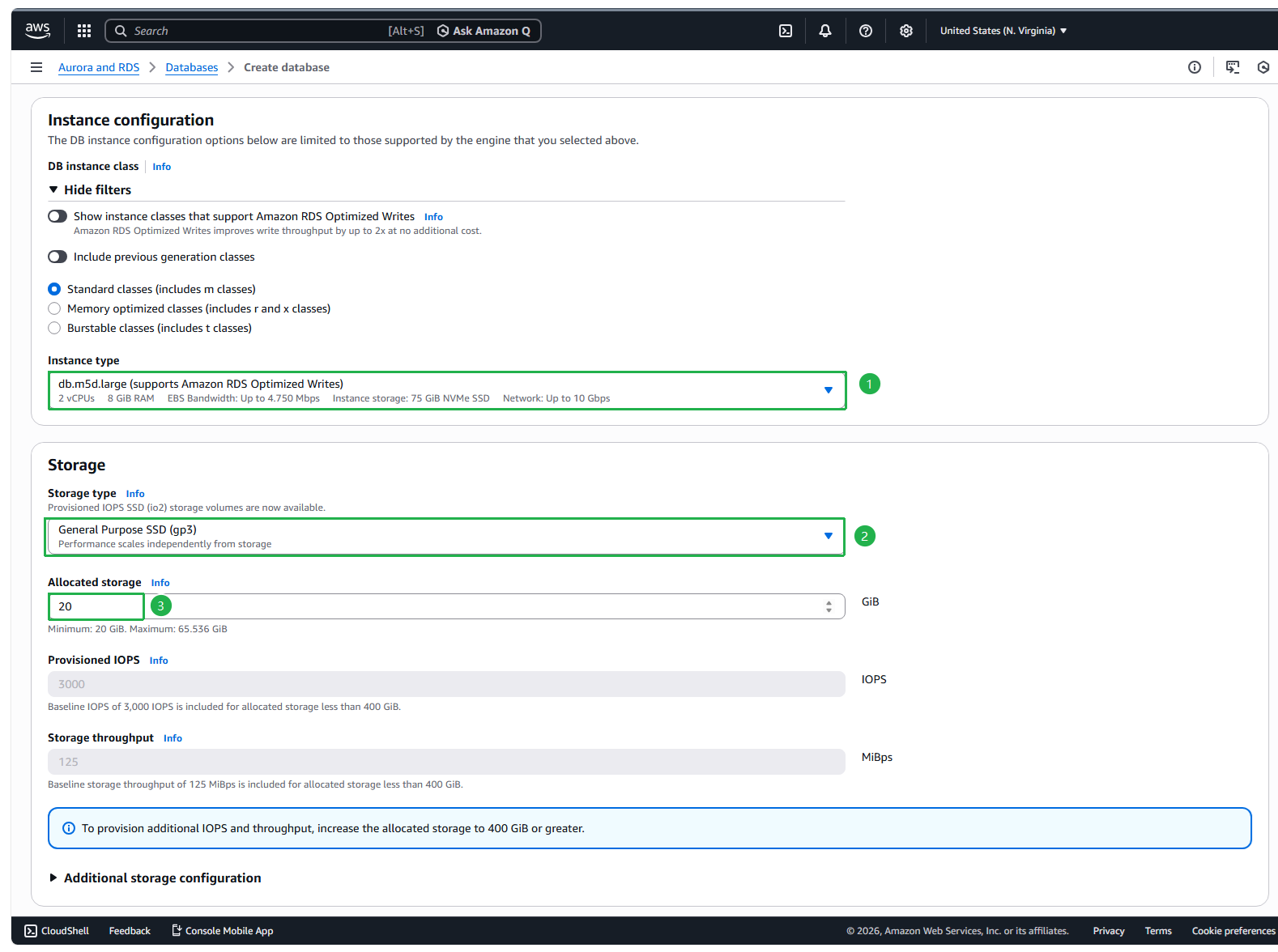
- Select
db.m5d.largefor the instance class - Choose General Purpose SSD (gp3) for storage type
- Set Allocated storage to
20GiB
- Select
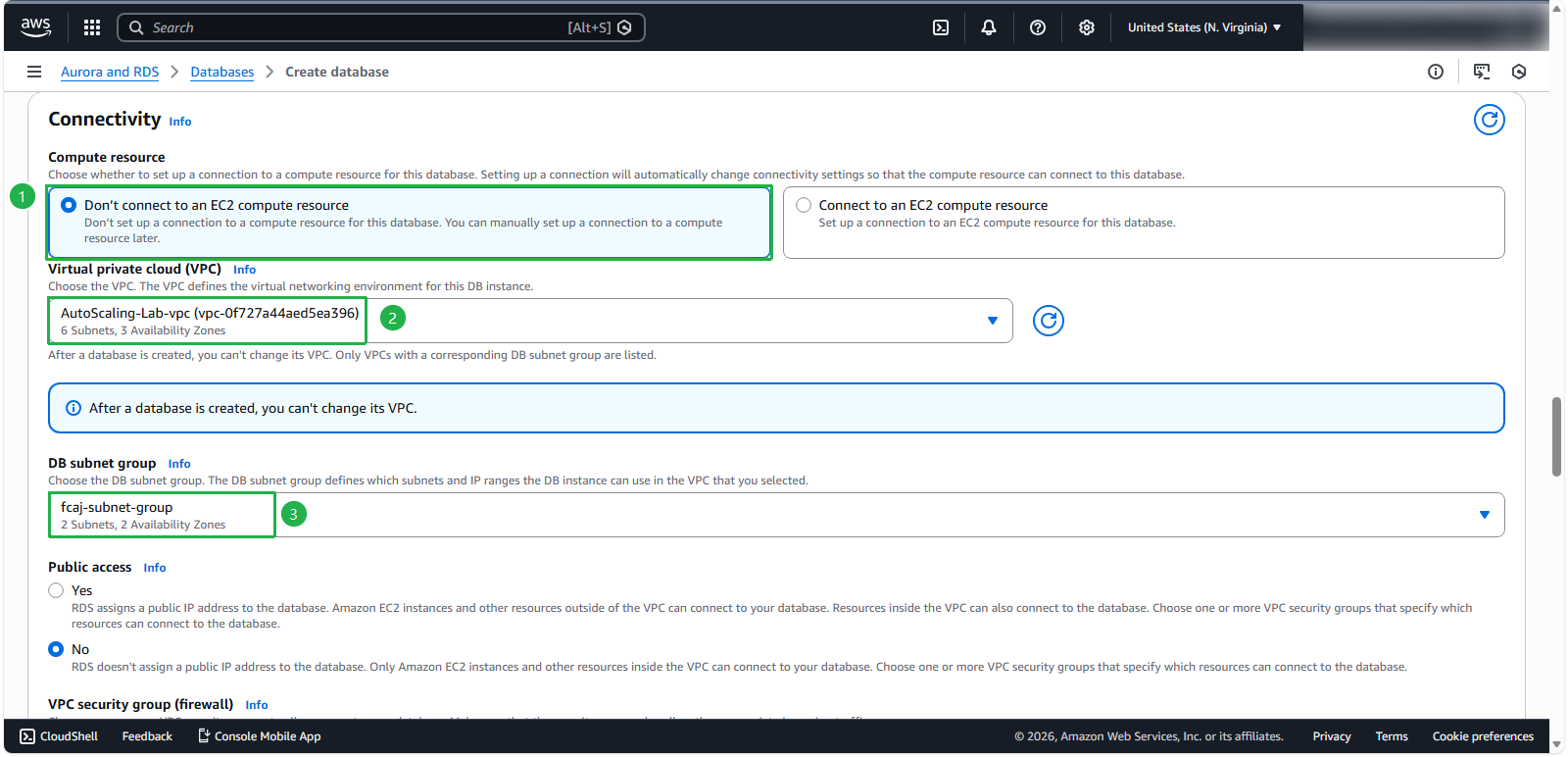
- Configure connectivity settings:
- Select Don’t connect to an EC2 compute resource
- For VPC, select your created VPC
- For Subnet group, choose the subnet group you created earlier
- Configure security settings:
- For VPC security group, select Choose existing
- For Security Group, select fcaj-db-sg
🔒 Security Note: Using dedicated security groups for your database tier helps maintain proper network segmentation and access control.
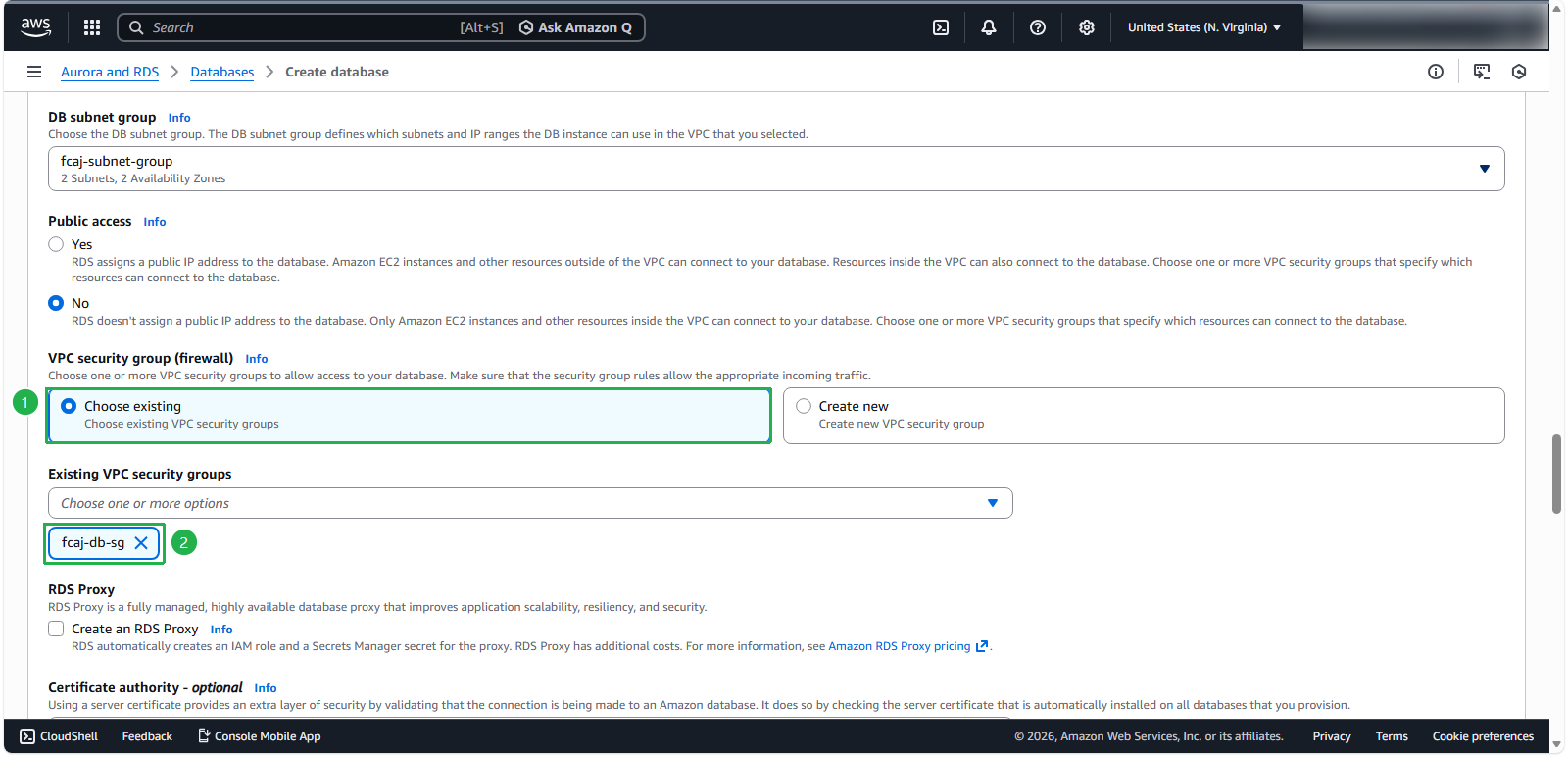
- Configure initial database settings:
- Set the initial database name to
fcaj - Leave other settings at their default values
- Set the initial database name to
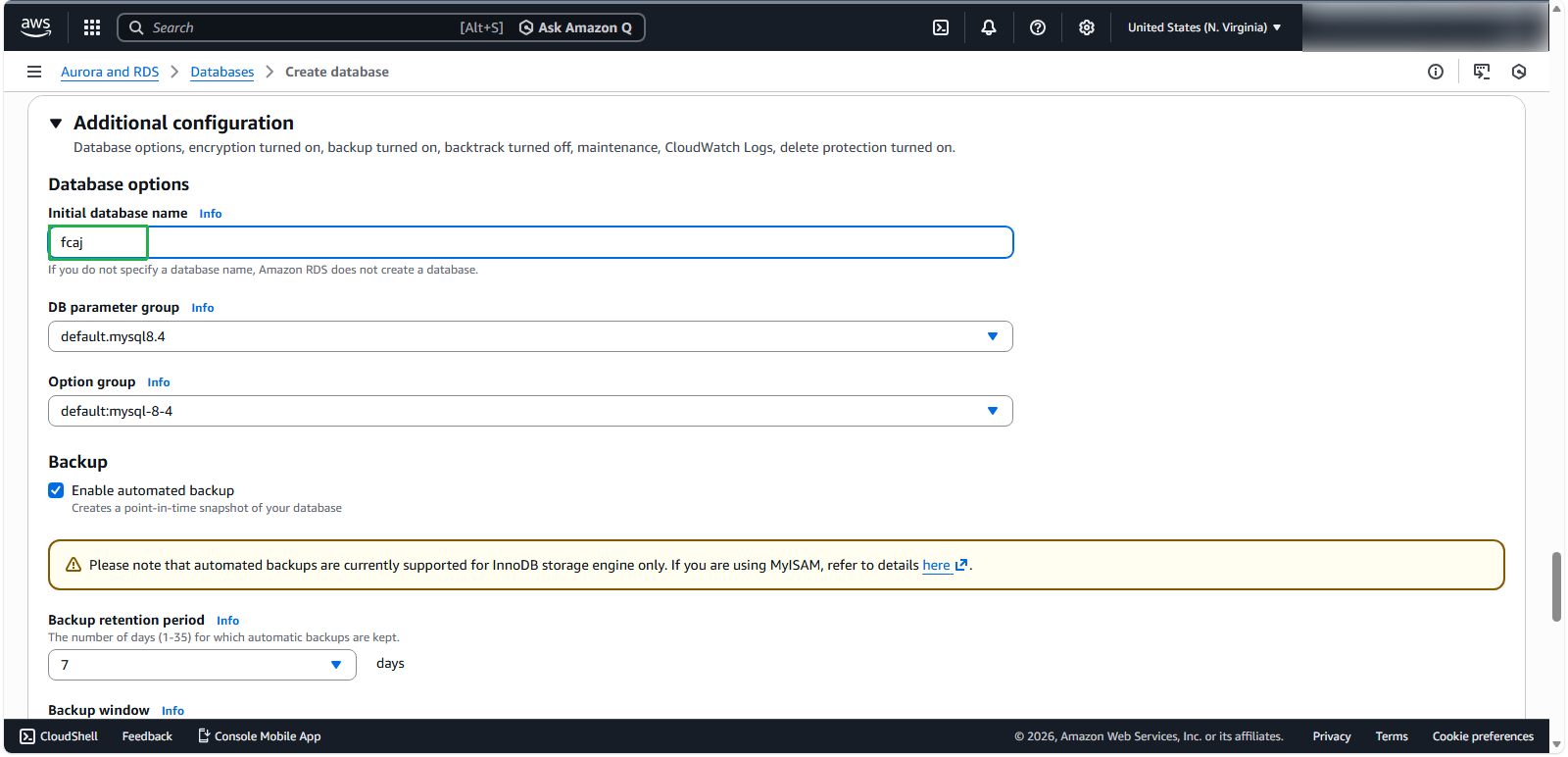
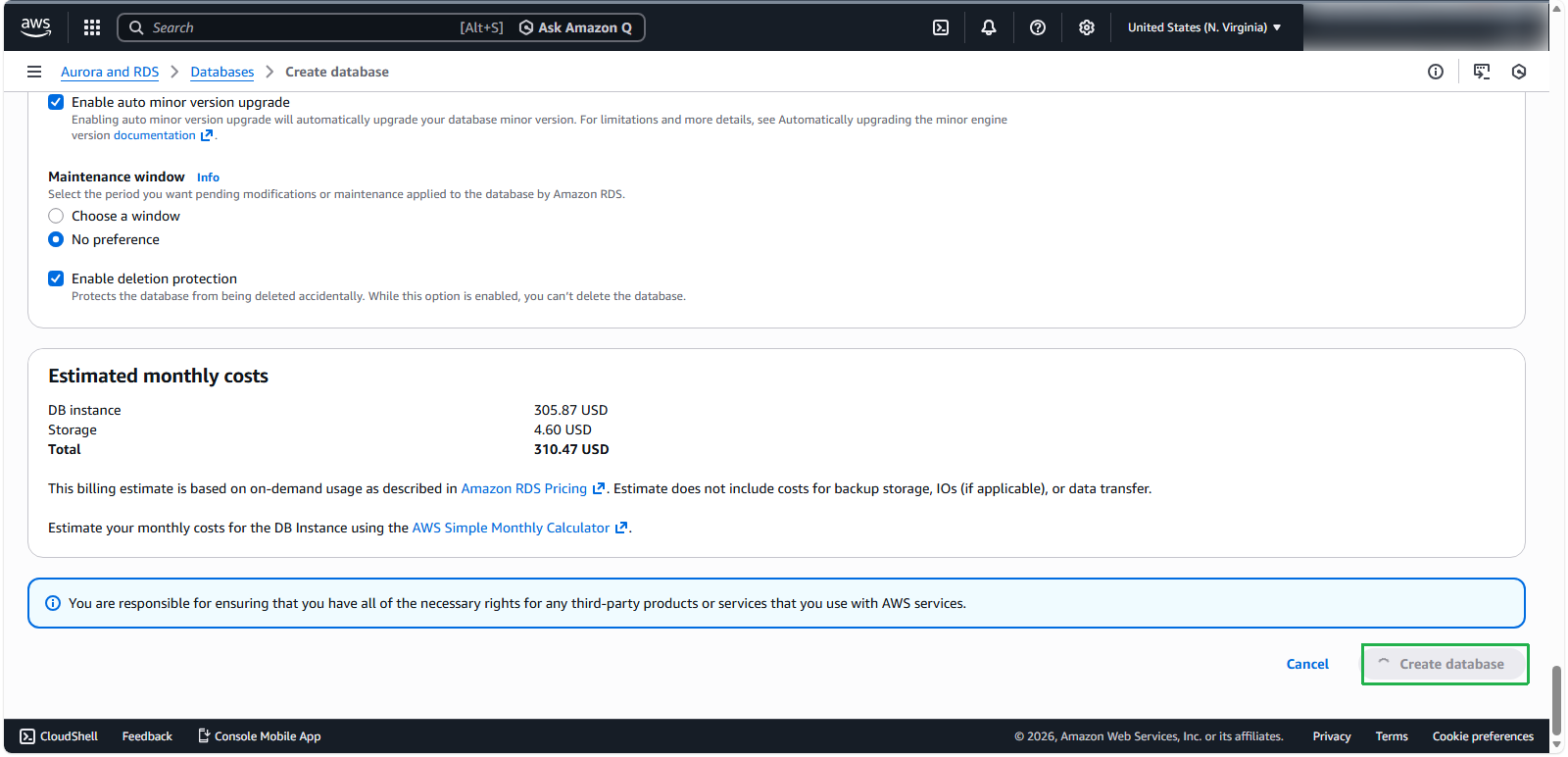
- Complete the database creation:
- Click Create database
- Verify successful database creation:
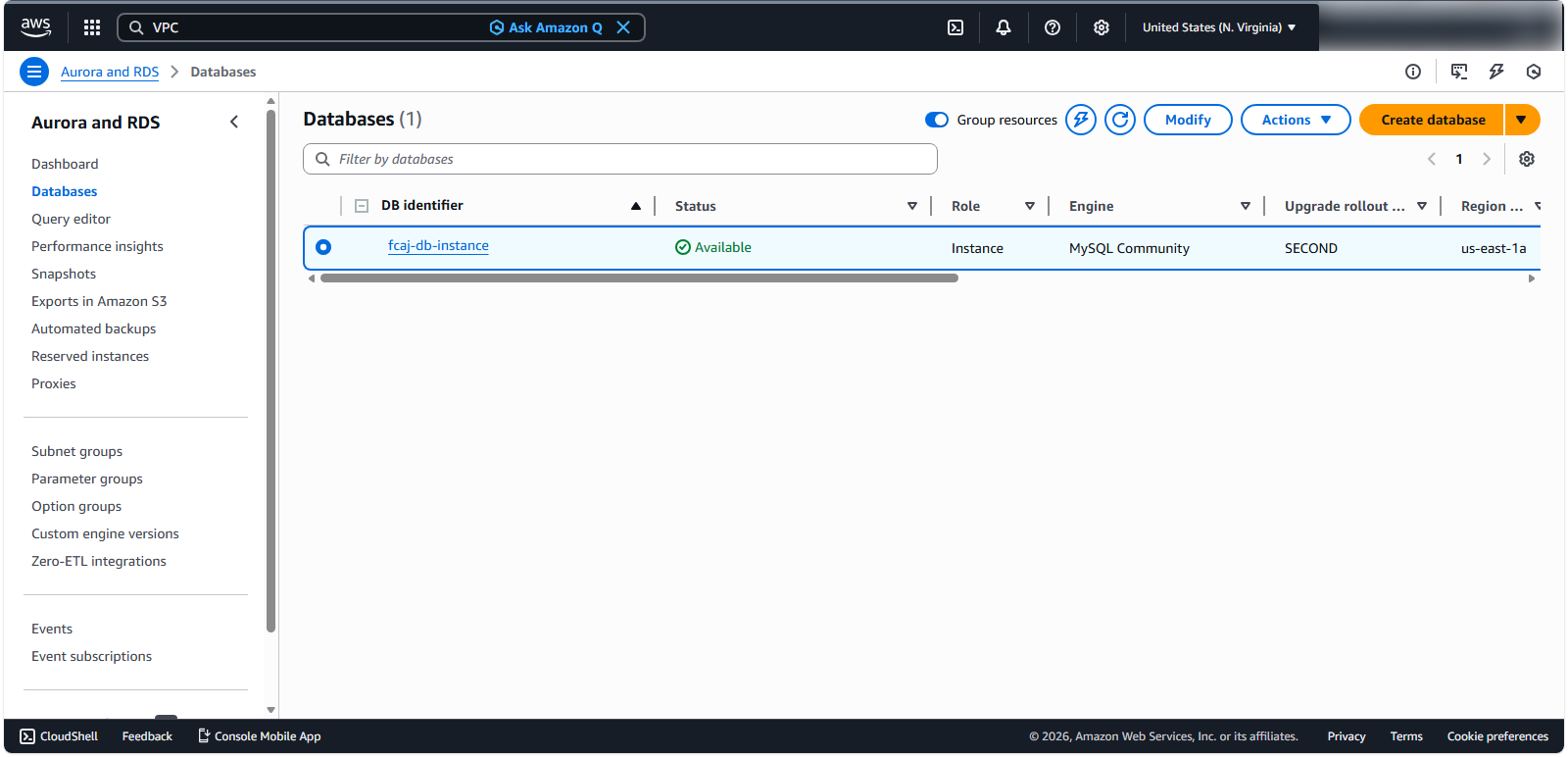
💡 Pro tip: You’ll need this endpoint information when configuring your application to connect to the database.