Setup data for Database
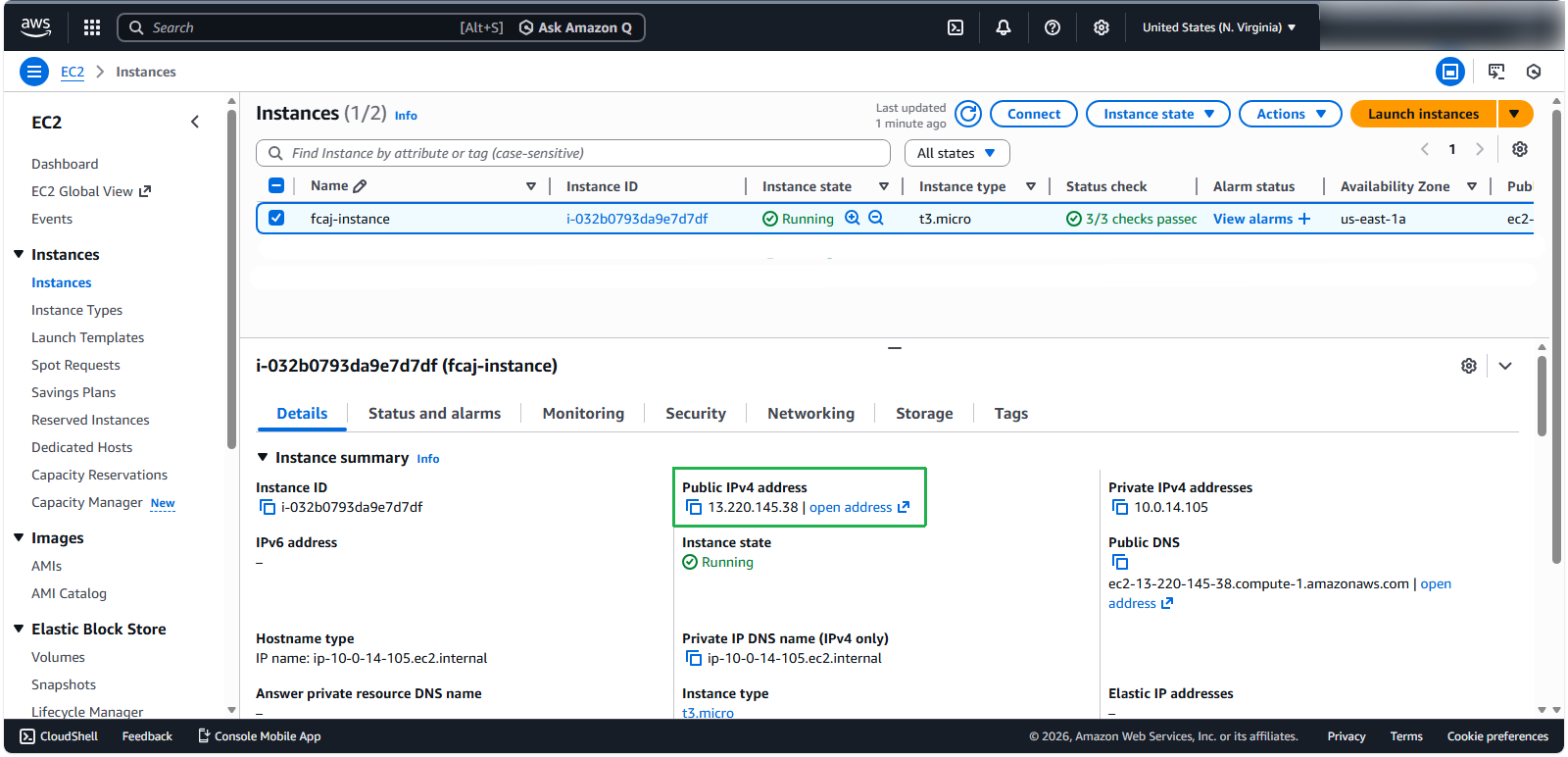
- Retrieve the Public IP address of the EC2 instance.
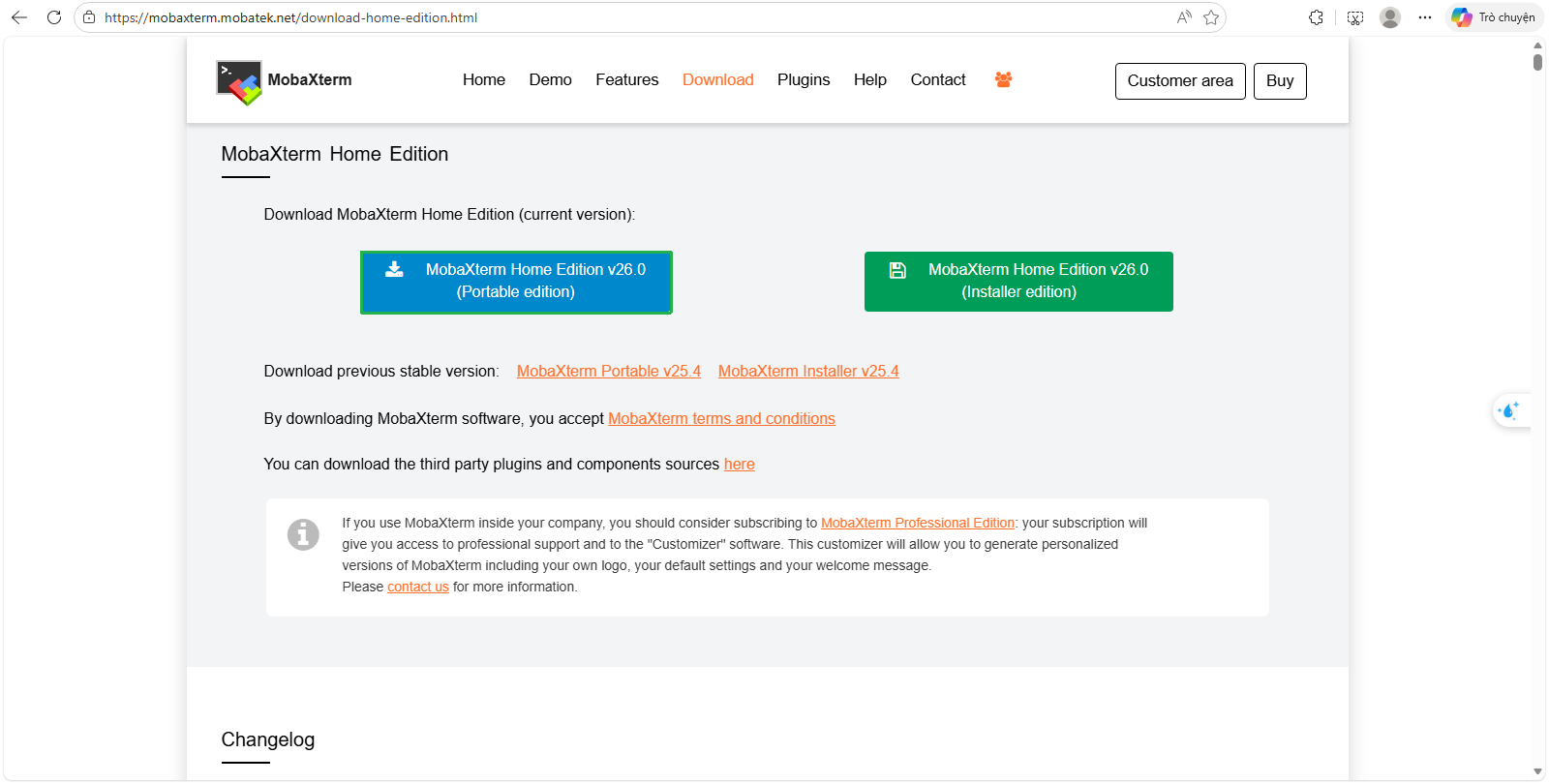
Download MobaXterm to connect to the instance via SSH on port 22
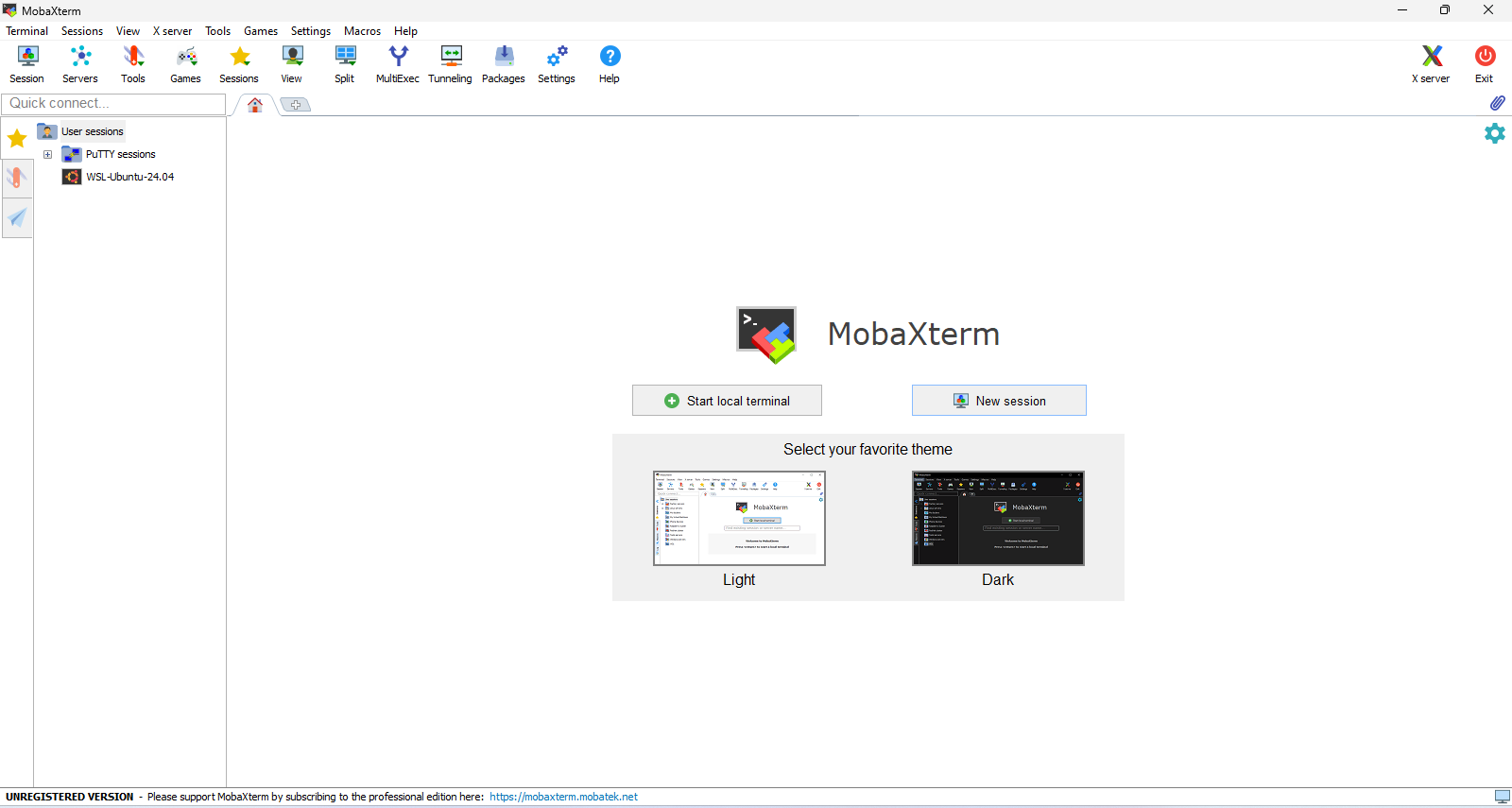
This is the interface of MobaXterm:
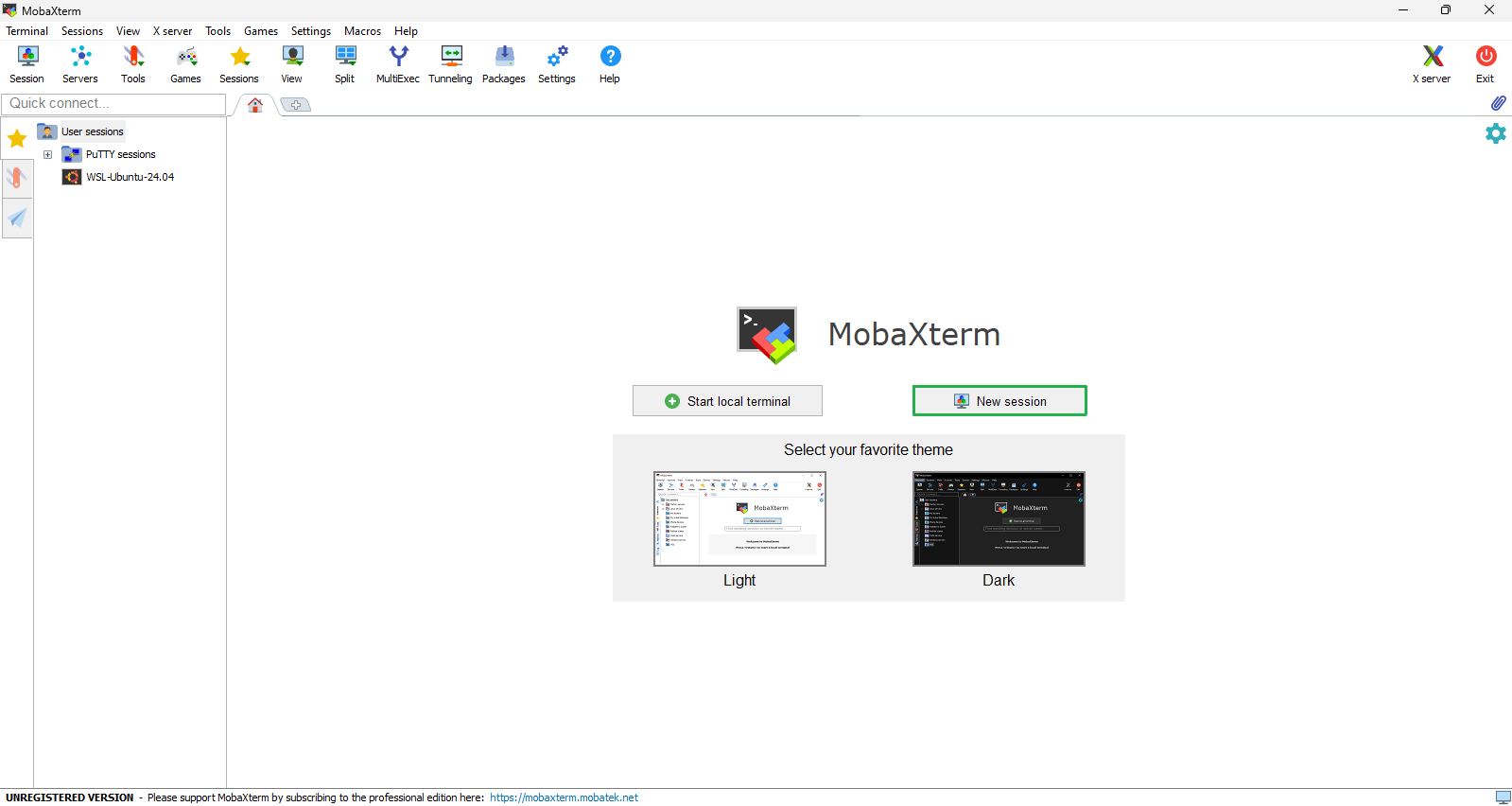
Choose New session
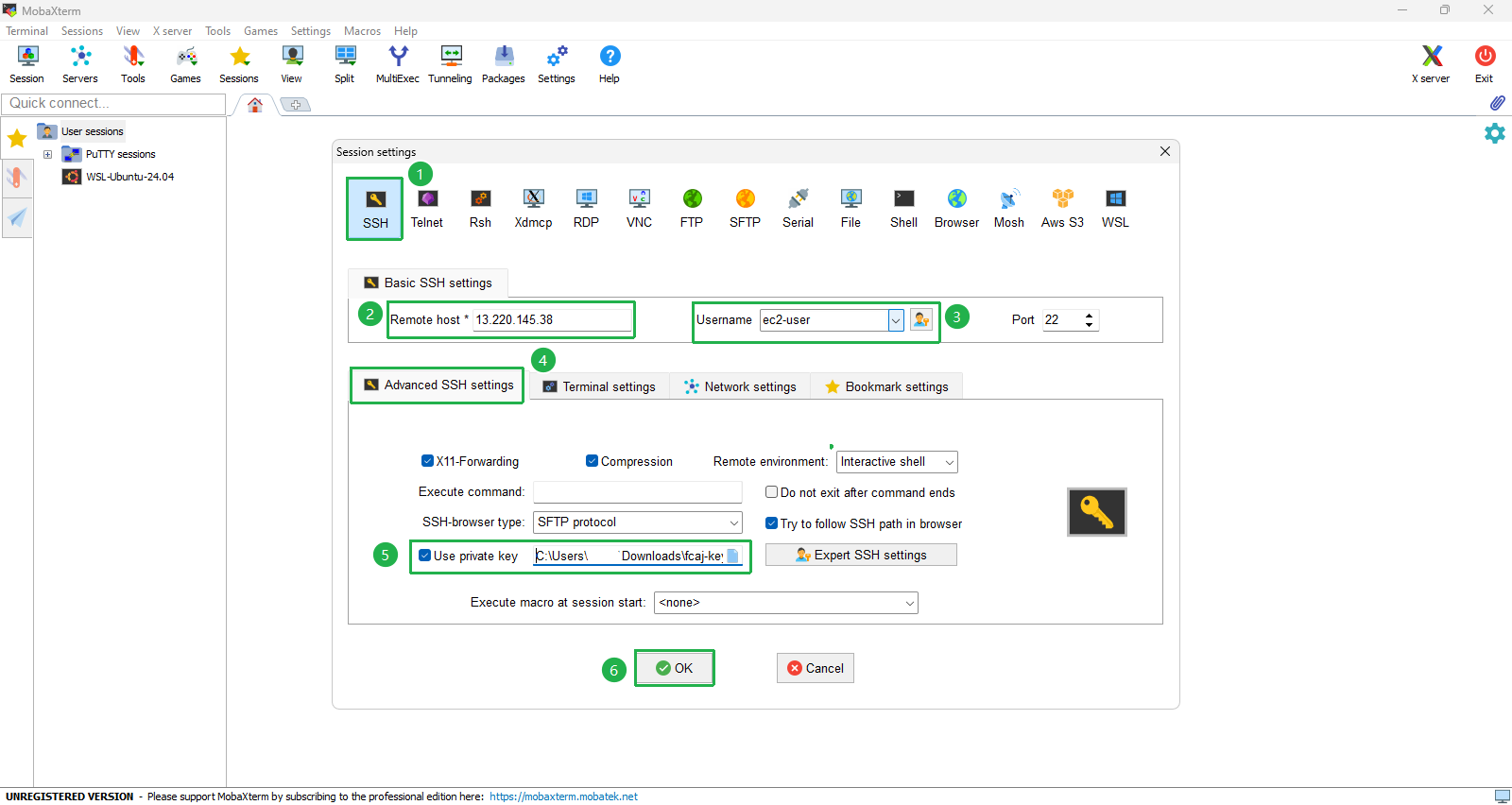
Create a new session in MobaXterm with the following configurations:
- Select SSH
- For Remote host, enter the Public IPv4 address retrieved from the instance
- For Specify username, enter
ec2-user - Verify port 22
- Select Advanced SSH settings
- Select Use private key and select keypair of instance.
- Click OK
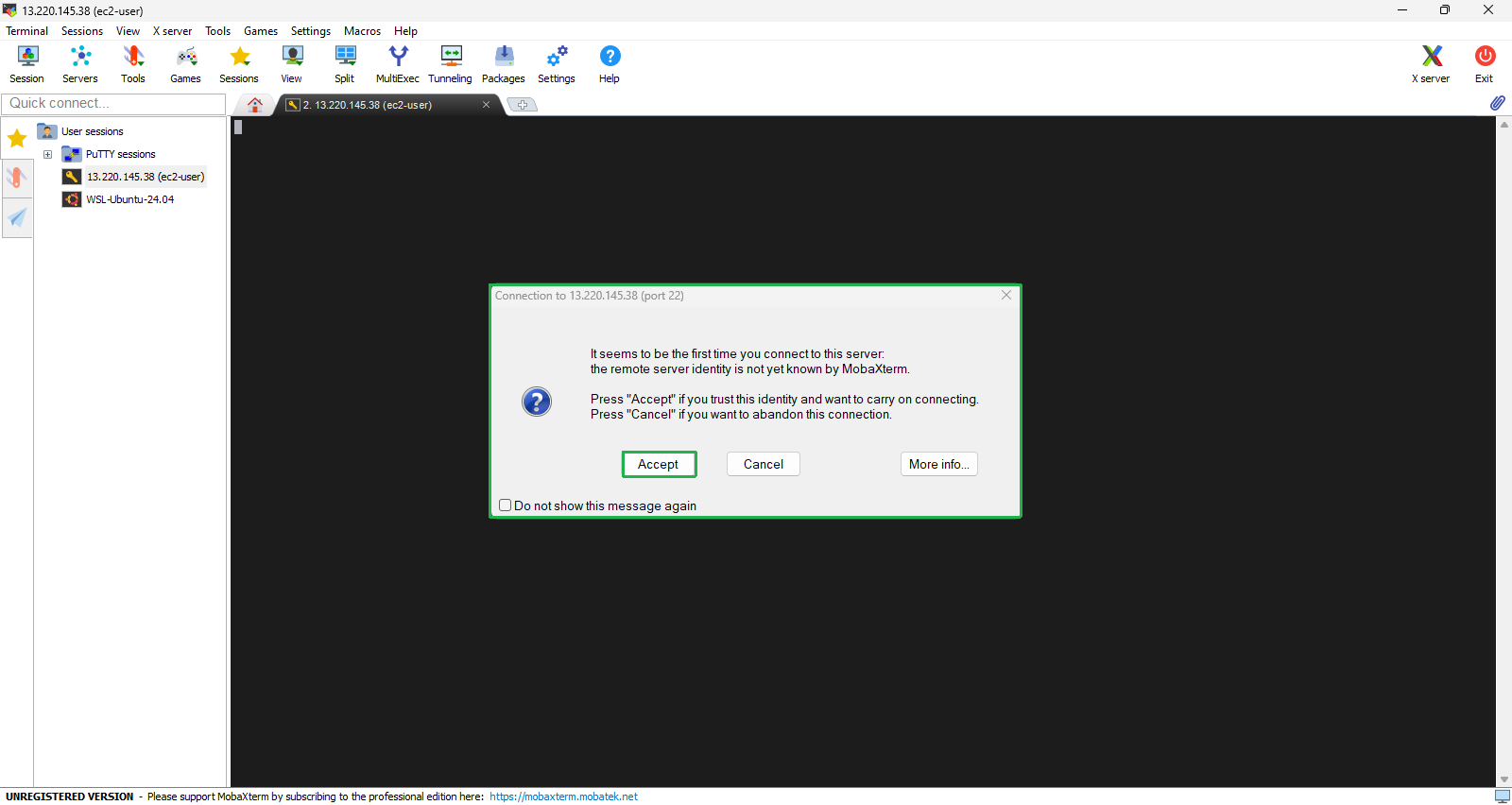
A warning will appear. Select Accept to begin the connection.
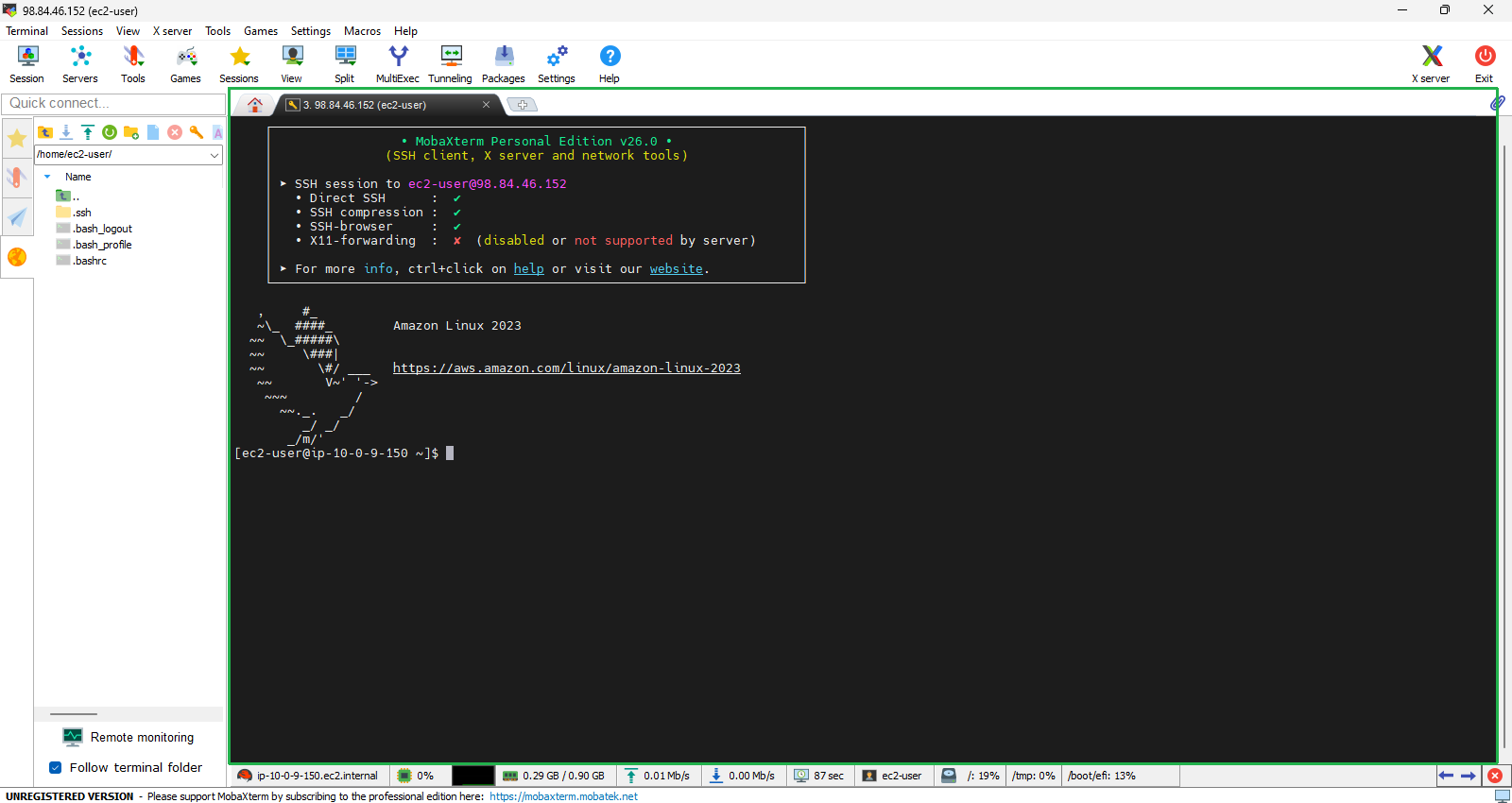
You did successfully SSH into fcaj-instance
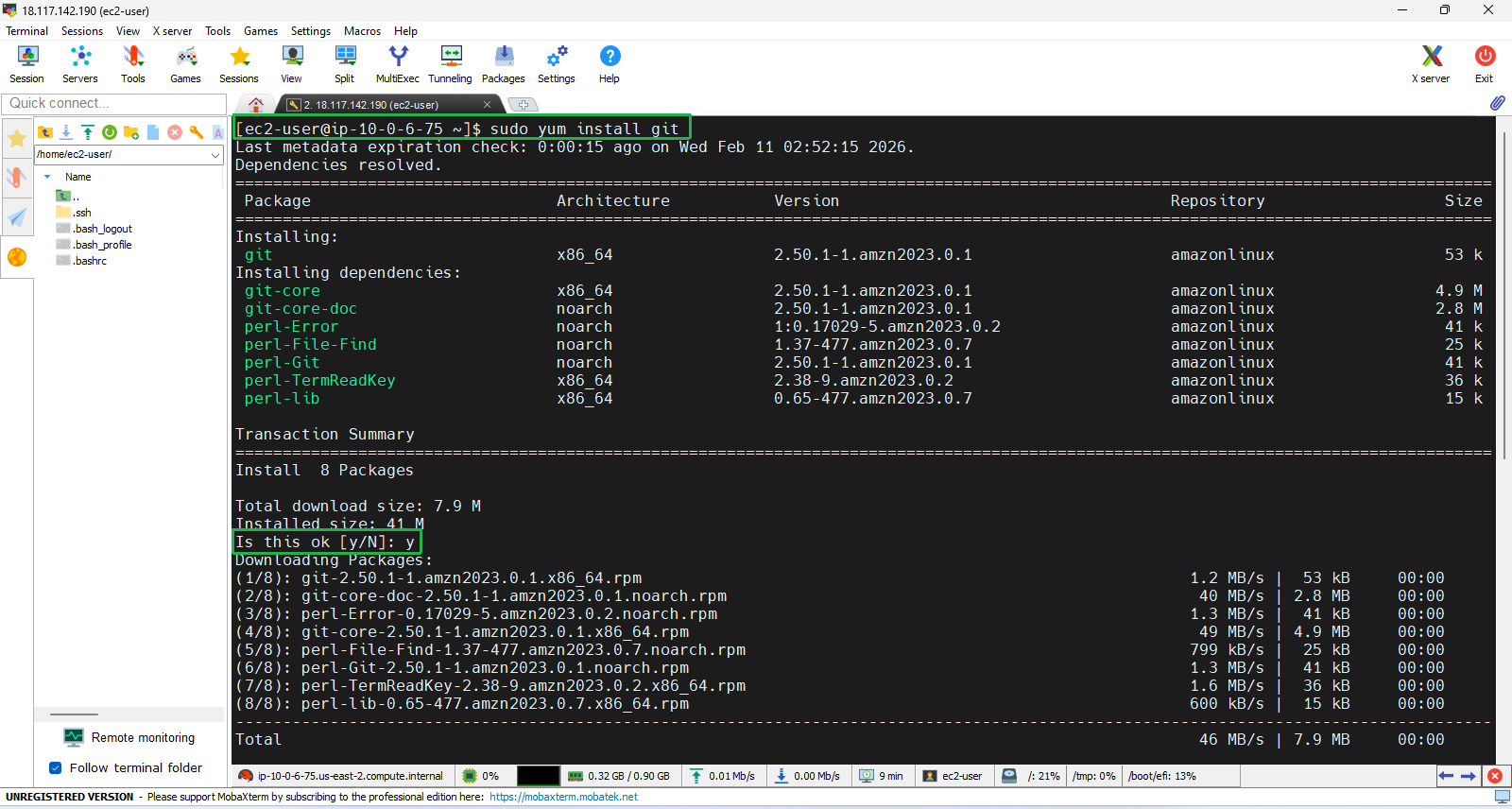
We use Git to clone the source code. First, install Git using the following command:
sudo yum install git
- Install MySQL command-line client
sudo dnf install mariadb105
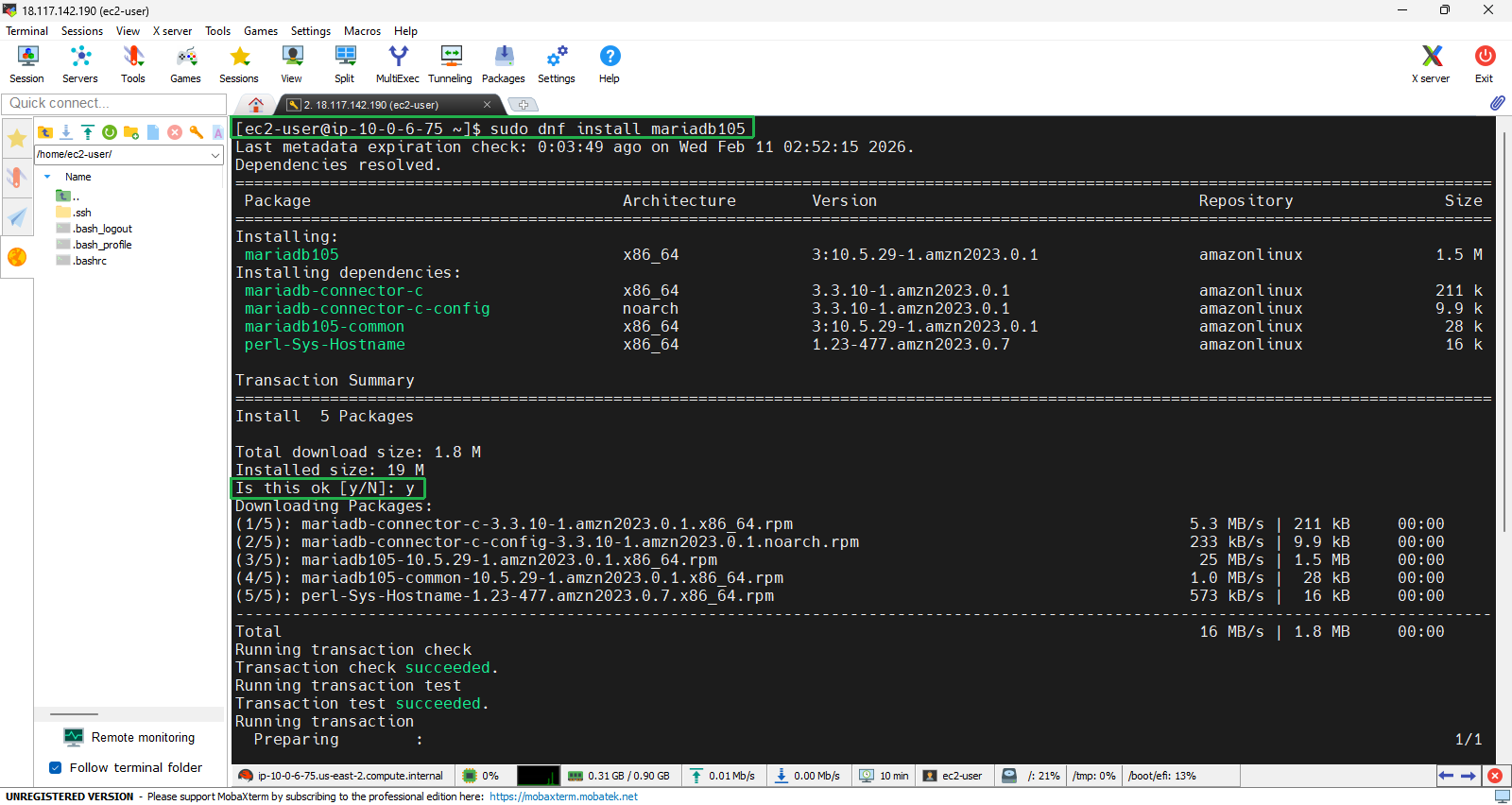
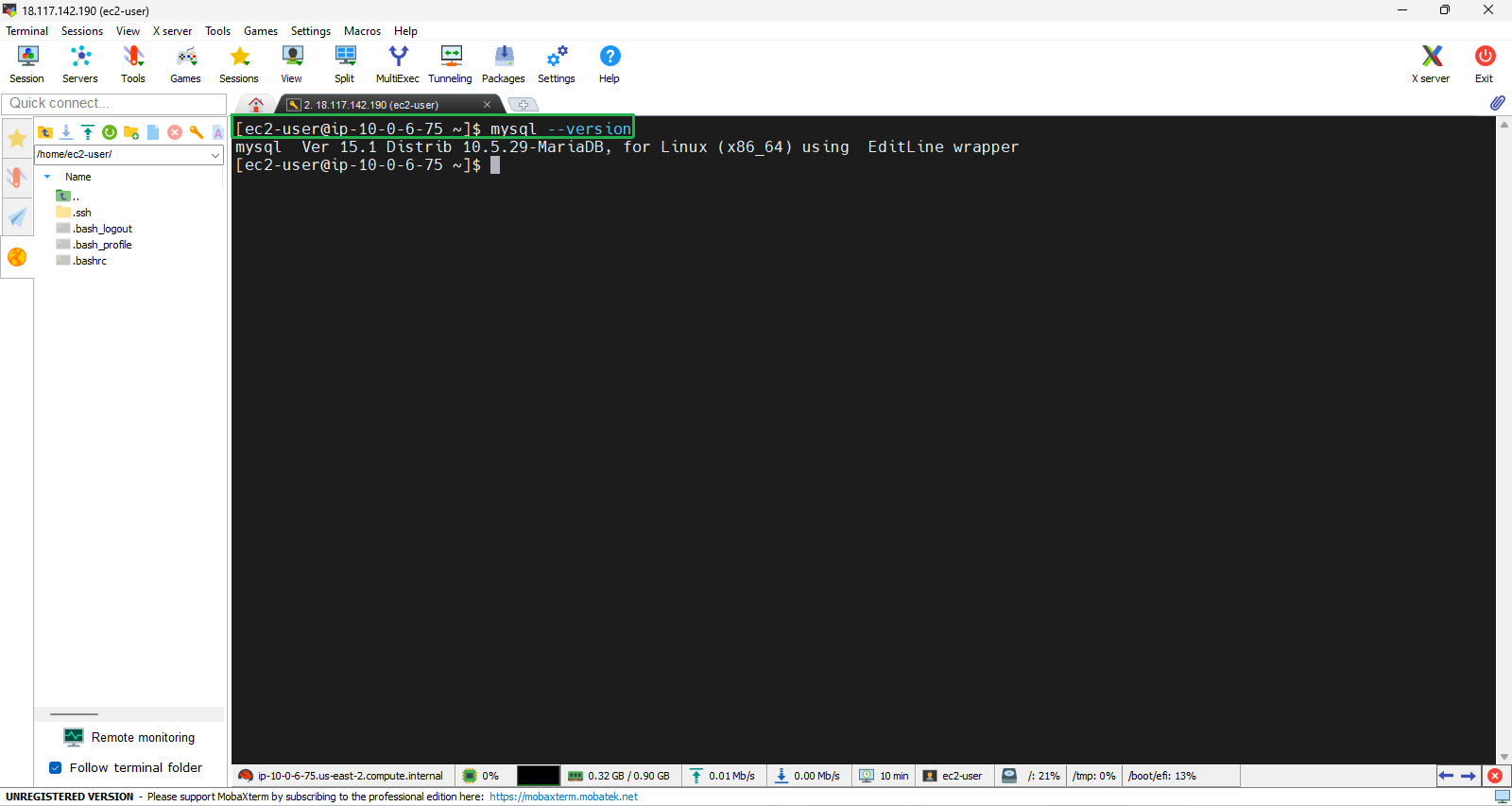
- Check if the installation was successful.
mysql --version
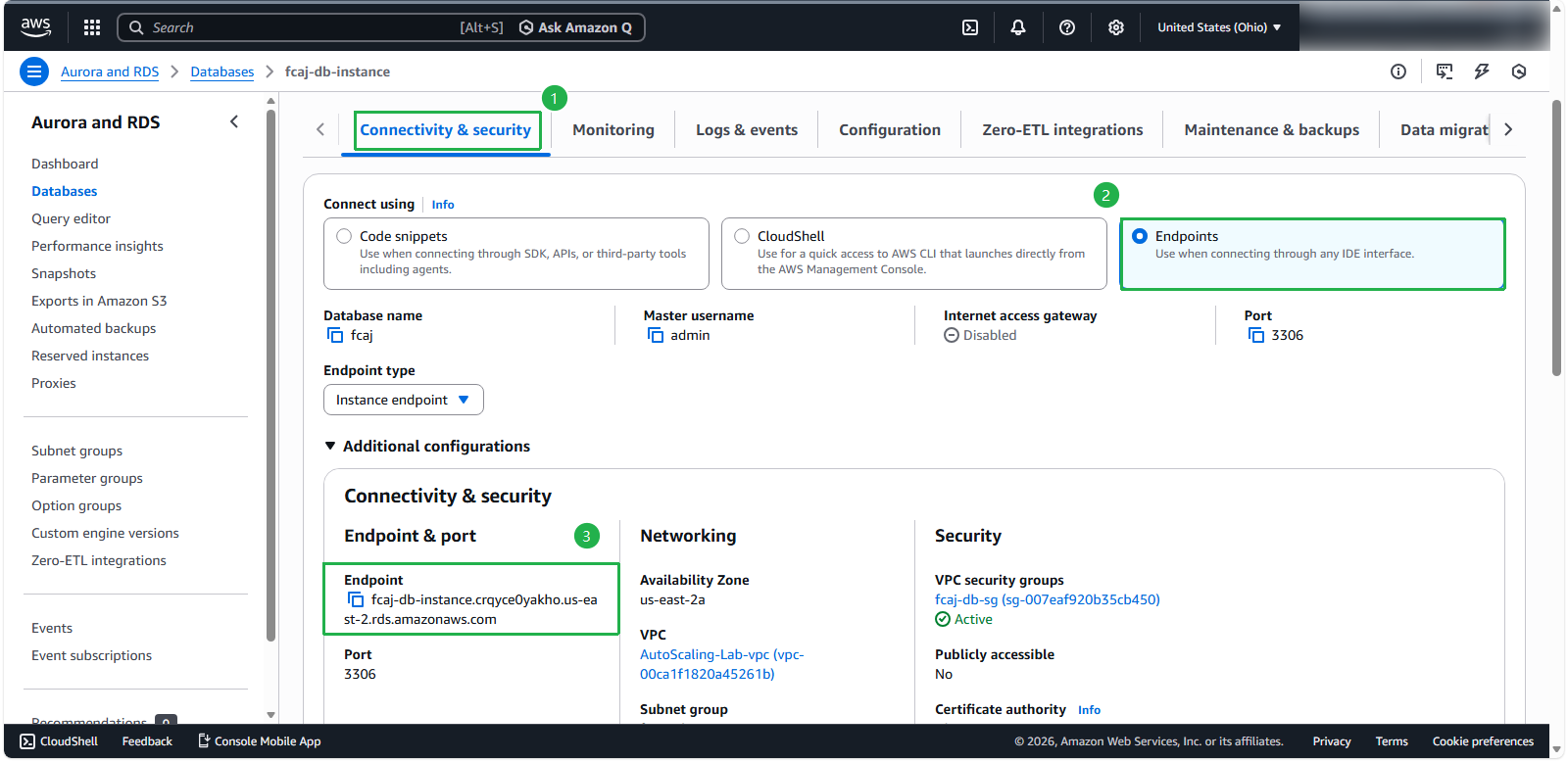
Come back to fcaj-db-instance.
- Scroll down to Connectivity & security section, choose Endpoints
- Copy Endpoint
Connect to the MySQL command-line client (unencrypted)
- For the -h parameter, replace it with the DNS name (endpoint) of the DB instance. You can find the DNS name in the detail console of the RDS you created.
- For the -P parameter, replace it with the port for the DB instance (3306).
- For the -u parameter, replace it with the master user you set when creating the RDS.
- After running the command, enter the master user password that you set during the creation of the RDS.
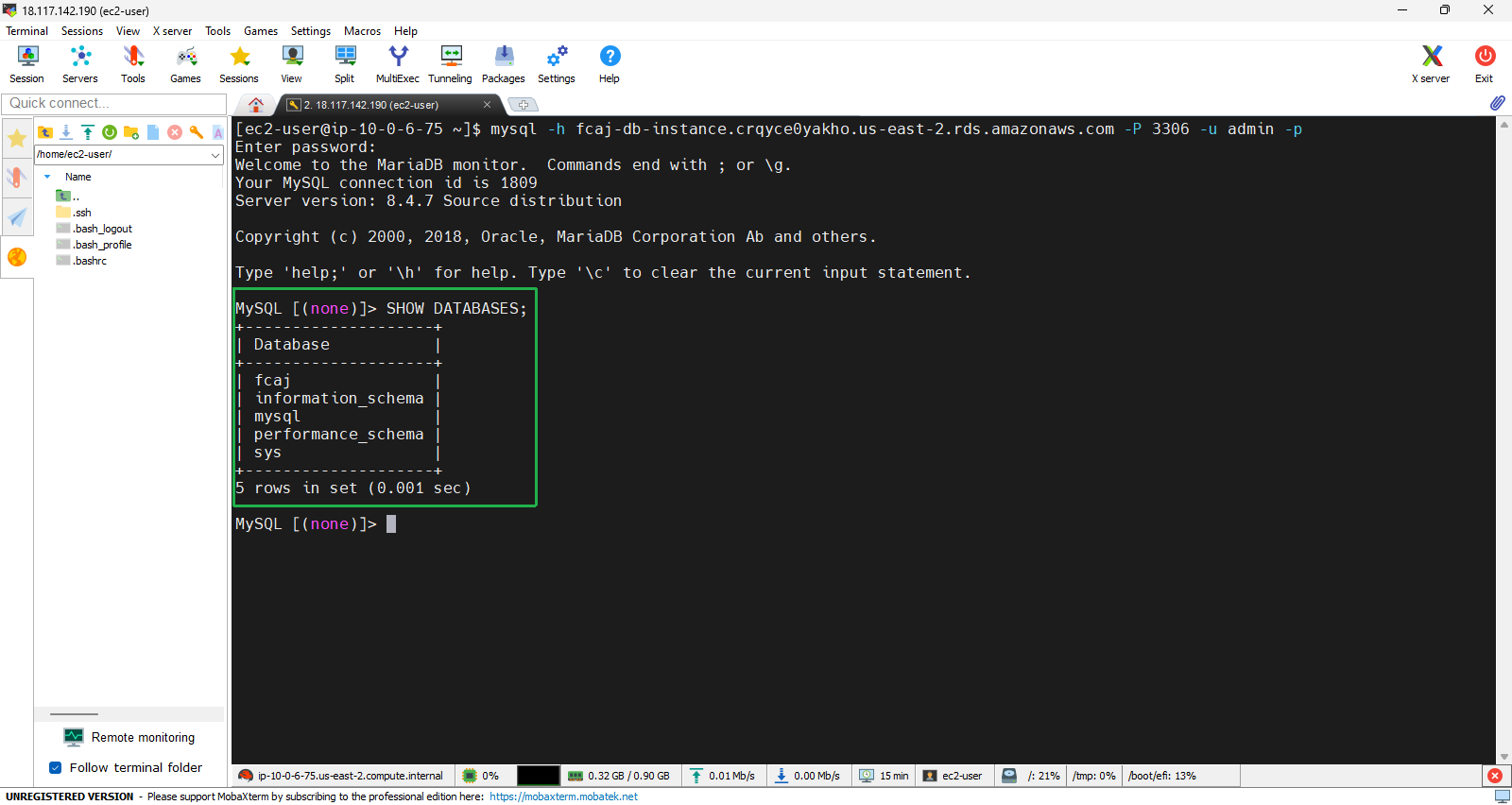
mysql -h [YOUR-RDS-ENDPOINT] -P 3306 -u admin -p
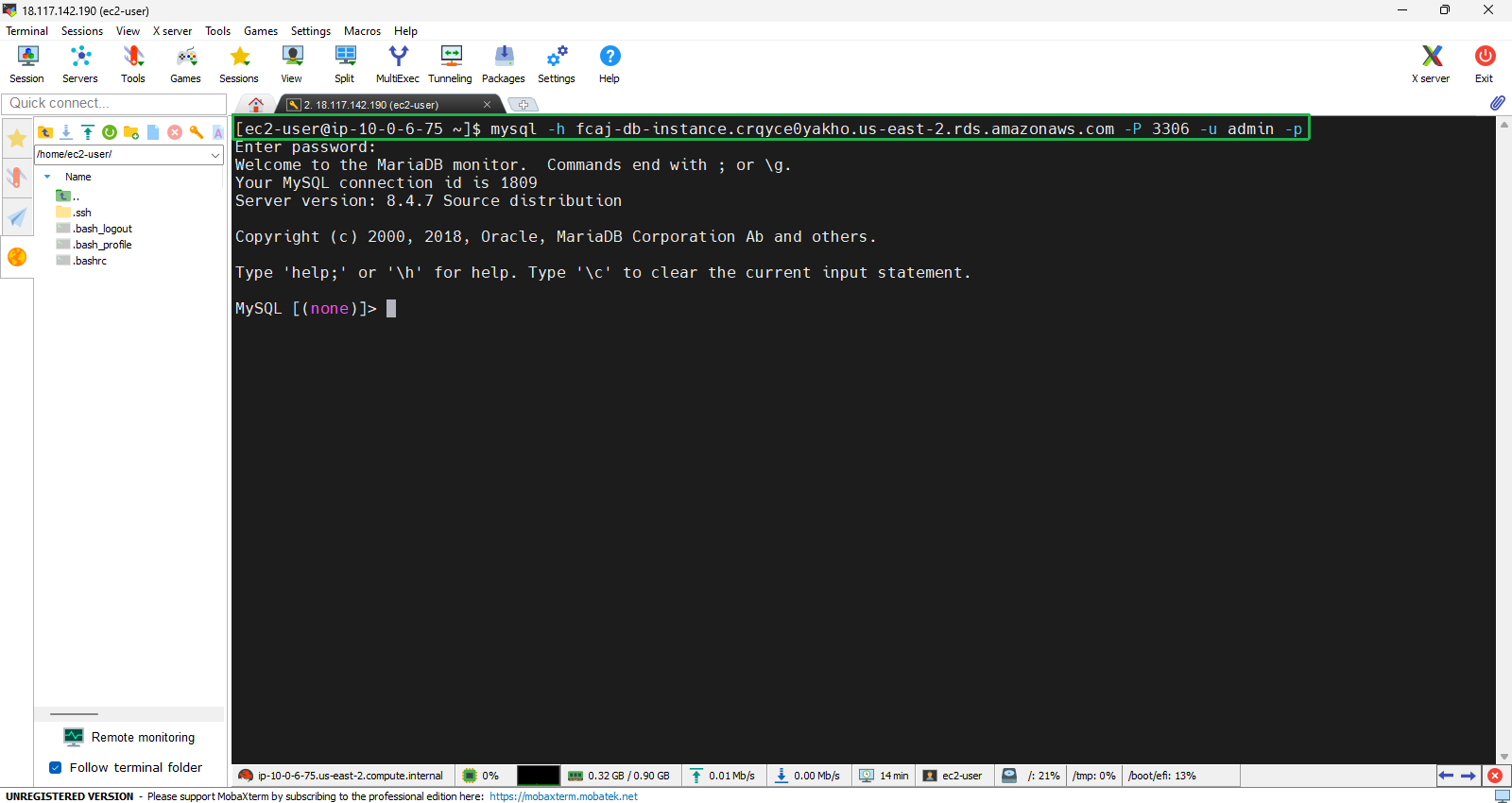
- Successfully connected to the DB instance. Proceed to check the databases within the instance using the command, which will display a list of all databases.
SHOW DATABASES;
- Select the database to make changes by using the USE command; use the initial database that you created when setting up the RDS.
USE fcaj;
- Create a table in the fcaj database using the CREATE TABLE command.
CREATE TABLE `fcaj`.`user` ( `id` INT NOT NULL AUTO_INCREMENT , `first_name` VARCHAR(45) NOT NULL , `last_name` VARCHAR(45) NOT NULL , `email` VARCHAR(45) NOT NULL , `phone` VARCHAR(45) NOT NULL , `comments` TEXT NOT NULL , `status` VARCHAR(10) NOT NULL DEFAULT 'active' , PRIMARY KEY (`id`)) ENGINE = InnoDB;
- Insert information into the table using the INSERT INTO command
INSERT INTO `user`
(`id`, `first_name`,  `last_name`,    `email`,                 `phone`,         `comments`, `status`) VALUES
(NULL, 'Amanda',      'Nunes',        'anunes@ufc.com',        '012345 678910', '',          'active'),
(NULL, 'Alexander',   'Volkanovski',  'avolkanovski@ufc.com',  '012345 678910', '',          'active'),
(NULL, 'Khabib',      'Nurmagomedov', 'knurmagomedov@ufc.com', '012345 678910', '',          'active'),
(NULL, 'Kamaru',      'Usman',        'kusman@ufc.com',        '012345 678910', '',          'active'),
(NULL, 'Israel',      'Adesanya',     'iadesanya@ufc.com',     '012345 678910', '',          'active'),
(NULL, 'Henry',       'Cejudo',       'hcejudo@ufc.com',       '012345 678910', '',          'active'),
(NULL, 'Valentina',   'Shevchenko',   'vshevchenko@ufc.com',   '012345 678910', '',          'active'),
(NULL, 'Tyron',       'Woodley',      'twoodley@ufc.com',      '012345 678910', '',          'active'),
(NULL, 'Rose',        'Namajunas ',   'rnamajunas@ufc.com',    '012345 678910', '',          'active'),
(NULL, 'Tony',        'Ferguson ',    'tferguson@ufc.com',     '012345 678910', '',          'active'),
(NULL, 'Jorge',       'Masvidal ',    'jmasvidal@ufc.com',     '012345 678910', '',          'active'),
(NULL, 'Nate',        'Diaz ',        'ndiaz@ufc.com',         '012345 678910', '',          'active'),
(NULL, 'Conor',       'McGregor ',    'cmcGregor@ufc.com',     '012345 678910', '',          'active'),
(NULL, 'Cris',        'Cyborg ',      'ccyborg@ufc.com',       '012345 678910', '',          'active'),
(NULL, 'Tecia',       'Torres ',      'ttorres@ufc.com',       '012345 678910', '',          'active'),
(NULL, 'Ronda',       'Rousey ',      'rrousey@ufc.com',       '012345 678910', '',          'active'),
(NULL, 'Holly',       'Holm ',        'hholm@ufc.com',         '012345 678910', '',          'active'),
(NULL, 'Joanna',      'Jedrzejczyk ', 'jjedrzejczyk@ufc.com',  '012345 678910', '',          'active');
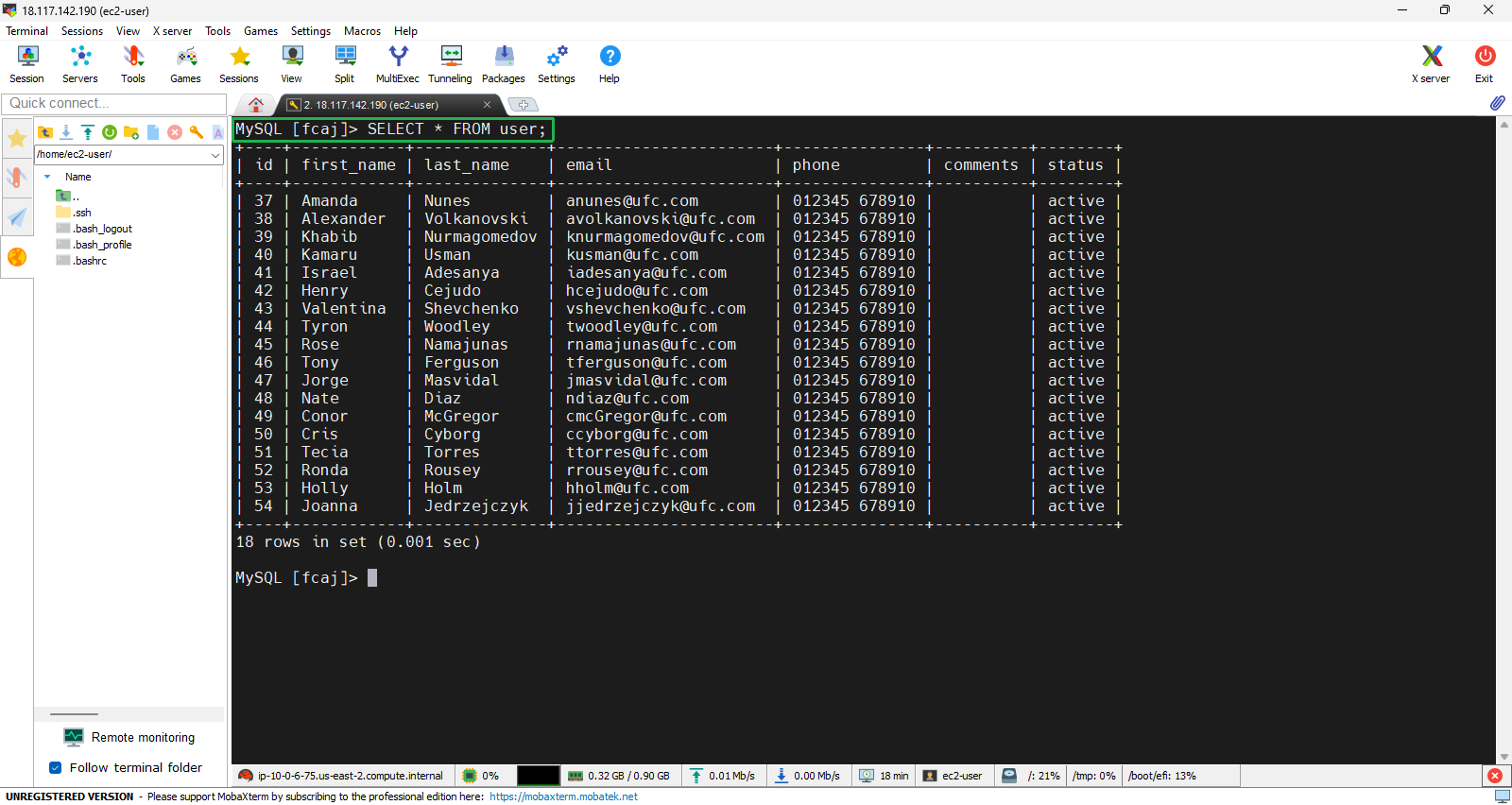
- Use the SELECT command to display the table.
SELECT * FROM user;
- Use exit to leave. If you are unable to disconnect from the DB instance, use the key combination Ctrl+C.